> ## Documentation Index
> Fetch the complete documentation index at: https://docs.asapp.com/llms.txt
> Use this file to discover all available pages before exploring further.

# HILA Secure Forms

> Learn how human-in-the-loop agents collect sensitive customer information in-channel during a GenerativeAgent conversation.

HILA Secure Forms allow a [Human-in-the-Loop Agent (HILA)](/generativeagent/human-in-the-loop) to collect sensitive information from a customer without leaving the messaging conversation. The HILA sends a form to the customer's chat, the customer submits the details, and ASAPP stores the submitted values in an encrypted format.

Without Secure Forms, collecting details such as a card number or a government ID requires moving the customer to another channel. This adds delay and customer friction, and it often forces an escalation to a live agent for a task GenerativeAgent could otherwise complete.

HILA Secure Forms provide:

* **Compliance and data security**: Sensitive inputs are encrypted, and submitted data never appears in plain text in chat transcripts or conversation logs. Agent visibility is limited to a configurable window, reducing regulatory and audit risk.
* **Higher resolution and containment**: HILAs collect sensitive details in-channel and fully resolve interactions without unnecessary live agent escalations.
* **Lower operational costs**: HILAs handle a broader range of interactions directly, reducing handoffs and the labor cost of live agent routing.
* **In-context customer experience**: The form is embedded in the customer's messaging SDK interface, so customers submit sensitive details without switching channels or exiting the active conversation.

## How it works

1. The Customer initiates a conversation with GenerativeAgent, and the agent determines that it needs sensitive information to complete the task.

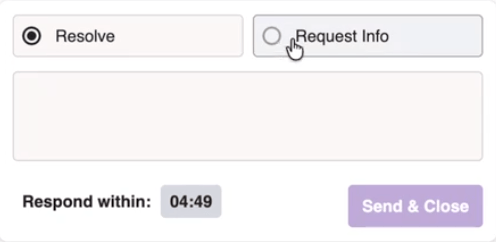
2. The agent toggles to **Request Info** as the input mode.

   <Frame>
     <img src="https://mintcdn.com/asapp/FPmFSQ-LXIidqd0J/images/generativeagent/SecureForms1.png?fit=max&auto=format&n=FPmFSQ-LXIidqd0J&q=85&s=6941046262167ea05c499ccfbc2792eb" alt="Agent Desk input area with the Request Info mode selected." width="496" height="242" data-path="images/generativeagent/SecureForms1.png" />
   </Frame>

3. The agent then selects a form from the list of available forms in the messaging interface.

4. The form appears directly in the customer's chat interface within the messaging SDK. The customer completes it without leaving the conversation.

5. After the customer submits the form, the system saves the information in an encrypted format.

6. The agent can view the information for a set period of time. After that period, the system removes access to the information.

<Note>
  Submitted values are never written to the chat transcript or the conversation logs in plain text.
</Note>

## Create a Secure Form

<Steps>
  <Step title="Create a Secure Form View">
    <p>To create a secure form, follow these steps:</p>

    <ol>
      <li>Navigate to the ASAPP Messaging section in the AI Console.</li>
      <li>Navigate to the <strong>Library</strong> section and click <strong>Forms</strong> tab.</li>
      <li>Click <strong>Add Form</strong> to create a new form.</li>
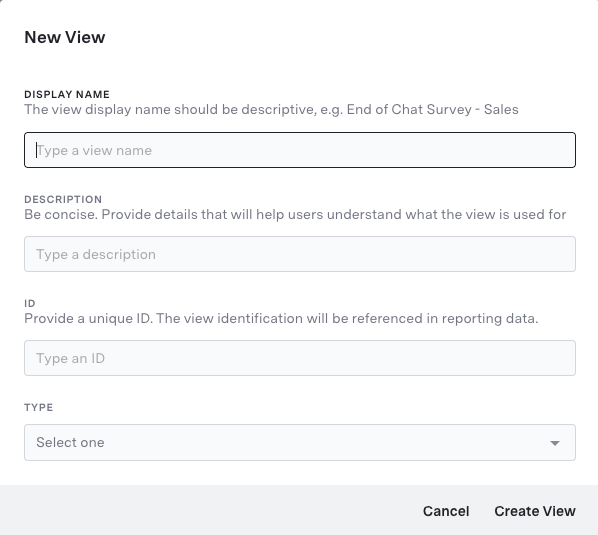
      <li>Fill in the required details for the form, such as the Display Name, Description, Unique Id. For the Form Type, select <strong>Universal View</strong>.</li>
      <li>Click <strong>Create View</strong> to create the form view.</li>

      <Frame>
        <img src="https://mintcdn.com/asapp/FPmFSQ-LXIidqd0J/images/generativeagent/CreateForms.png?fit=max&auto=format&n=FPmFSQ-LXIidqd0J&q=85&s=2a535cbcc208400a4065aa9fac3256da" width="598" height="535" data-path="images/generativeagent/CreateForms.png" />
      </Frame>
    </ol>
  </Step>

  <Step title="Add Fields to the Form">
    <p>In the form view, you can add fields to the form, assign a title to it, and see how it will appear to the customer.</p>

    <ol>
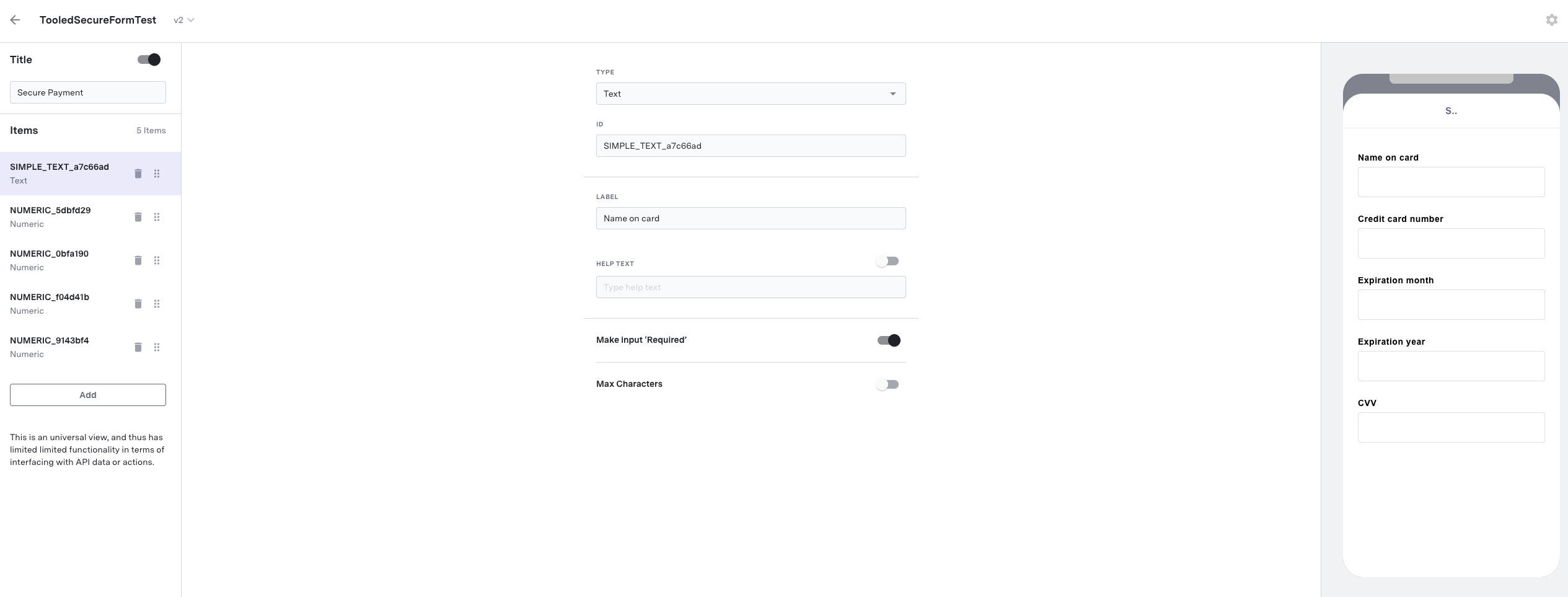
      <li>To give the secure form a title, toggle the <strong>Title</strong> switch on and enter a title in the text box.</li>
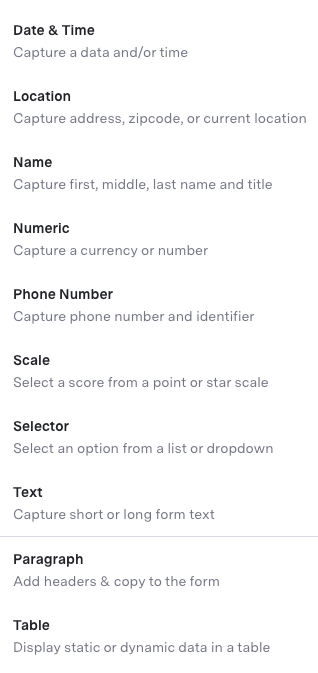
      <li>To add a field to the form, click <strong>Add</strong> under the <strong>items</strong> section. You can add multiple fields to the form from the available field types.</li>

      <Frame>
        <img src="https://mintcdn.com/asapp/FPmFSQ-LXIidqd0J/images/generativeagent/AddFields.png?fit=max&auto=format&n=FPmFSQ-LXIidqd0J&q=85&s=26125ea006ad6d823bb591686bcb7f24" width="318" height="673" data-path="images/generativeagent/AddFields.png" />
      </Frame>

      <li>Each Item has a set of properties that you can configure. You can also add validation rules to the fields to ensure that the customer submits valid information.</li>
      <li>Click <strong>Save</strong> to save the form.</li>
    </ol>

    <Frame>
      <img src="https://mintcdn.com/asapp/FPmFSQ-LXIidqd0J/images/generativeagent/CreateSecureForm.png?fit=max&auto=format&n=FPmFSQ-LXIidqd0J&q=85&s=9cebec8ea27d3664bba3b7ef7f647cdb" width="2530" height="963" data-path="images/generativeagent/CreateSecureForm.png" />
    </Frame>
  </Step>
</Steps>

## Enable HILA Secure Forms

Ensure that you have enabled Secure forms. to do this:

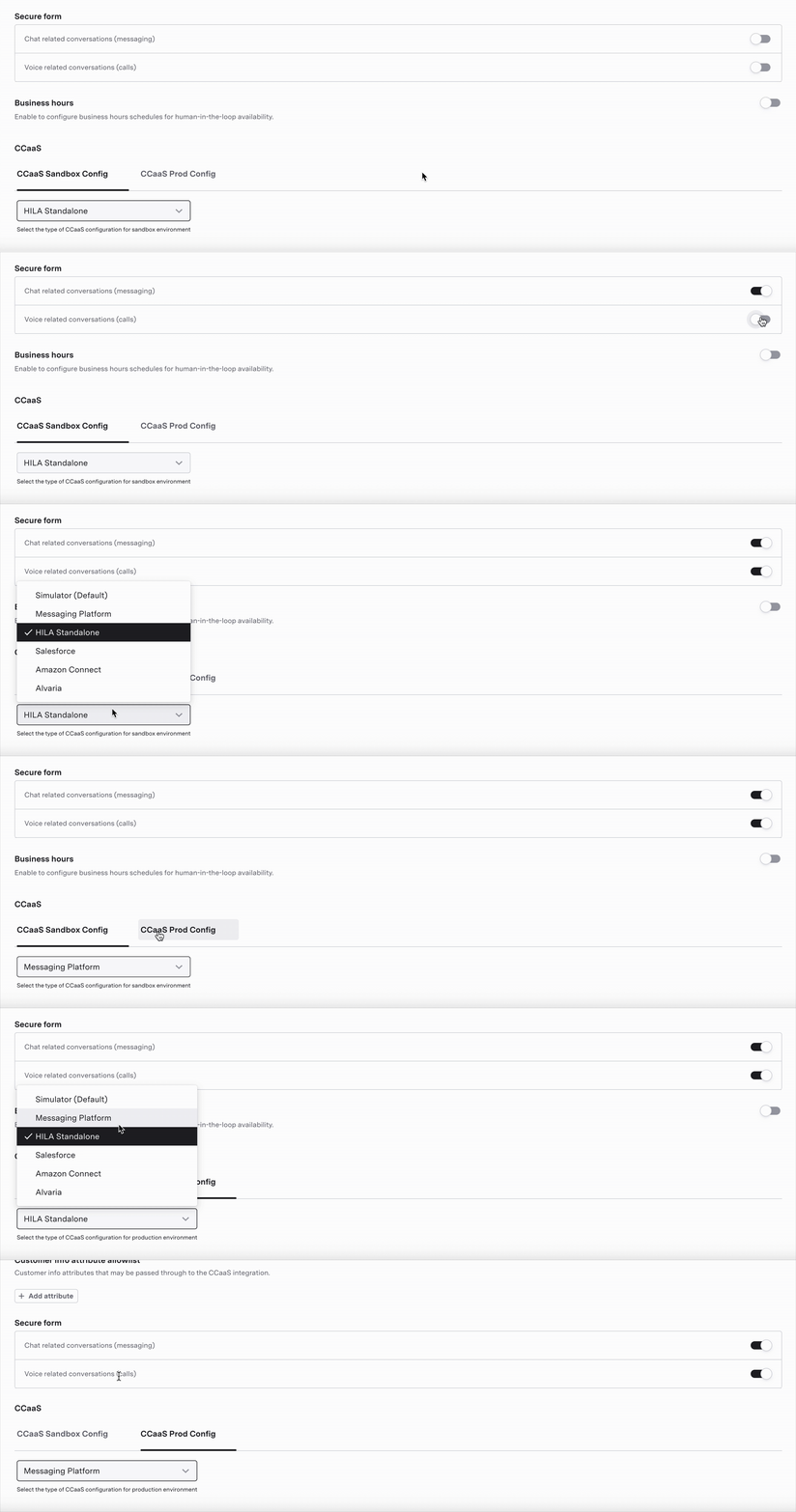
1. Navigate to the [Agent Identity](/generativeagent/configuring/agent-identity) section in the CXP.
2. In the **Integrations** section, expand **HILA Configurations** and scroll down to **Secure Forms**.
3. Toggle the switch corresponding to **Chat related conversations** and **Voice related conversations** to enable Secure Forms for chat and voice conversations respectively.
4. Scroll down further to **Ccaas Configurations** and choose **Messaging Platform** from the dropdown for both sandbox and production environments.
5. Deploy the changes to the desired environment.

<Frame>
  <img src="https://mintcdn.com/asapp/FPmFSQ-LXIidqd0J/images/generativeagent/SecureForms2.gif?s=b251a9253c32514c02b5e7e3ef0bed74" width="2740" height="868" data-path="images/generativeagent/SecureForms2.gif" />
</Frame>

<Note>
  If you do not see the HILA Configurations section, you can enable it by adding `is_secure_form_enabled_chat` and `is_secure_form_enabled_voice` to your Partner Configuration Data.
</Note>

## Next Steps

<CardGroup cols={2}>
  <Card href="/generativeagent/human-in-the-loop" title="Human-in-the-Loop">
    Learn about the core HILA capabilities and how to incorporate them into your use cases.
  </Card>

  <Card href="/generativeagent/human-in-the-loop/approver-mode" title="Approver Mode">
    Learn how HILAs review and refine GenerativeAgent responses before delivery.
  </Card>

  <Card href="/agent-desk/digital-agent-desk" title="Digital Agent Desk">
    Learn how agents handle messaging conversations in the Digital Agent Desk.
  </Card>

  <Card href="/agent-desk/integrations/web-sdk" title="Web SDK">
    Integrate the messaging SDK that renders secure forms for customers.
  </Card>
</CardGroup>