> ## Documentation Index
> Fetch the complete documentation index at: https://docs.asapp.com/llms.txt
> Use this file to discover all available pages before exploring further.
# Agent Performance
> Monitor agent performance in Live Insights.
ASAPP provides robust real-time agent performance data. You can monitor:
* Agent status
* Handle and response time performance
* Agent utilization
In addition, alerts and signals provide context to better understand how agents are performing.
## How to Access Agent Data
You can access agent performance data from the 'Performance' page.
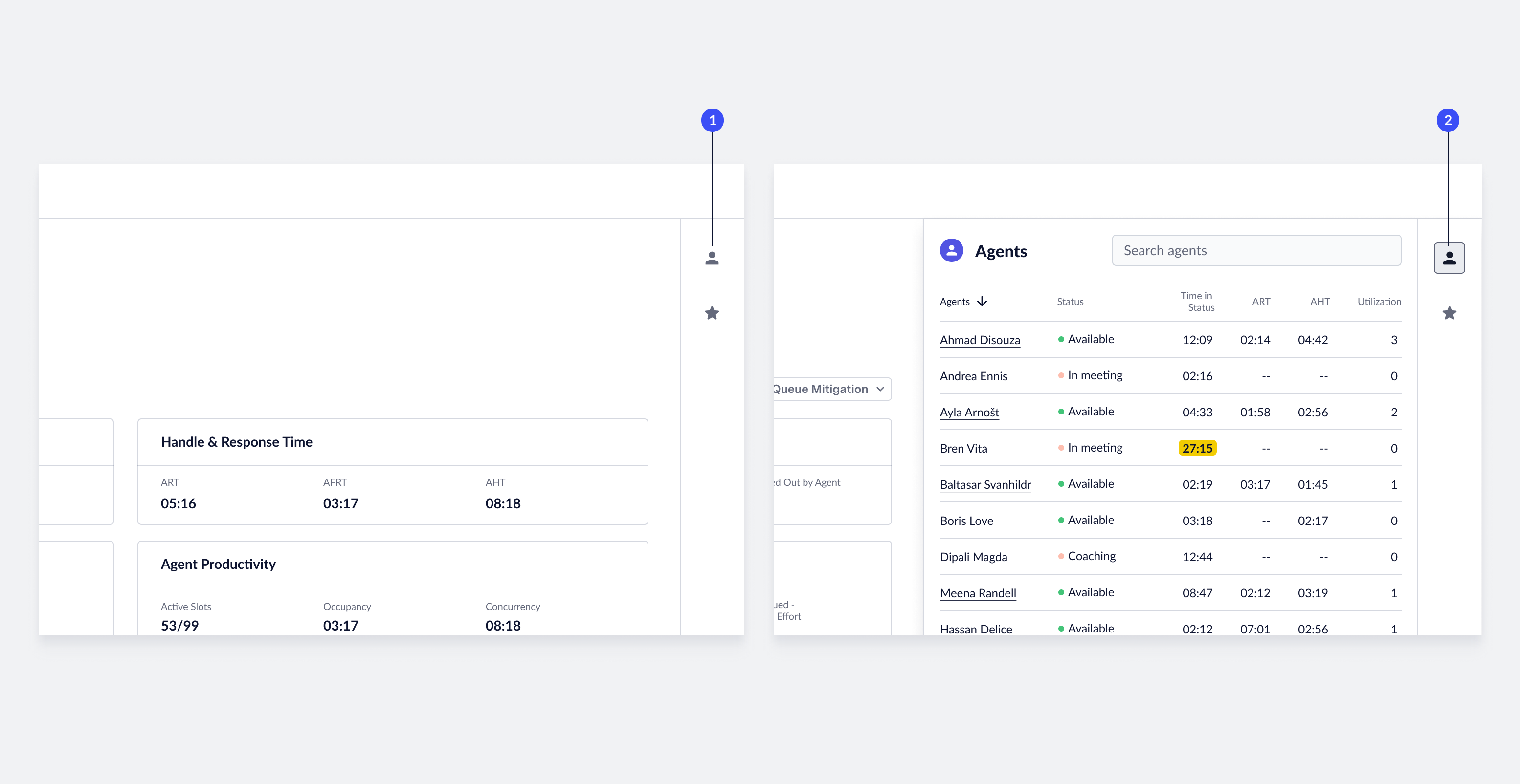 1. **Open agent panel**: To view agent performance data, click the **Agent** icon on the right-side of the screen. The system opens a panel that contains a list of all agents currently logged into the queue.
2. **Close agent panel**: To close the agent panel, click the **close** icon.
## Agent Real-time Performance Data
Live Insights automatically updates performance data related to agents in real-time every 15 seconds.
## Search for Agents & Sort Data
ASAPP provides tools to organize and find the right content. You can search for a specific agent name or sort the data based on current performance.
1. **Open agent panel**: To view agent performance data, click the **Agent** icon on the right-side of the screen. The system opens a panel that contains a list of all agents currently logged into the queue.
2. **Close agent panel**: To close the agent panel, click the **close** icon.
## Agent Real-time Performance Data
Live Insights automatically updates performance data related to agents in real-time every 15 seconds.
## Search for Agents & Sort Data
ASAPP provides tools to organize and find the right content. You can search for a specific agent name or sort the data based on current performance.
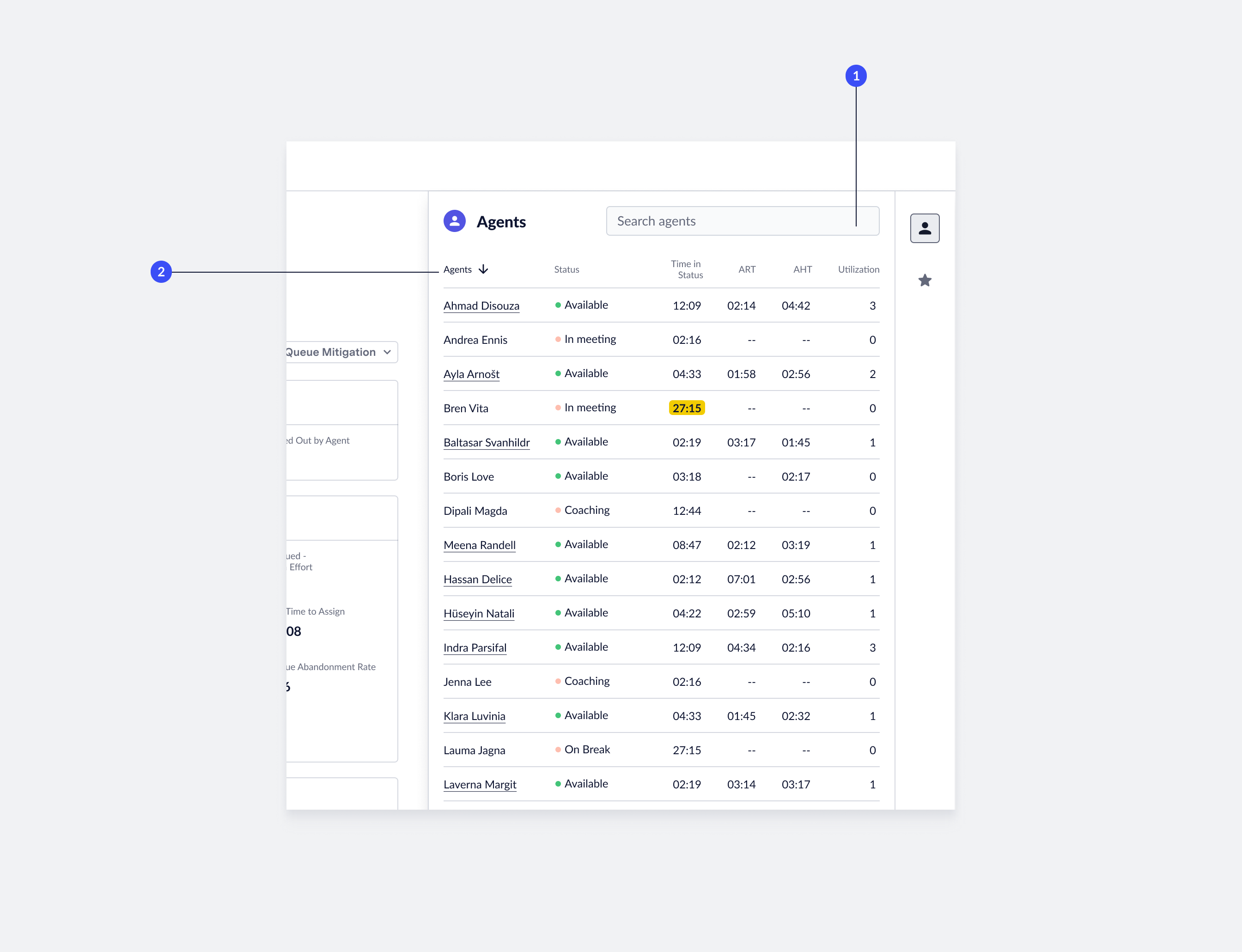 1. **Find agents**: To find a specific agent, enter the **agent name** in the search field. The list of agents will filter down to the relevant results. To remove the query, delete the **agent name** from the search field.
2. **Sort agents**: You can use each column in the agent panel to sort content. Default: the system sorts the list by agent name. To sort by a different metric, click the **column name**. To change the sort order, click the **active column name**.
## View Agent Transcripts
You can access live agent transcripts from the 'Agent' panel.
1. **Find agents**: To find a specific agent, enter the **agent name** in the search field. The list of agents will filter down to the relevant results. To remove the query, delete the **agent name** from the search field.
2. **Sort agents**: You can use each column in the agent panel to sort content. Default: the system sorts the list by agent name. To sort by a different metric, click the **column name**. To change the sort order, click the **active column name**.
## View Agent Transcripts
You can access live agent transcripts from the 'Agent' panel.
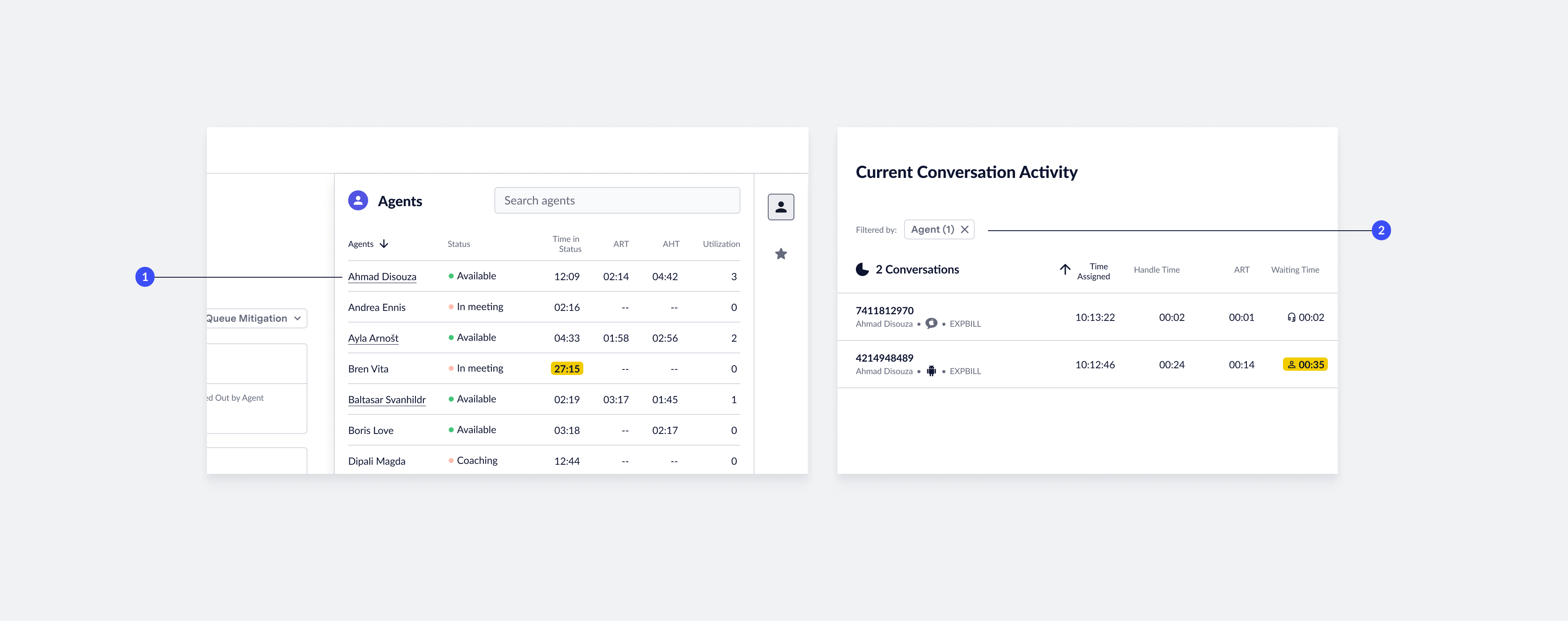 1. **Agents with assignments**: The system underlines agents currently taking assignments in the 'Agent' panel. Click an **underlined agent name** to go to the 'Conversation' page to view relevant agent transcripts.
2. **Agent filter applied**: When you view an agent's transcript, the 'Conversation Activity' table displays only their chats. The filter chip displayed above the list of conversations indicates this filtering. To remove the filter, click the **X** icon in the filter chip.
1. **Agents with assignments**: The system underlines agents currently taking assignments in the 'Agent' panel. Click an **underlined agent name** to go to the 'Conversation' page to view relevant agent transcripts.
2. **Agent filter applied**: When you view an agent's transcript, the 'Conversation Activity' table displays only their chats. The filter chip displayed above the list of conversations indicates this filtering. To remove the filter, click the **X** icon in the filter chip.