> ## Documentation Index
> Fetch the complete documentation index at: https://docs.asapp.com/llms.txt
> Use this file to discover all available pages before exploring further.
# Navigation
> Learn how to navigate the Live Insights interface.
## How to Access Live Insights
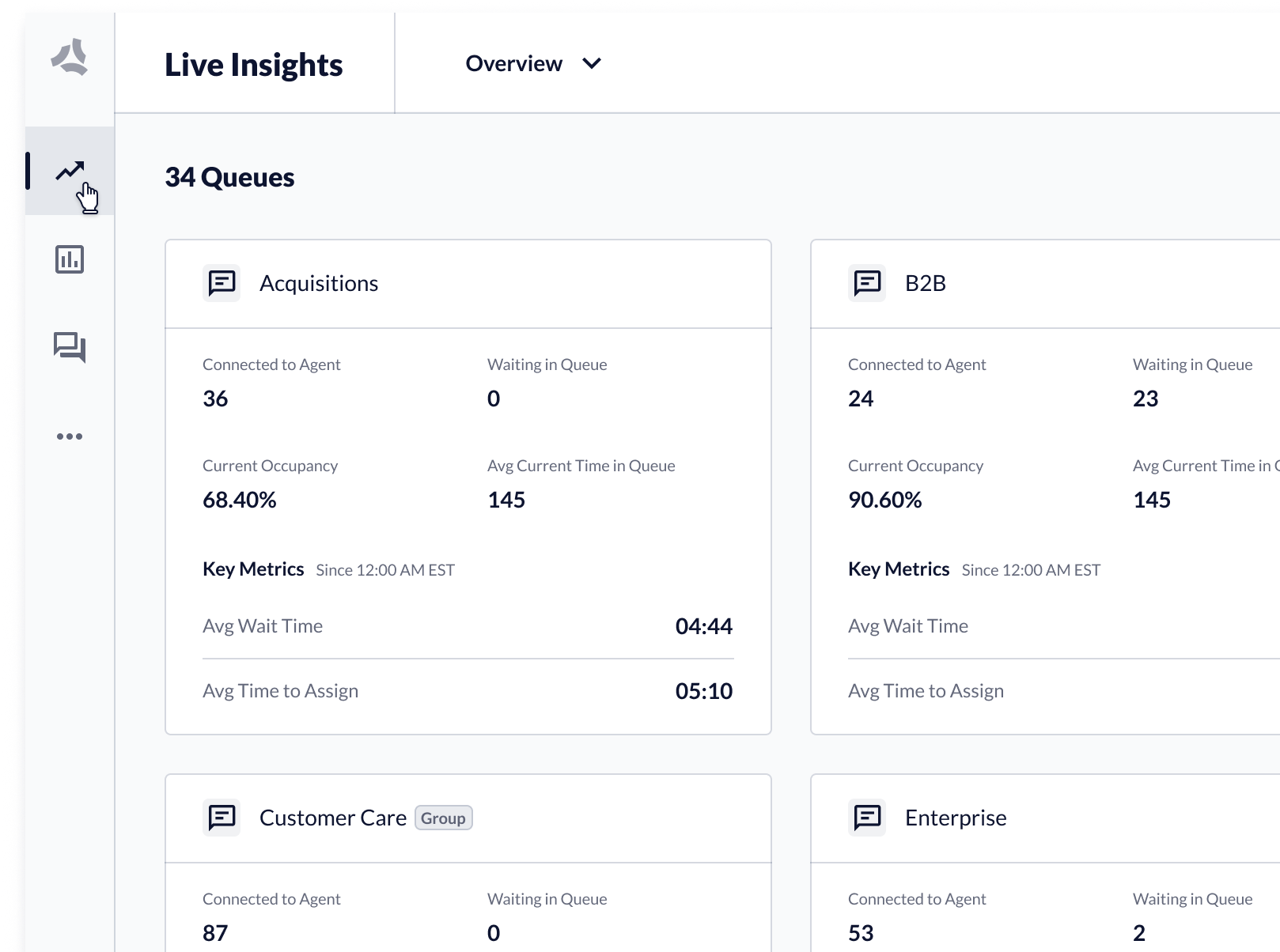
* You can access Live Insights from the primary navigation. To open, click the **Live Insights** link.
 ## How to Access a Queue or Queue Group
Live Insights provides different views of queue performance data:
* Overview of all queue activity, including queue groups and organizational groups.
* Single queue and queue groups, which display queue and agent performance data.
## How to Access a Queue or Queue Group
Live Insights provides different views of queue performance data:
* Overview of all queue activity, including queue groups and organizational groups.
* Single queue and queue groups, which display queue and agent performance data.
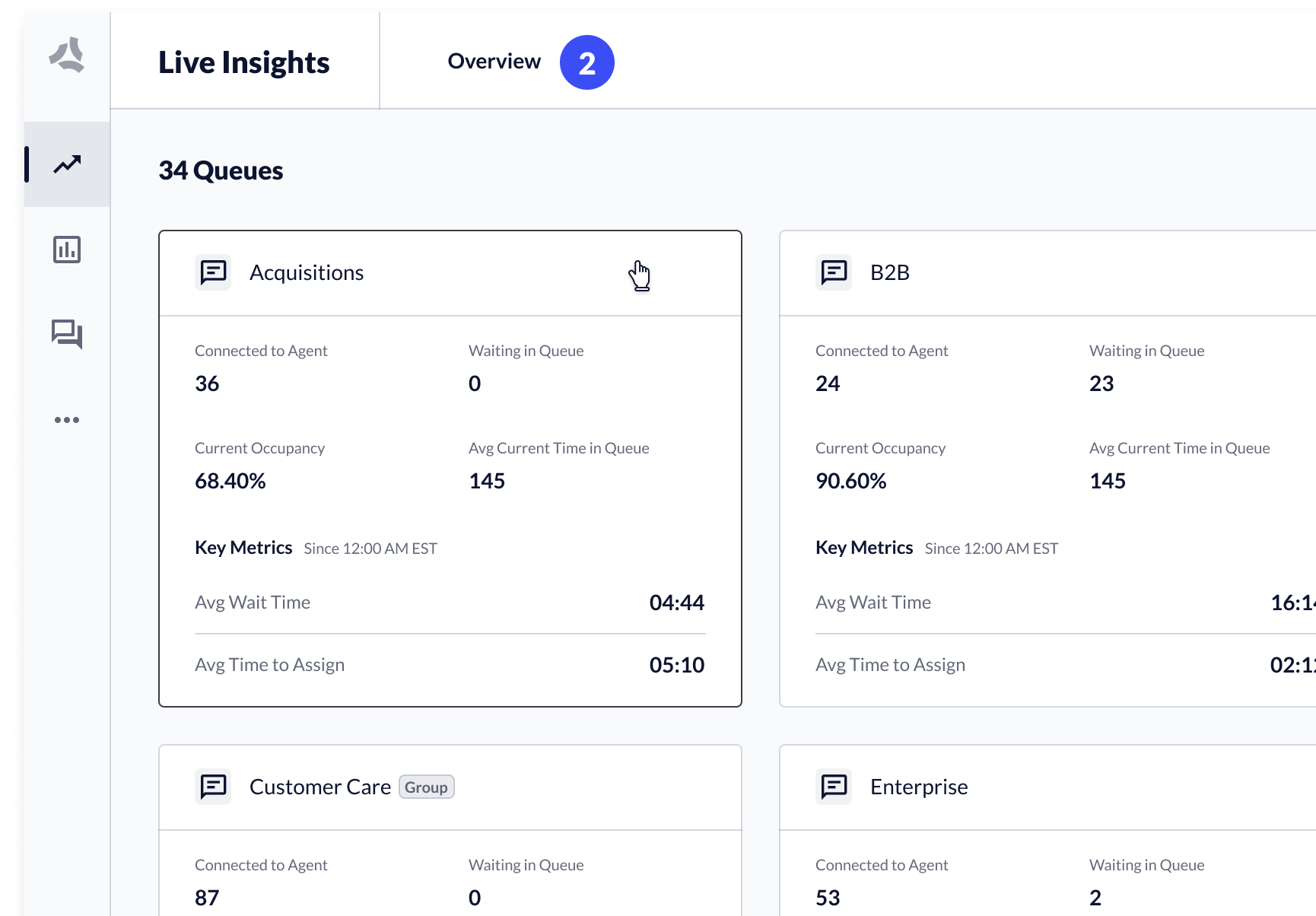 You can access a single queue or queue group in two ways:
1. From Overview, **click a tile** → the system opens the relevant queue details page.
2. From the **queue dropdown**, select a **queue** or **queue group**.
## Navigate Away from a Single Queue or Queue Group
You can navigate back to the Live Insights Overview, or to a different queue or queue group.
You can access a single queue or queue group in two ways:
1. From Overview, **click a tile** → the system opens the relevant queue details page.
2. From the **queue dropdown**, select a **queue** or **queue group**.
## Navigate Away from a Single Queue or Queue Group
You can navigate back to the Live Insights Overview, or to a different queue or queue group.
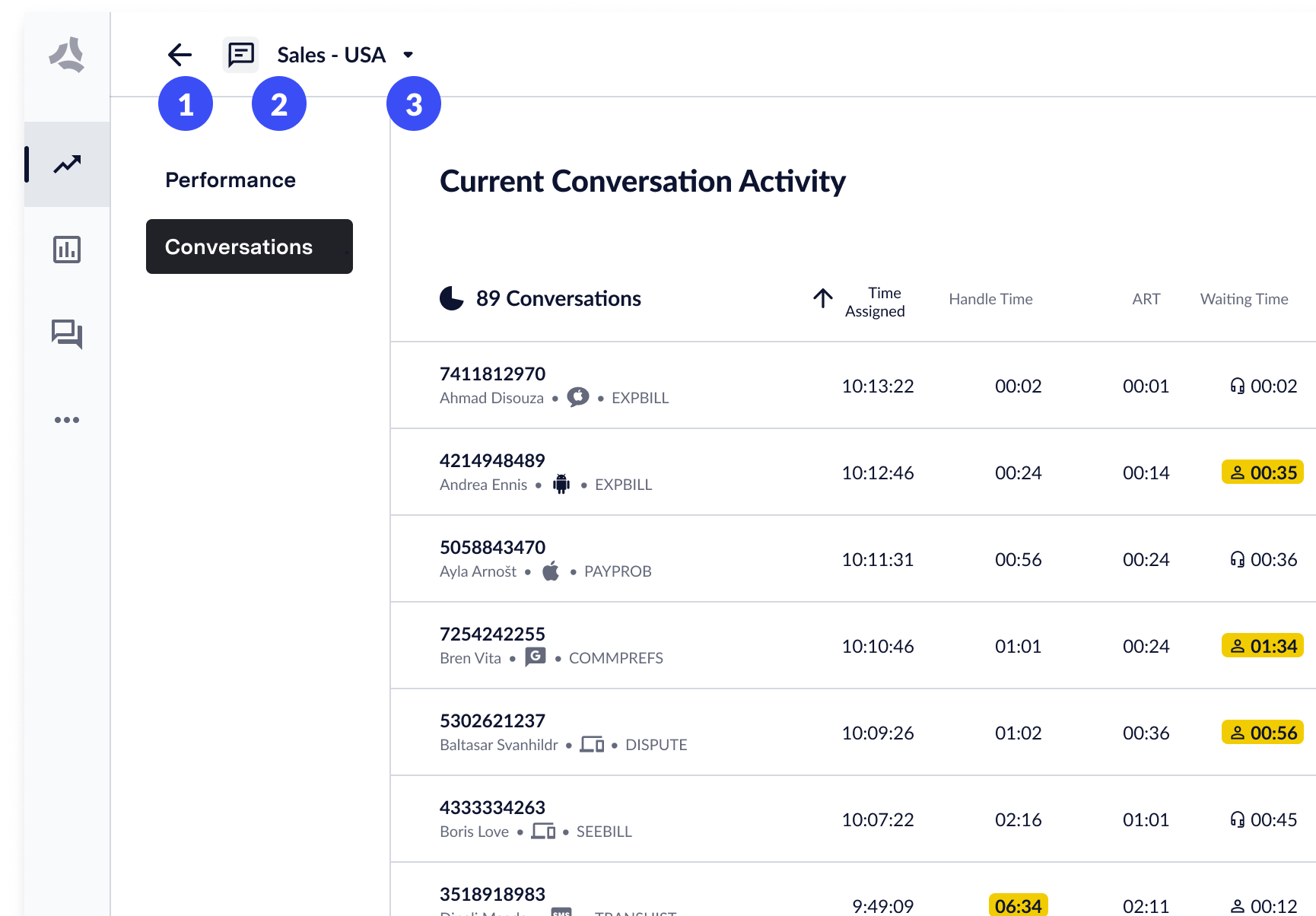 1. **Back arrow**: when you click, the system opens the Live Insights Overview.
2. **Queue channel indicator**: indicates if the queue is a voice or chat queue.
3. **Queue dropdown**: when you click, you can select a different queue or queue group.
## Channel-based Queues
Queues and queue groups host channel-specific content. ASAPP supports three queue types:
1. **Back arrow**: when you click, the system opens the Live Insights Overview.
2. **Queue channel indicator**: indicates if the queue is a voice or chat queue.
3. **Queue dropdown**: when you click, you can select a different queue or queue group.
## Channel-based Queues
Queues and queue groups host channel-specific content. ASAPP supports three queue types:
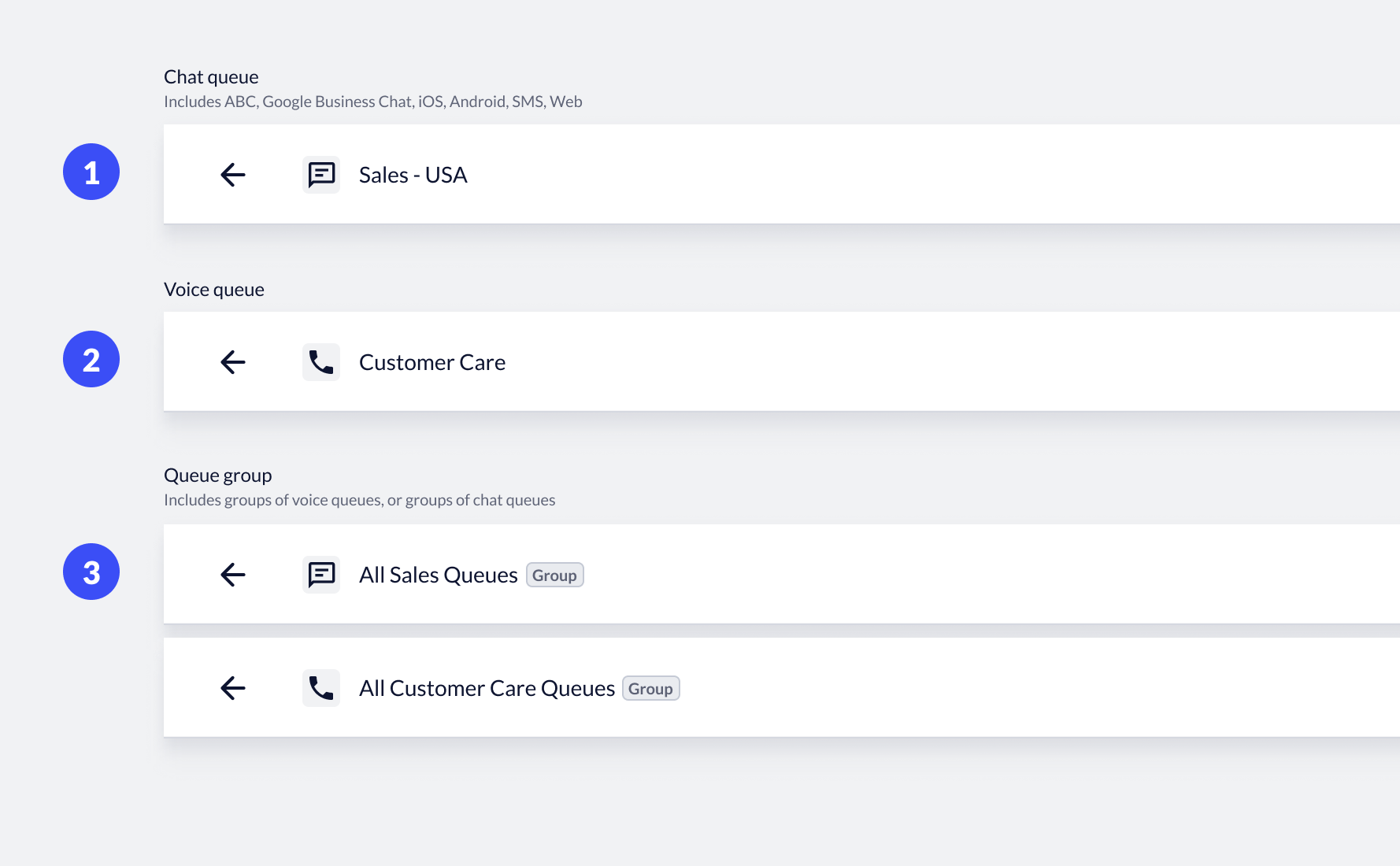 1. **Chat queues**: includes all digital channels such as Apple Messages for Business, Web, SMS, iOS and Android.
2. **Voice queues**: includes all voice channels in one queue.
3. **Queue groups**: groups consist of aggregated queues of a single type. Each group contains either chat queues or voice queues. The number of queues in the queue group displays below the channel icon.
## Access Queue Performance and Conversation Data
Single queues and queue groups include two views: performance data about the queue and conversation activity data.
1. **Chat queues**: includes all digital channels such as Apple Messages for Business, Web, SMS, iOS and Android.
2. **Voice queues**: includes all voice channels in one queue.
3. **Queue groups**: groups consist of aggregated queues of a single type. Each group contains either chat queues or voice queues. The number of queues in the queue group displays below the channel icon.
## Access Queue Performance and Conversation Data
Single queues and queue groups include two views: performance data about the queue and conversation activity data.
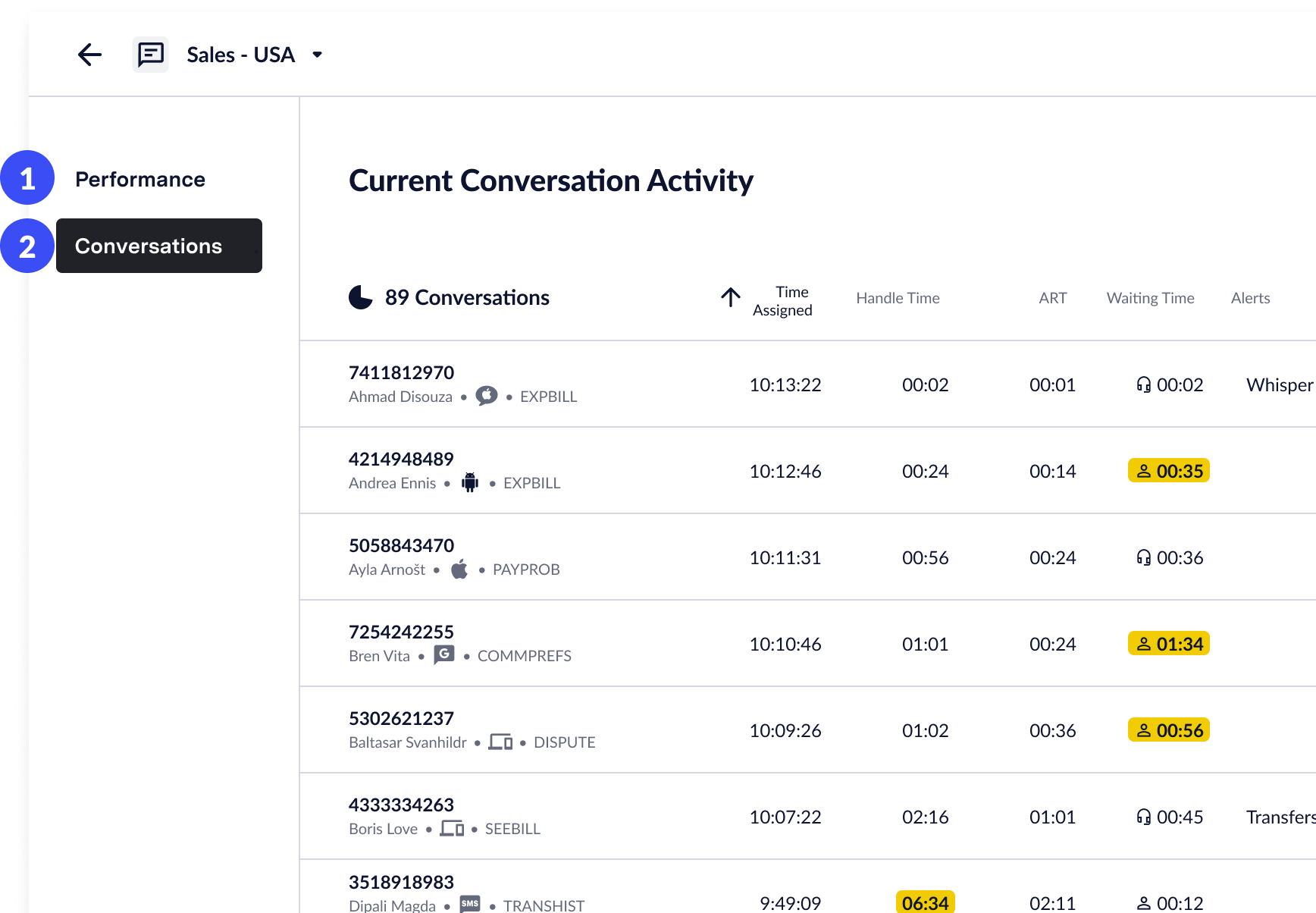 1. **Performance**: Click to access the performance data of the queue, as well as agent performance data and customer feedback.
2. **Conversations**: Click to access conversation activity, view transcripts, and send whisper messages.
1. **Performance**: Click to access the performance data of the queue, as well as agent performance data and customer feedback.
2. **Conversations**: Click to access conversation activity, view transcripts, and send whisper messages.