> ## Documentation Index
> Fetch the complete documentation index at: https://docs.asapp.com/llms.txt
> Use this file to discover all available pages before exploring further.

# Deploying AI Compose for Salesforce

> Use AI Compose on Salesforce Lightning Experience.

## Overview

This page describes how to integrate AI Compose into your Salesforce application.

### Integration Steps

There are three parts to the AI Compose setup process. Use the links below to skip to information about a specific part of the process:

1. [Configure the Salesforce organization](#1-configure-the-salesforce-organization-centrally) centrally using an administrator account
2. [Setup agent/user authentication](#2-set-up-single-sign-on) through the existing single sign-on (SSO) service
3. [Work with your ASAPP contact to configure Auto-Pilot Greetings](#3-configure-auto-pilot-greetings), if desired

<Tip>
  Expected effort for each part of the setup process:

  * 1 hour for installation and configuration of the ASAPP chat components
  * 1-2 hours to enable user authentication, depending on SSO system complexity
</Tip>

## Requirements

**Browser Support**

ASAPP AI Compose is supported in Google Chrome and Microsoft Edge

<Tip>
  NOTE: This support covers the latest version of each browser and extends to the previous two versions

  Please consult your ASAPP account contact if your installation requires support for other browsers
</Tip>

**Salesforce**

ASAPP supports Lightning-based chat (cf. classic)

<Frame>
  <img src="https://mintcdn.com/asapp/V0FXHedP7HW51oOw/image/uuid-c6a319ef-4846-1c14-7ea5-5294ed44e8e2.png?fit=max&auto=format&n=V0FXHedP7HW51oOw&q=85&s=197eb06f56ad435844c348f0f301942a" width="191" height="32" data-path="image/uuid-c6a319ef-4846-1c14-7ea5-5294ed44e8e2.png" />
</Frame>

<Frame>
  <img src="https://mintcdn.com/asapp/AXwA7-nbwQCJ8xte/image/uuid-e66b3aab-d17a-a7dc-f607-4f8a9504db87.png?fit=max&auto=format&n=AXwA7-nbwQCJ8xte&q=85&s=7a6329c3b8870b0efed7b970de0a601f" width="181" height="44" data-path="image/uuid-e66b3aab-d17a-a7dc-f607-4f8a9504db87.png" />
</Frame>

**SSO Support**

The AI Compose widget supports SP-initiated SSO with either OIDC (preferred method) or SAML.

**Domain Whitelisting**

In order for AI Compose to interact with ASAPP's backend and third-party support services, the following domains need to be accessible from end-user environments:

| Domain                                     | Description                                                        |
| :----------------------------------------- | :----------------------------------------------------------------- |
| \*.asapp.com                               | ASAPP service URLs                                                 |
| \*.ingest.sentry.io                        | Application performance monitoring tool                            |
| fonts.googleapis.com                       | Fonts                                                              |
| google-analytics.com                       | Page analytics                                                     |
| asapp-chat-sdk-production.s3.amazonaws.com | Static ASAPP AWS URL for desktop network connectivity health check |

## Integrate with Salesforce

### 1. Configure the Salesforce Organization Centrally

**Before You Begin**

You will need the following information to configure ASAPP for Salesforce:

* Administrator credentials to login to your Salesforce organization account.
  * **NOTE:** Organization and Administrator should be enabled for 'chat'.
* A URL for the ASAPP installation package, which will be provided by ASAPP.
  <Note>
    ASAPP provides the same install package for implementing both AI Compose and AI Summary in Salesforce. Use this guide to configure AI Compose.

    If you're looking to implement AI Summary, [use this guide](/ai-productivity/ai-summary/salesforce-plugin).
  </Note>
* API Id and API URL values, which can be found in your ASAPP Developer Portal account (developer.asapp.com) in the **Apps** section.

**Configuration Steps**

**1. Install the ASAPP Package**

* Open the package installation URL from ASAPP.
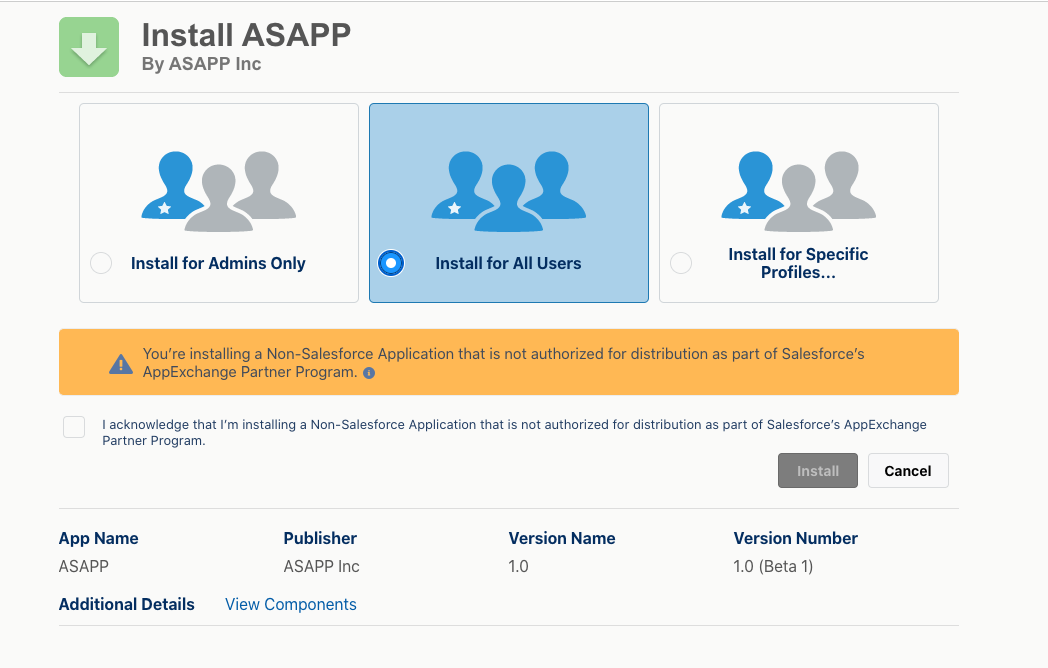
* Login with your Salesforce organization administrator credentials. The package installation page appears:
  <Frame>
    <img src="https://mintcdn.com/asapp/BoXlOITRW7VjgmOG/image/uuid-2e51b4cf-646c-4e67-42b2-4df188321f5f.png?fit=max&auto=format&n=BoXlOITRW7VjgmOG&q=85&s=3b3453f446e56ddb5ff72e61eb376229" width="1048" height="668" data-path="image/uuid-2e51b4cf-646c-4e67-42b2-4df188321f5f.png" />
  </Frame>
* Choose **Install for All Users** (as shown above).
* Check the acknowledgment statement and click the **Install** button:

  <Frame>
    <img src="https://mintcdn.com/asapp/AXwA7-nbwQCJ8xte/image/uuid-efdaa3e5-109a-a6f1-46d9-fbc0777d7340.png?fit=max&auto=format&n=AXwA7-nbwQCJ8xte&q=85&s=ac6e51a8691b073a193dc8e7ccc00f93" width="993" height="52" data-path="image/uuid-efdaa3e5-109a-a6f1-46d9-fbc0777d7340.png" />
  </Frame>
  <Frame>
    <img src="https://mintcdn.com/asapp/AXwA7-nbwQCJ8xte/image/uuid-d6534373-fa62-f370-e790-fee74118bd80.png?fit=max&auto=format&n=AXwA7-nbwQCJ8xte&q=85&s=e52dca54a2f61a7bb4c4449ad45d5ba6" width="101" height="57" data-path="image/uuid-d6534373-fa62-f370-e790-fee74118bd80.png" />
  </Frame>
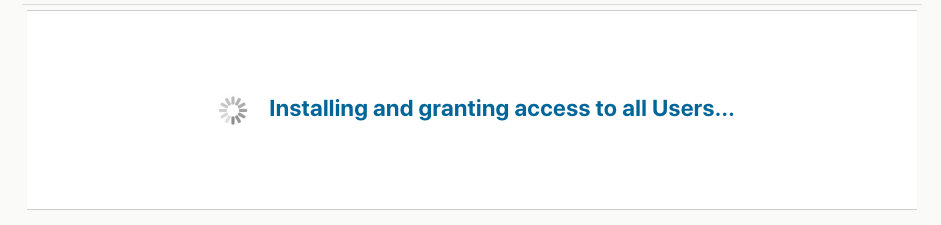
* The Installation runs. An **Installation Complete!** message appears:
  <Frame>
    <img src="https://mintcdn.com/asapp/aK0YOQVZSULmKYJl/image/uuid-6c4df35c-6c3f-a1d2-b0cc-64b5d0aac3d9.png?fit=max&auto=format&n=aK0YOQVZSULmKYJl&q=85&s=30b848a1afa7994b62afd9e4d5709c68" width="941" height="225" data-path="image/uuid-6c4df35c-6c3f-a1d2-b0cc-64b5d0aac3d9.png" />
  </Frame>
  <Frame>
    <img src="https://mintcdn.com/asapp/aK0YOQVZSULmKYJl/image/uuid-8229e206-9c06-70e3-af08-2a5c9b4373c3.png?fit=max&auto=format&n=aK0YOQVZSULmKYJl&q=85&s=128008375db731bea3d9e24380e211c3" width="954" height="178" data-path="image/uuid-8229e206-9c06-70e3-af08-2a5c9b4373c3.png" />
  </Frame>
* Click the **Done** button.

**2. Add ASAPP to the Chat Transcript Page**

* Open the 'Service Console' page (or your chat page).
* Choose an existing chat session or start a new chat session so that the chat transcript page appears (the exact mechanism is organization-specific).
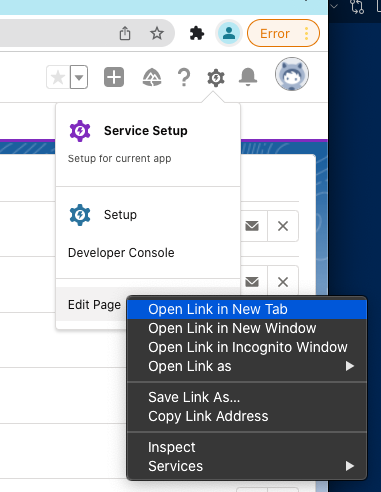
* In the top-right, click the **gear** icon, then right-click **Edit Page**, and **Open Link in a New Tab**.
  <Frame>
    <img src="https://mintcdn.com/asapp/9jlDT2iVQhMOPce8/image/uuid-16a63275-b025-59fc-3aa5-154a5ca10db6.png?fit=max&auto=format&n=9jlDT2iVQhMOPce8&q=85&s=25c46727857f80c804b5420fc05e7532" width="381" height="492" data-path="image/uuid-16a63275-b025-59fc-3aa5-154a5ca10db6.png" />
  </Frame>
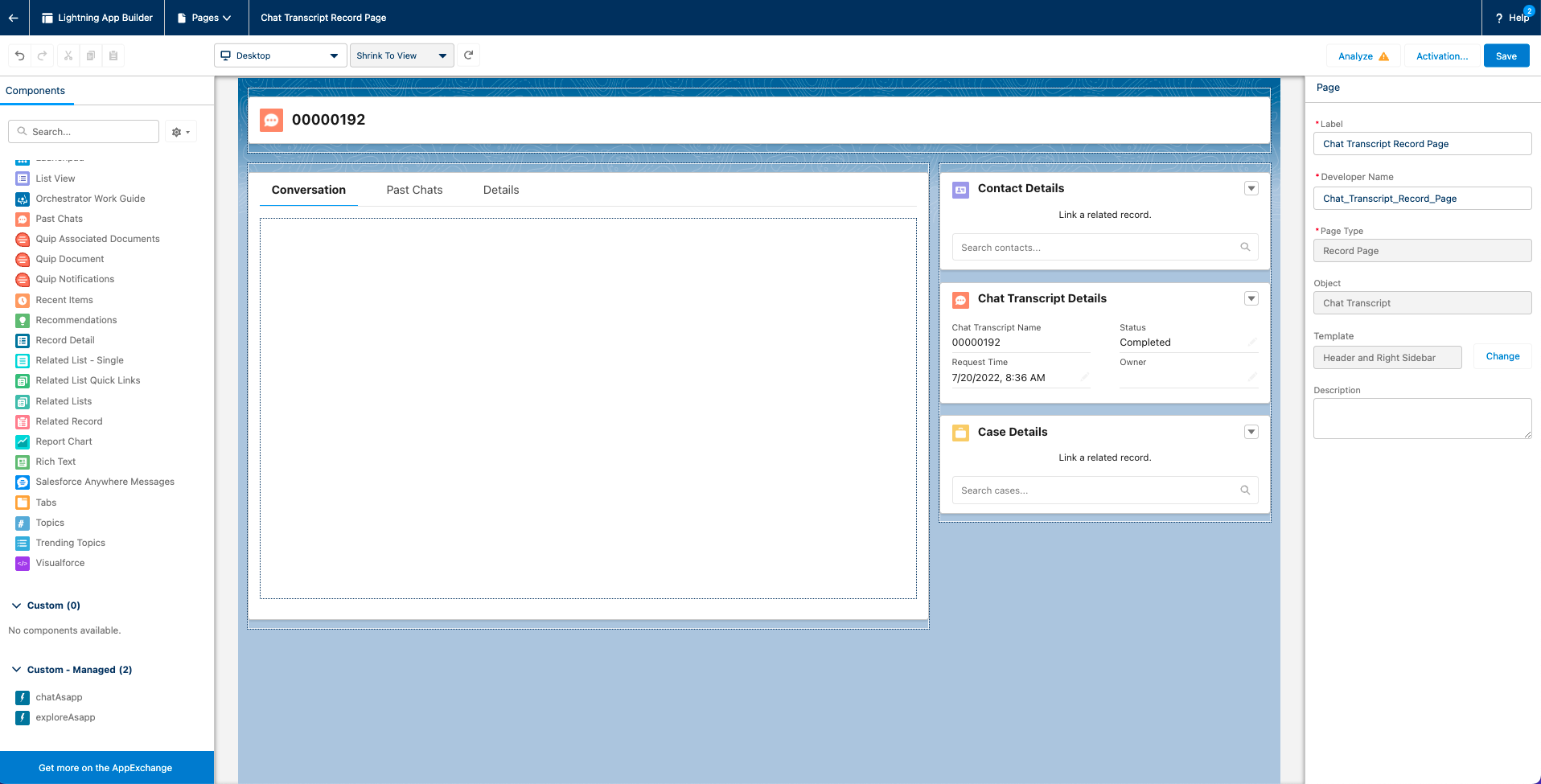
* Navigate to the new tab to see the chat transcript edit page:
  <Frame>
    <img src="https://mintcdn.com/asapp/NE5s_J_rgoRPqQQt/image/uuid-412d4636-2ddf-33fd-04bb-598df2851636.png?fit=max&auto=format&n=NE5s_J_rgoRPqQQt&q=85&s=6763ed8b39daad3645ef7becd83d0f46" width="1916" height="975" data-path="image/uuid-412d4636-2ddf-33fd-04bb-598df2851636.png" />
  </Frame>
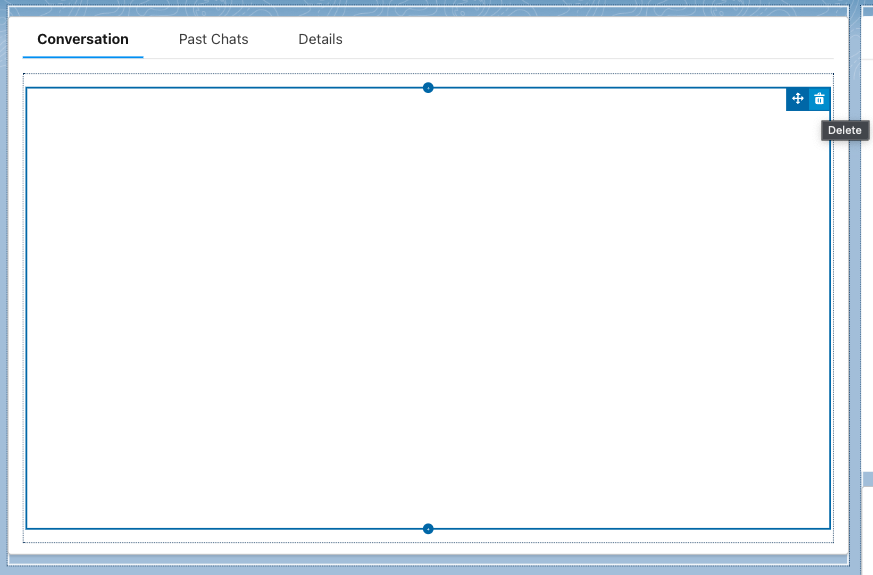
* Select the conversation panel (middle) and delete it.
  <Frame>
    <img src="https://mintcdn.com/asapp/9jlDT2iVQhMOPce8/image/uuid-082909fc-339c-417c-2ba6-af6de29ef281.png?fit=max&auto=format&n=9jlDT2iVQhMOPce8&q=85&s=7ec2b11ed0c1bcbf01216c8118c3d9f9" width="873" height="575" data-path="image/uuid-082909fc-339c-417c-2ba6-af6de29ef281.png" />
  </Frame>
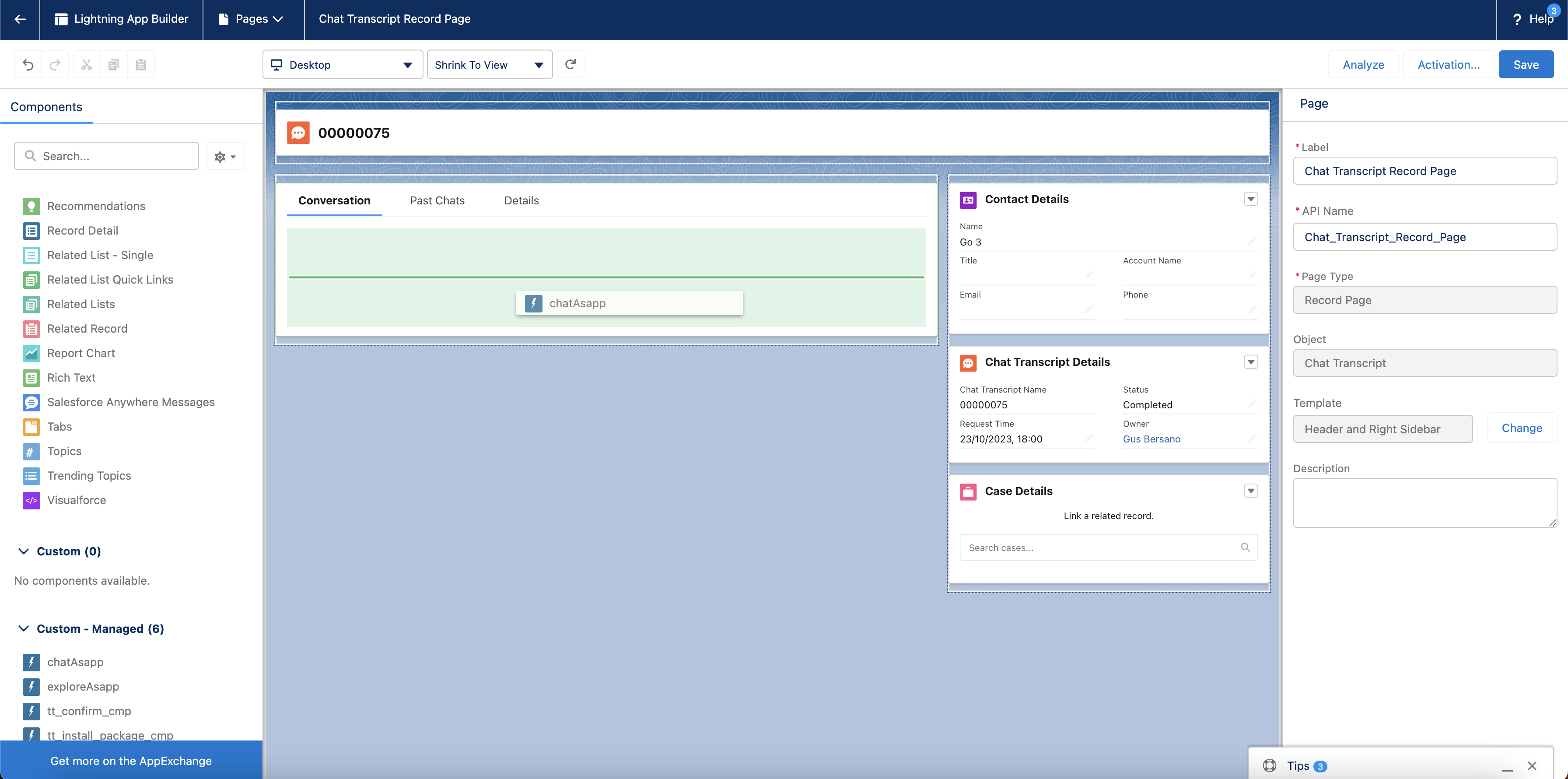
* Drag the **chatAsapp** component (left), inside the conversation panel:
  <Frame>
    <img src="https://mintcdn.com/asapp/9jlDT2iVQhMOPce8/image/uuid-03d5534d-9513-e847-f942-8c11291b8806.png?fit=max&auto=format&n=9jlDT2iVQhMOPce8&q=85&s=b8ea52284cb0cd4118857b3bf043d096" width="3584" height="1780" data-path="image/uuid-03d5534d-9513-e847-f942-8c11291b8806.png" />
  </Frame>
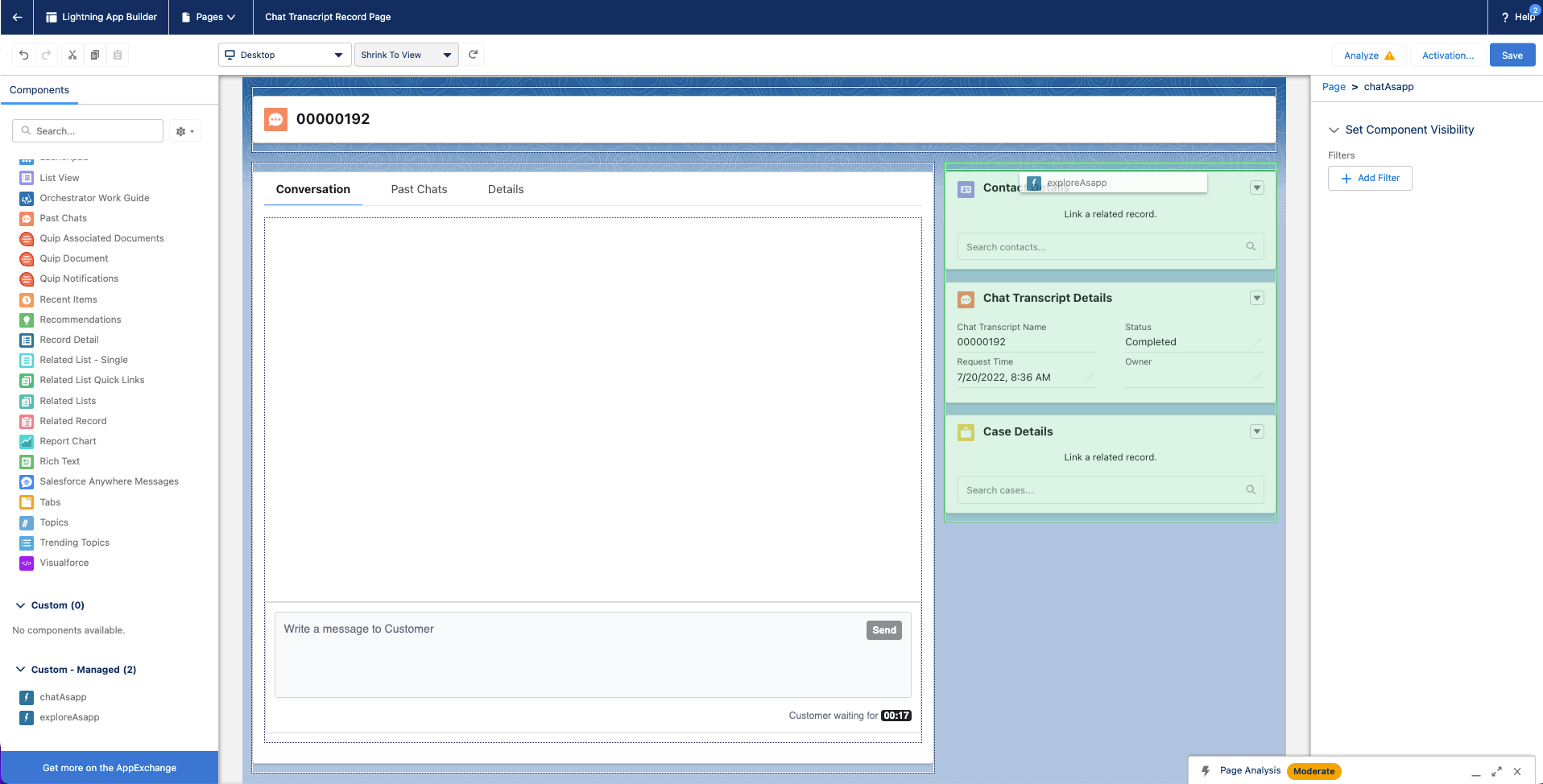
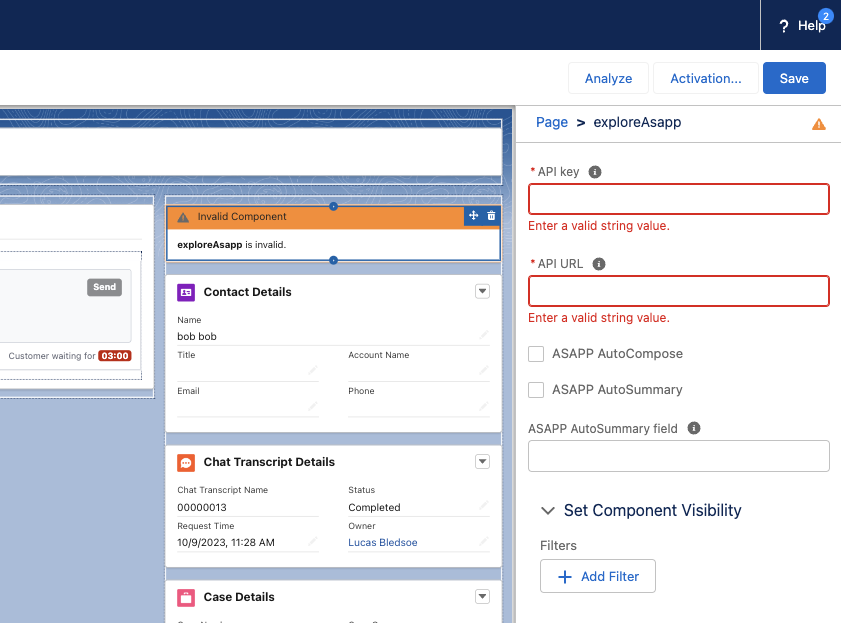
* Drag the **exploreAsapp** component (left), to the right column. Next, add your organization's **API key** and **API URL** (found in the ASAPP Developer Portal) in the rightmost panel:
  <Note>
    The API key is labeled as **API Id** in the ASAPP Developer Portal.

    The API URL should be listed as `https://api.sandbox.asapp.com` for lower environments and `https://api.asapp.com` for production.
  </Note>

  <Frame>
    <img src="https://mintcdn.com/asapp/AXwA7-nbwQCJ8xte/image/uuid-cba02769-7bfd-4046-7b89-f6e99d6e26da.png?fit=max&auto=format&n=AXwA7-nbwQCJ8xte&q=85&s=5c7d7727374f04d8fa5c347bcf40e2c3" width="1916" height="974" data-path="image/uuid-cba02769-7bfd-4046-7b89-f6e99d6e26da.png" />
  </Frame>

  <Frame>
    <img src="https://mintcdn.com/asapp/V0FXHedP7HW51oOw/image/uuid-b9a621e7-75d9-7dfe-7e62-08dd68fc00b2.png?fit=max&auto=format&n=V0FXHedP7HW51oOw&q=85&s=ff25795d9228e39195dbf9c5b9237d57" width="841" height="623" data-path="image/uuid-b9a621e7-75d9-7dfe-7e62-08dd68fc00b2.png" />
  </Frame>
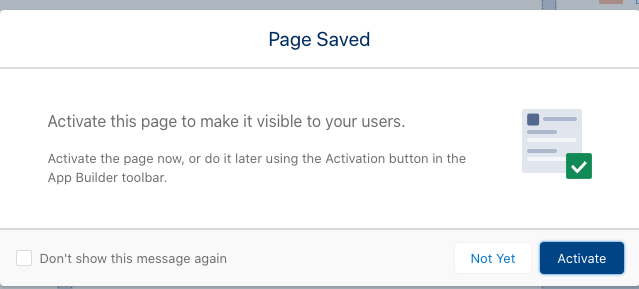
* Click **Save**, then click **Activate**
  <Frame>
    <img src="https://mintcdn.com/asapp/COy3KdZUtsAnzs_4/image/uuid-8d13377b-ee60-0196-c713-224ee04d65cc.png?fit=max&auto=format&n=COy3KdZUtsAnzs_4&q=85&s=90c6adbf461d6e286c22fdc2b291521e" width="639" height="289" data-path="image/uuid-8d13377b-ee60-0196-c713-224ee04d65cc.png" />
  </Frame>
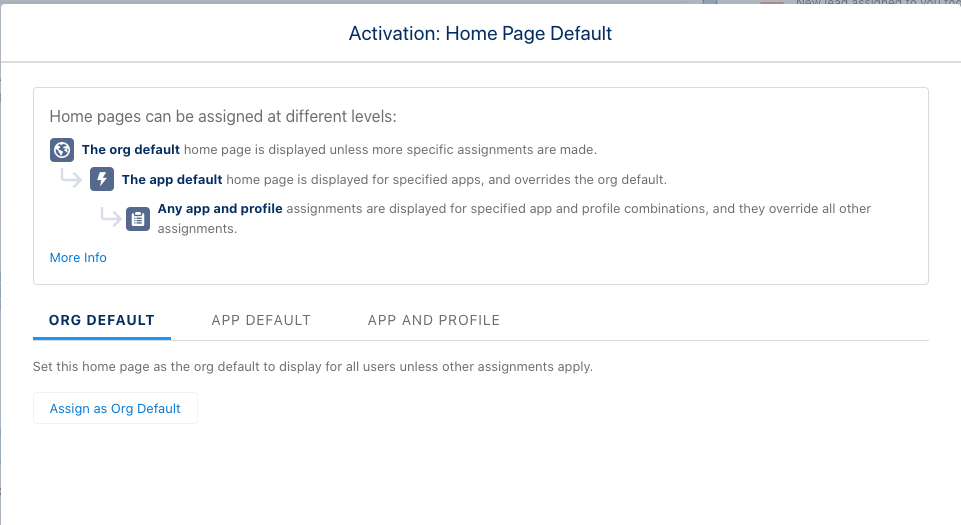
* Click **Assign as org default**.
  <Frame>
    <img src="https://mintcdn.com/asapp/AXwA7-nbwQCJ8xte/image/uuid-e2227892-55f8-1c17-16c7-61a1895bf19c.png?fit=max&auto=format&n=AXwA7-nbwQCJ8xte&q=85&s=a8afc23ad01706158397d073750e5fd2" width="961" height="525" data-path="image/uuid-e2227892-55f8-1c17-16c7-61a1895bf19c.png" />
  </Frame>
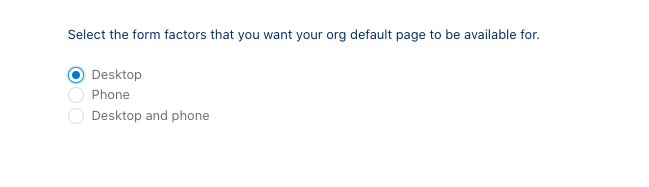
* Choose the **Desktop** form factor, then click **Save**.
  <Frame>
    <img src="https://mintcdn.com/asapp/BoXlOITRW7VjgmOG/image/uuid-25a3c7b0-9a58-97be-28a4-799e4de6f3f3.png?fit=max&auto=format&n=BoXlOITRW7VjgmOG&q=85&s=896ff7c3620357aa1344554a8be3a597" width="649" height="187" data-path="image/uuid-25a3c7b0-9a58-97be-28a4-799e4de6f3f3.png" />
  </Frame>
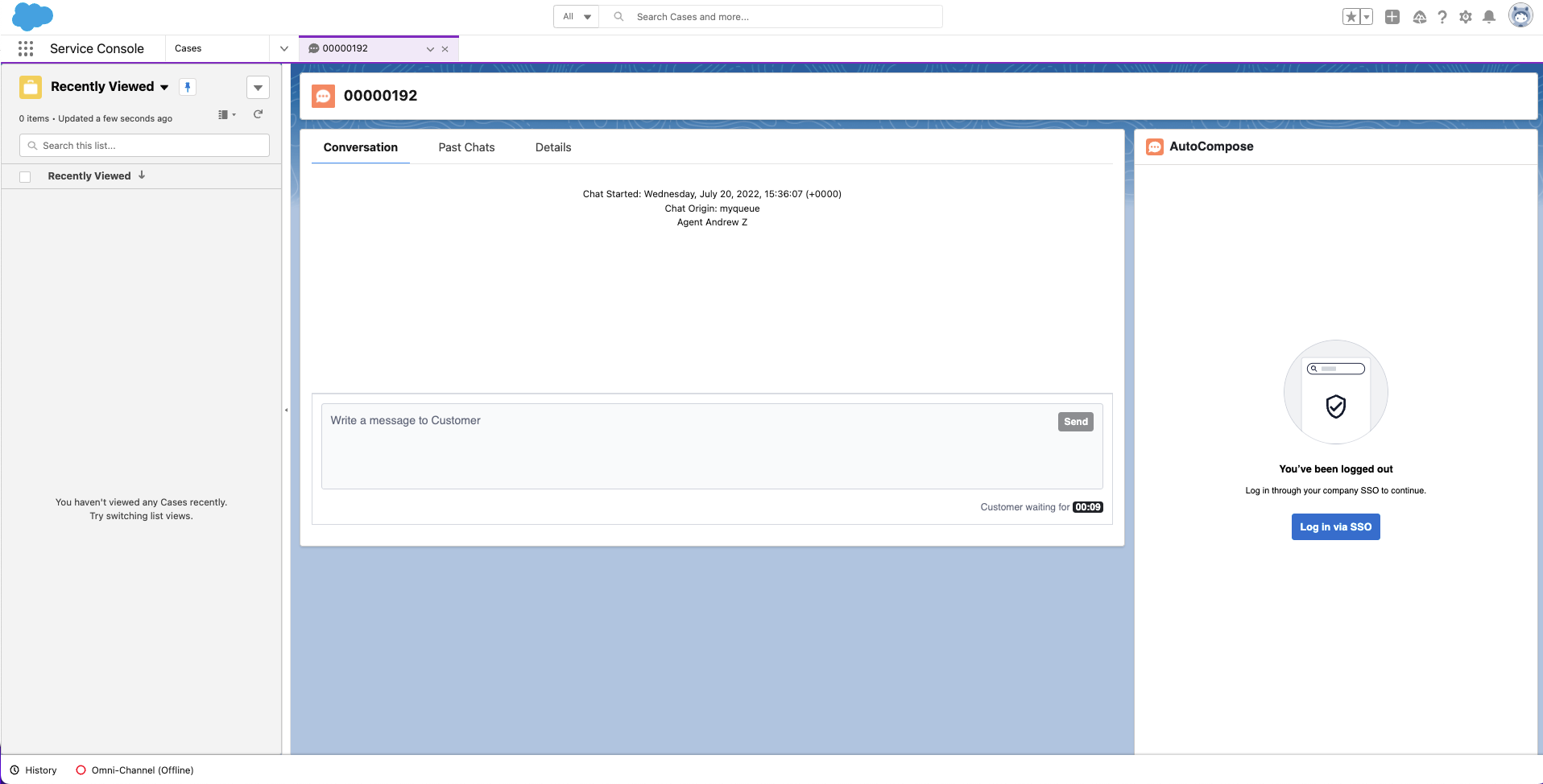
* Return to the chat transcript page and refresh - the ASAPP composer should appear.
  <Frame>
    <img src="https://mintcdn.com/asapp/NE5s_J_rgoRPqQQt/image/uuid-419161db-4848-c498-a3b7-60faa0d0df6d.png?fit=max&auto=format&n=NE5s_J_rgoRPqQQt&q=85&s=54389209b9d389168ef13571c6303701" width="1916" height="974" data-path="image/uuid-419161db-4848-c498-a3b7-60faa0d0df6d.png" />
  </Frame>

### 2. Set Up Single Sign-On

ASAPP handles authentication through the customer's SSO service to confirm the identity of the agent.

ASAPP acts as the Service Provider (SP), with the customer acting as the Identity Provider (IDP). The customer's authentication system performs user authentication using their existing user credentials.

ASAPP supports SP-initiated SSO with either OIDC (preferred method) and SAML. Once the user initiates sign-in, ASAPP detects that the user is authenticated and requests an assertion from the customer's SSO service.

**Configuration Steps for OIDC (preferred method)**

1. Create a new IDP OIDC application with type `Web`

2. Set the following attributes for the app:

   <table class="informaltable frame-void rules-rows">
     <thead>
       <tr>
         <th class="th"><p>Attribute</p></th>
         <th class="th"><p>Value\*</p></th>
       </tr>
     </thead>

     <tbody>
       <tr>
         <td class="td"><p>Grant Type</p></td>
         <td class="td"><p>authorization code</p></td>
       </tr>

       <tr>
         <td class="td"><p>Sign-in Redirect URIs</p></td>

         <td class="td">
           <p>Production: `https://api.asapp.com/auth/v1/callback/\{company_marker\}`</p>
           <p>Sandbox: `https://api.sandbox.asapp.com/auth/v1/callback/\{company_marker\}-sandbox`</p>
         </td>
       </tr>
     </tbody>
   </table>

   **\*NOTE:** ASAPP to provide `company_marker` value

3. Save the application and send ASAPP the `Client ID` and `Client Secret` from the app through a secure communication channel

4. Set scopes for the OIDC application:
   * Required: `openid`
   * Preferred: `email`, `profile`

5. Tell ASAPP which end-user attribute should be used a unique identifier

6. Tell ASAPP your IDP domain name

**Configuration Steps for SAML**

1. Create a new IDP SAML application.
2. Set the following attributes for the app:

   | Attribute            | Value\*                                                                                                                                                                                                                                                                     |
   | :------------------- | :-------------------------------------------------------------------------------------------------------------------------------------------------------------------------------------------------------------------------------------------------------------------------- |
   | Single Sign On URL   | Production: `https://sso.asapp.com/auth/realms/standalone-{company_marker}-auth/broker/saml/endpoint/clients/asapp-sam`l <br /><br /> Sandbox: `https://sso.asapp.com/auth/realms/standalone-{company_marker}-auth/broker/saml-sandbox/endpoint/clients/asapp-saml-sandbox` |
   | Recipient URL        | Production: `https://sso.asapp.com/auth/realms/standalone-{company_marker}-auth/broker/saml/endpoint/clients/asapp-saml` <br /><br /> Sandbox: `https://sso.asapp.com/auth/realms/standalone-{company_marker}-auth/broker/saml-sandbox/endpoint/clients/asapp-saml-sandbox` |
   | Destination URL      | Production: `https://sso.asapp.com/auth/realms/standalone-{company_marker}-auth/broker/saml/endpoint/clients/asapp-saml` <br /><br /> Sandbox: `https://sso.asapp.com/auth/realms/standalone-{company_marker}-auth/broker/saml-sandbox/endpoint/clients/asapp-saml-sandbox` |
   | Audience Restriction | Production: `https://sso.asapp.com/auth/realms/standalone-{company_marker}-auth/broker/saml/endpoint/clients/asapp-saml` <br /><br /> Sandbox: `https://sso.asapp.com/auth/realms/standalone-{company_marker}-auth/broker/saml-sandbox/endpoint/clients/asapp-saml-sandbox` |
   | Response             | Signed                                                                                                                                                                                                                                                                      |
   | Assertion            | Signed                                                                                                                                                                                                                                                                      |
   | Signature Algorithm  | RSA\_SHA256                                                                                                                                                                                                                                                                 |
   | Digest Algorithm     | SHA256                                                                                                                                                                                                                                                                      |
   | Attribute Statements | externalUserId: `{unique_id_to_identify_the_user}`                                                                                                                                                                                                                          |

   **\*NOTE:** ASAPP to provide `company_marker` value
3. Save the application and send the Public Certificate to validate Signature for this app SAML payload to ASAPP team
4. Send ASAPP team the URL of the SAML application

### 3. Configure Auto-Pilot Greetings

If you so choose, you can work with your ASAPP contact to enable Auto-Pilot Greetings in your AI Compose installation.
Auto-Pilot Greetings automatically generates a greeting at the beginning of a conversation, and that greeting can be automatically sent to a customer on your agent's behalf after a configurable timer elapses.

Your ASAPP contact can:

* Turn Auto-Pilot Greetings on or off for your organization
* Set a countdown timer value after which the Auto-Pilot Greeting is sent if an agent does not cancel Auto-Pilot by typing or clicking a "cancel" button
* Set the global default messages that will be provided for Auto-Pilot Greetings across your organization (note that agents can optionally customize their Auto-Pilot Greetings messages within the Auto-Pilot tab of the AI Compose panel)

## Usage

### Customization

#### Conversation Attributes

Once the ASAPP AI Compose widget is embedded, Salesforce shares the following conversation attributes with ASAPP: customer name, agent name and skill.

ASAPP can use name attributes to populate values into templated responses (e.g. "Hi \[customer name], how can I help you today?") and to selectively filter response lists based on the skill of the conversation.

#### Conversation Redaction

When message text in the conversation transcript is sent to ASAPP, ASAPP applies redaction to the message text to prevent transmission of sensitive information. Reach out to your ASAPP account contact for information on available redaction capabilities to configure for your implementation.

#### Composer Placement

ASAPP currently targets Lightning desktops. Within Lightning-based desktops, you are free to place our composer wherever you choose. However, we suggest placing it immediately below the Salesforce conversation widget, such that the chat log appears above the ASAPP composer.

### Data Security

ASAPP's security protocols protect data at each point of transmission from first user authentication, to secure communications, to our auditing and logging system, all the way to securing the environment when data is at rest in the data logging system. Access to data by ASAPP teams is tightly constrained and monitored. Strict security protocols protect both ASAPP and our customers.

The following security controls are particularly relevant to AI Compose:

1. Client sessions are controlled using a time-limited authorization token. Privileges for each active session are controlled server-side to mitigate potential elevation-of-privilege and information disclosure risks.
2. To avoid unauthorized disclosure of information, unique, non-guessable IDs are used to identify conversations. These conversations can only be accessed using a valid client session.
3. Requests to API endpoints that can potentially receive sensitive data are put through a round of redaction to strip the request of sensitive data (like SSNs and phone numbers).

### Additional Considerations

#### Historical Conversation Data for Generating a Response List

ASAPP uses past agent conversations to generate a customized response list tailored to a given use case. In order to create an accurate and relevant list, ASAPP requires a minimum of 200,000 historical transcripts to be supplied ahead of implementing AI Compose.

For more information on how to transmit the conversation data, reach out to your ASAPP account contact.