> ## Documentation Index
> Fetch the complete documentation index at: https://docs.asapp.com/llms.txt
> Use this file to discover all available pages before exploring further.
# MCP Servers in API Connections
> Learn how to connect GenerativeAgent to an MCP server
MCP ([Model Context Protocol](https://modelcontextprotocol.io/)) servers provide a standardized way to expose tools and capabilities to LLMs. Unlike traditional APIs that implicitly require a developer to read docs, trial and error, and technical support to successfully use, MCP servers are designed with LLM use from the start, making them easier to integrate with GenerativeAgent.
## Use MCP Server
1. Navigate to **API Integration Hub** > **API Connections**
2. Click **Create Connection**
3. Select **MCP Server** from the connection type list
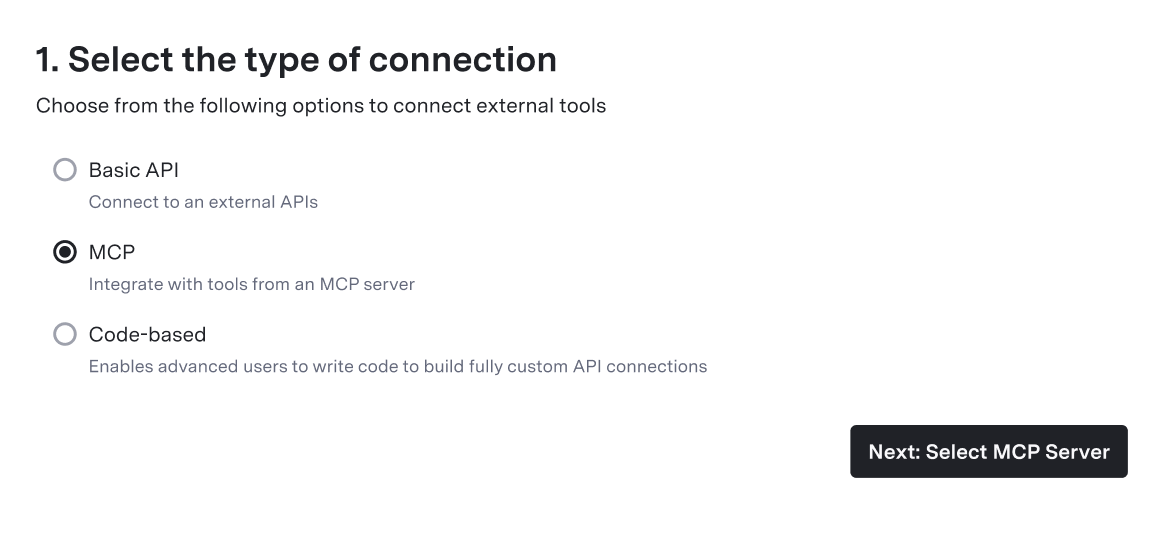 4. Click **Add New** to create a new MCP server source
 You can create, edit, and delete sources from the **Sources** page in the **API Integration Hub**
Configure the MCP server:
* **URL**: Enter the URL of your MCP server
* **Authentication Method**: Select or create an [authentication method](/generativeagent/configuring/connect-apis/authentication-methods) for the server
You can create, edit, and delete sources from the **Sources** page in the **API Integration Hub**
Configure the MCP server:
* **URL**: Enter the URL of your MCP server
* **Authentication Method**: Select or create an [authentication method](/generativeagent/configuring/connect-apis/authentication-methods) for the server
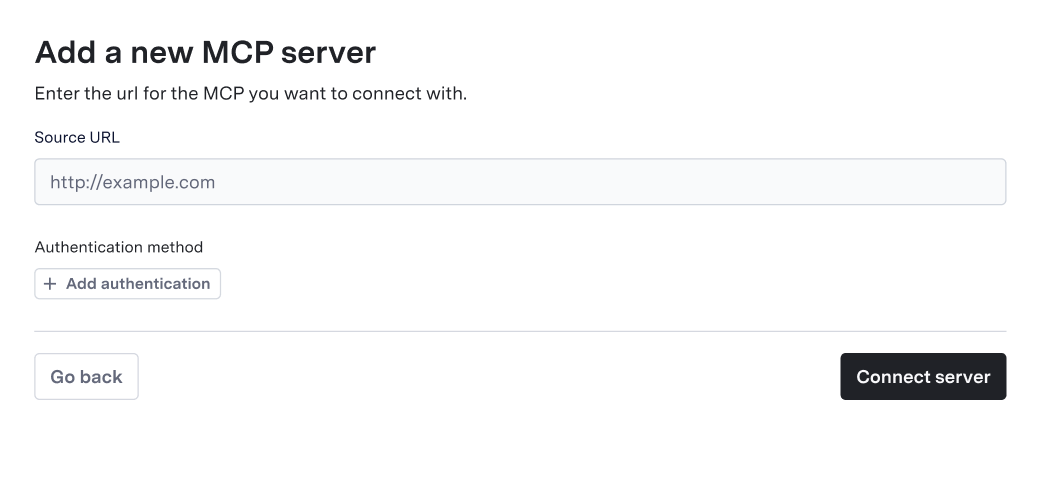 You can reuse MCP server sources across multiple API connections. Once created, they appear in the MCP server dropdown for future connections.
After configuring the MCP server source, select the tool you want to use:
1. Browse available tools from the MCP server
2. Select the tool you want to connect
3. The tool's name and purpose are automatically populated from the MCP server response
You can reuse MCP server sources across multiple API connections. Once created, they appear in the MCP server dropdown for future connections.
After configuring the MCP server source, select the tool you want to use:
1. Browse available tools from the MCP server
2. Select the tool you want to connect
3. The tool's name and purpose are automatically populated from the MCP server response
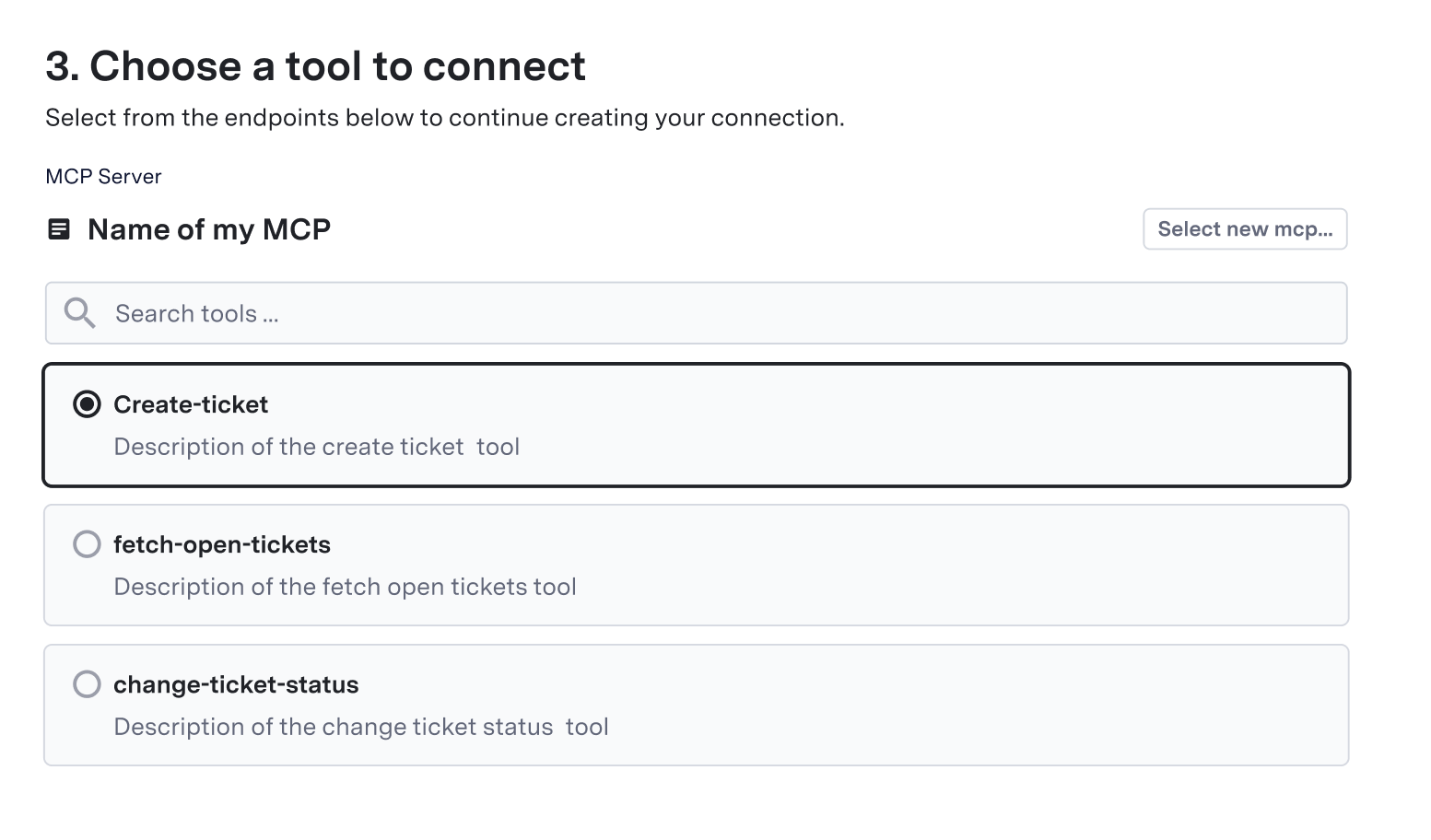 MCP servers expose tools that are already designed for LLM use, so the request and response schemas are typically well-structured for GenerativeAgent. You may still configure [request and response transformations](/generativeagent/configuring/connect-apis#request-interface) if needed, but they're often unnecessary.
Once your MCP server connection is configured, [reference it in a Function](/generativeagent/configuring#step-4-create-functions) to enable GenerativeAgent to use the MCP tool.
## Configure Request and Response Interfaces
Since MCP servers are designed for LLM interaction, transformations are often not needed. However, you can still configure:
* [Request Interface](/generativeagent/configuring/connect-apis#request-interface): Modify how GenerativeAgent sends data to the tool
* [Response Interface](/generativeagent/configuring/connect-apis#response-interface): Transform the tool's response format
Start with the default schemas and transformations. Only customize if you need to adapt the tool's interface for your specific use case.
## MCP Server Schema Changes
MCP servers are unversioned. When you update the schema of your MCP tools, the existing MCP server source in your system continues to use the original schema.
To incorporate schema changes:
1. Create a new MCP server source with the same URL and authentication
2. The new source will fetch and use the updated schema from your MCP server
3. Update your API connections to reference the new MCP server source instead of the old one
## Authentication
MCP server connections in API Connection support the same [authentication methods](/generativeagent/configuring/connect-apis/authentication-methods) as standard API connections. They **do not** currently support MCP's authentication specification.
The [MCP authorization specification](https://modelcontextprotocol.io/docs/tutorials/security/authorization) is designed for uses cases where end users authorize bots to access their personal resources, such as internal productivity tools or chatGPT accessing resources on your behalf, such as your Google Drive.
This flow generally does not work for customer service communication where a user logins to your website or app and presumes any chat experience is already authenticated. The authentication methods of API Connection are designed around that user auth flow.
To use authentication for your MCP Server with API Connections, you need to use one of the [Authenticaiton Methods](/generativeagent/configuring/connect-apis/authentication-methods) we support.
If your MCP server requires a unique authentication flow, contact your ASAPP account team to discuss your requirements. We'll work with you to build and implement the solution.
## Next Steps
Learn how to create functions that use your MCP server connection to enable GenerativeAgent to call MCP tools.
Explore other API connection types and learn how to configure request and response transformations.
MCP servers expose tools that are already designed for LLM use, so the request and response schemas are typically well-structured for GenerativeAgent. You may still configure [request and response transformations](/generativeagent/configuring/connect-apis#request-interface) if needed, but they're often unnecessary.
Once your MCP server connection is configured, [reference it in a Function](/generativeagent/configuring#step-4-create-functions) to enable GenerativeAgent to use the MCP tool.
## Configure Request and Response Interfaces
Since MCP servers are designed for LLM interaction, transformations are often not needed. However, you can still configure:
* [Request Interface](/generativeagent/configuring/connect-apis#request-interface): Modify how GenerativeAgent sends data to the tool
* [Response Interface](/generativeagent/configuring/connect-apis#response-interface): Transform the tool's response format
Start with the default schemas and transformations. Only customize if you need to adapt the tool's interface for your specific use case.
## MCP Server Schema Changes
MCP servers are unversioned. When you update the schema of your MCP tools, the existing MCP server source in your system continues to use the original schema.
To incorporate schema changes:
1. Create a new MCP server source with the same URL and authentication
2. The new source will fetch and use the updated schema from your MCP server
3. Update your API connections to reference the new MCP server source instead of the old one
## Authentication
MCP server connections in API Connection support the same [authentication methods](/generativeagent/configuring/connect-apis/authentication-methods) as standard API connections. They **do not** currently support MCP's authentication specification.
The [MCP authorization specification](https://modelcontextprotocol.io/docs/tutorials/security/authorization) is designed for uses cases where end users authorize bots to access their personal resources, such as internal productivity tools or chatGPT accessing resources on your behalf, such as your Google Drive.
This flow generally does not work for customer service communication where a user logins to your website or app and presumes any chat experience is already authenticated. The authentication methods of API Connection are designed around that user auth flow.
To use authentication for your MCP Server with API Connections, you need to use one of the [Authenticaiton Methods](/generativeagent/configuring/connect-apis/authentication-methods) we support.
If your MCP server requires a unique authentication flow, contact your ASAPP account team to discuss your requirements. We'll work with you to build and implement the solution.
## Next Steps
Learn how to create functions that use your MCP server connection to enable GenerativeAgent to call MCP tools.
Explore other API connection types and learn how to configure request and response transformations.