> ## Documentation Index
> Fetch the complete documentation index at: https://docs.asapp.com/llms.txt
> Use this file to discover all available pages before exploring further.
# Mock API Users
> Learn how to mock APIs for testing and development.
While you are building your API Connection, you can use Mock Data to test the API Connection and ensure your transformations are working as expected. This Mock data saves as a Mock User where you can group mock responses for a given scenario.
The system only uses the Mock Data when testing the API Connection. Use [Test Users](/generativeagent/configuring/tasks-and-functions/test-users) to test and simulate Tasks and Function responses.
## Mock Users
A mock user is a collection of mock responses that simulate how your server may respond. Each endpoint in use by an API Connection can have a mock response defined. By default, the mock user will return the [default mock data](/generativeagent/configuring/connect-apis#api-source) defined in the API Connection's API Source.
To Create a Mock User:
Access the API Mock Users section from the API Integration Hub.
Select the 'Create User' button to start creating a new mock user.
Provide the following information:
* Name of the User
* Description of the User
The newly created mock user will have a default mock response for each endpoint in the API Connection.
You can check "Override Default Mock response" and specify a new mock response.
Make sure to save the mock user to apply the changes.
## Using Mock Users
You can use Mock Users to test your transformations. From within the Response interface, you can select the mock user to use in the "Test Response" panel.
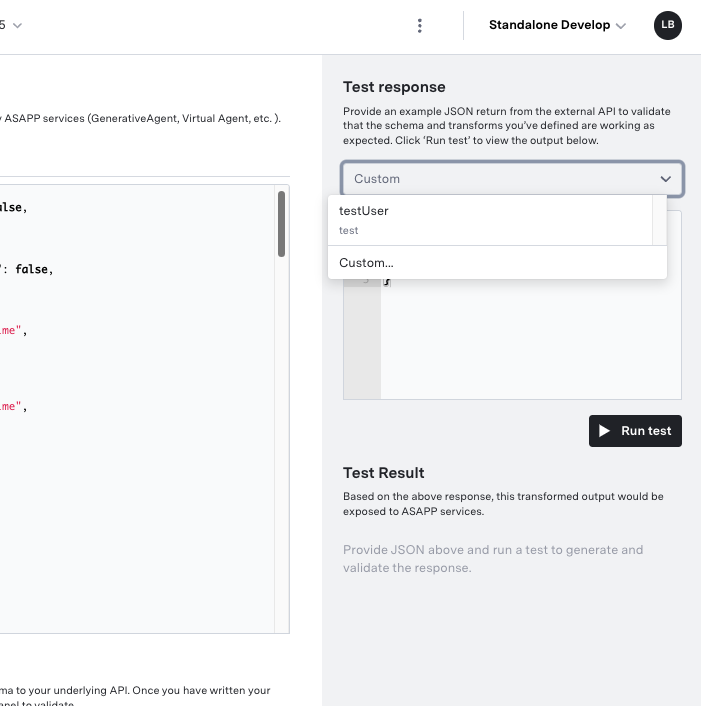 This allows you to save common responses from your server in sets of Mock users. As you iterate on your API Connection, you can test your transformation using the same mock responses.
## Next Steps
Learn how to use test users to simulate and validate task and function responses
Understand how to connect and configure external APIs with your application
Learn how to authenticate your API connections
Step-by-step guide to integrate APIs with your GenerativeAgent implementation
This allows you to save common responses from your server in sets of Mock users. As you iterate on your API Connection, you can test your transformation using the same mock responses.
## Next Steps
Learn how to use test users to simulate and validate task and function responses
Understand how to connect and configure external APIs with your application
Learn how to authenticate your API connections
Step-by-step guide to integrate APIs with your GenerativeAgent implementation