> ## Documentation Index
> Fetch the complete documentation index at: https://docs.asapp.com/llms.txt
> Use this file to discover all available pages before exploring further.
# Bricks
> A modular system for composing prompts from reusable and configurable fragments
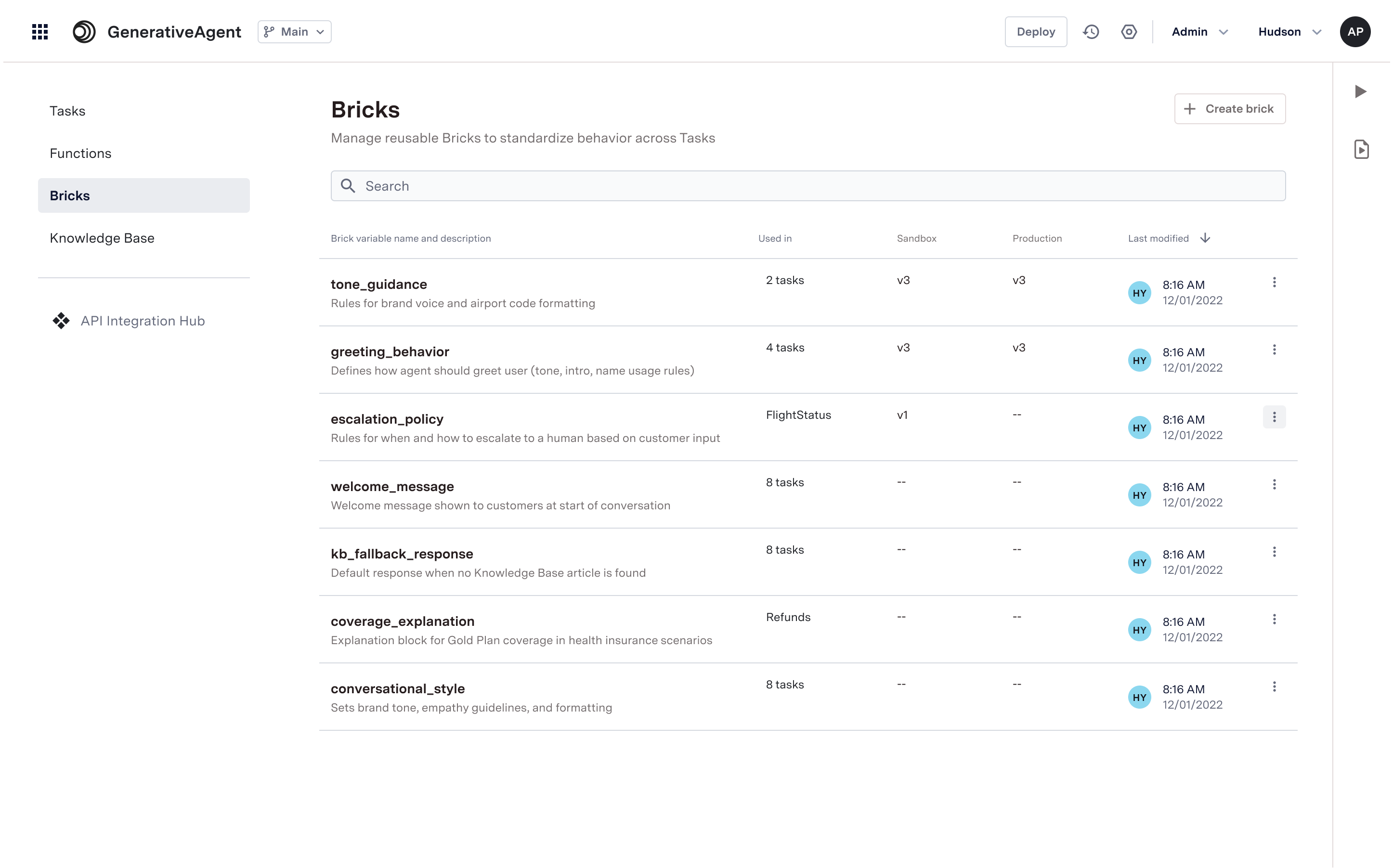
Bricks are reusable prompt fragments that are managed centrally and can be inserted into task instructions.
This enables you to author, reuse, and safely update modular prompts across GenerativeAgent tasks, reducing duplication, inconsistency, and risk.
Each brick is traceable and synchronized across tasks, unlocking faster onboarding, more consistent customer experiences, and safer experimentation.
 ### When to use Bricks
Use bricks for any content you want to reuse across multiple tasks:
* Greetings and standard opening messages
* Disclaimers and legal notices
* Business policies and guidelines
* Company information and context
* Tone guidelines for customer interactions
* Common instructions that don't change
## Configuring Bricks
Here is a step-by-step overview of how to configure and use Bricks:
1. Navigate to **Bricks** under the **Build** section.
2. Click on **Create Brick**.
3. Under **Variable Name**, provide a unique name for the Brick.
4. Under **Description**, provide a brief description of the Brick's purpose.
5. Click **Create** to save the Brick.
6. Add the prompt of the Brick in the text area.
7. Click **Save** to save the content of the Brick.
Bricks support [conditional templates](/generativeagent/configuring/tasks-and-functions/conditional-templates) which enables you to reference variables and implement conditional logic in your bricks.
When using a variable, ensure you have set the variable within the task instructions.
Reference bricks wherever [Jinja variables](/generativeagent/configuring/tasks-and-functions/conditional-templates) are supported, including prompts and other text fields.
For this example, we will reference the Brick in a Task.
1. Navigate to **Tasks** under the **Build** section.
2. Select an existing Task or create a new one.
3. In the Task editor, navigate to where you want to insert the Brick (e.g., Task Instructions, Talker Prompt, Reasoner Prompt).
4. Use the Jinja syntax to reference the Brick by its variable name, e.g., `@brick{brick_variable_name}`.
5. Click **Save** to save the Task.
Use the Previewer to test how the updated Bricks affect the behavior of the GenerativeAgent.
1. Click on **Deploy** to deploy the updated tasks with the new Brick content.
2. Under **Select Resource**, choose **General Configurations**.
3. Select the variable names of the Bricks you want to deploy.
4. Click **Deploy** to apply the changes.
## Updating Bricks
When a Brick is updated and deployed, all tasks that reference that Brick automatically receive the updated content upon the deployment. This ensures consistency across all tasks using the same Brick.
Tasks referencing that Brick will not need to be redeployed.
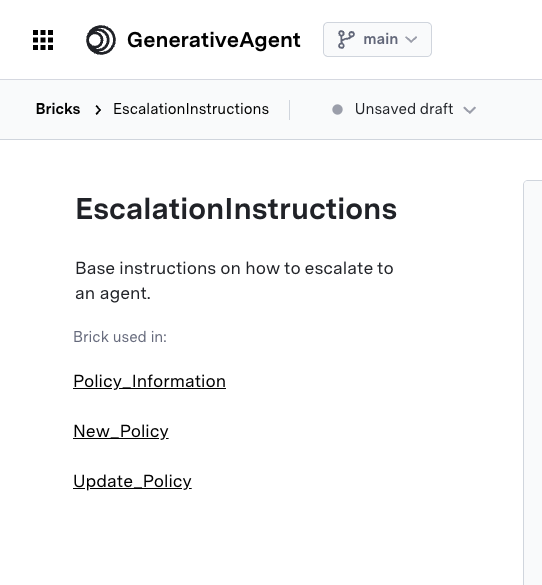
Before making changes or deploying updates to a Brick, you can check which tasks reference that Brick to understand the impact.
### When to use Bricks
Use bricks for any content you want to reuse across multiple tasks:
* Greetings and standard opening messages
* Disclaimers and legal notices
* Business policies and guidelines
* Company information and context
* Tone guidelines for customer interactions
* Common instructions that don't change
## Configuring Bricks
Here is a step-by-step overview of how to configure and use Bricks:
1. Navigate to **Bricks** under the **Build** section.
2. Click on **Create Brick**.
3. Under **Variable Name**, provide a unique name for the Brick.
4. Under **Description**, provide a brief description of the Brick's purpose.
5. Click **Create** to save the Brick.
6. Add the prompt of the Brick in the text area.
7. Click **Save** to save the content of the Brick.
Bricks support [conditional templates](/generativeagent/configuring/tasks-and-functions/conditional-templates) which enables you to reference variables and implement conditional logic in your bricks.
When using a variable, ensure you have set the variable within the task instructions.
Reference bricks wherever [Jinja variables](/generativeagent/configuring/tasks-and-functions/conditional-templates) are supported, including prompts and other text fields.
For this example, we will reference the Brick in a Task.
1. Navigate to **Tasks** under the **Build** section.
2. Select an existing Task or create a new one.
3. In the Task editor, navigate to where you want to insert the Brick (e.g., Task Instructions, Talker Prompt, Reasoner Prompt).
4. Use the Jinja syntax to reference the Brick by its variable name, e.g., `@brick{brick_variable_name}`.
5. Click **Save** to save the Task.
Use the Previewer to test how the updated Bricks affect the behavior of the GenerativeAgent.
1. Click on **Deploy** to deploy the updated tasks with the new Brick content.
2. Under **Select Resource**, choose **General Configurations**.
3. Select the variable names of the Bricks you want to deploy.
4. Click **Deploy** to apply the changes.
## Updating Bricks
When a Brick is updated and deployed, all tasks that reference that Brick automatically receive the updated content upon the deployment. This ensures consistency across all tasks using the same Brick.
Tasks referencing that Brick will not need to be redeployed.
Before making changes or deploying updates to a Brick, you can check which tasks reference that Brick to understand the impact.
 ## Next Steps
Learn how to use reference variables to store and reuse data from function responses
Learn how to build your first GenerativeAgent that can use your KnowledgeBase to start answering your users' questions.
## Next Steps
Learn how to use reference variables to store and reuse data from function responses
Learn how to build your first GenerativeAgent that can use your KnowledgeBase to start answering your users' questions.