> ## Documentation Index
> Fetch the complete documentation index at: https://docs.asapp.com/llms.txt
> Use this file to discover all available pages before exploring further.
# Run Test Scenarios
> Learn how to run Test Scenarios in the Scenario Runner and review the simulation results.
Test scenarios are run in the **Scenario Runner** on the side-panel.
## Run a Test Scenario
To run a Test Scenario:
1. Navigate to the **Scenario Runner** on the side-panel.
2. Click **+ New test run**.
3. Create Test Run by defining:
* **Test name**: A clear, descriptive name for your test run
* **Test selection**: Select to either run a Test Suite (a group of related Test Scenarios) or an individual Test Scenario. To run an individual Test Scenario, enable **Tags** and select the tag of the scenario you want to run.
* **Number of runs**: Define how many times you want to run the selected scenario(s). This is especially useful for testing the consistency of GenerativeAgent's behavior across multiple runs.
* **Simulation channel**: Select the channel you want to use for the simulation: chat or voice.
* **Environment**: Select the environment you want to use for the simulation: draft, sandbox, or production.
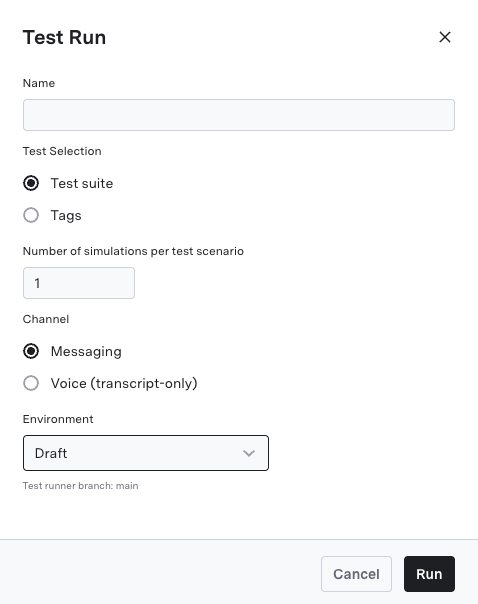 4. Click **Run** to begin the test.
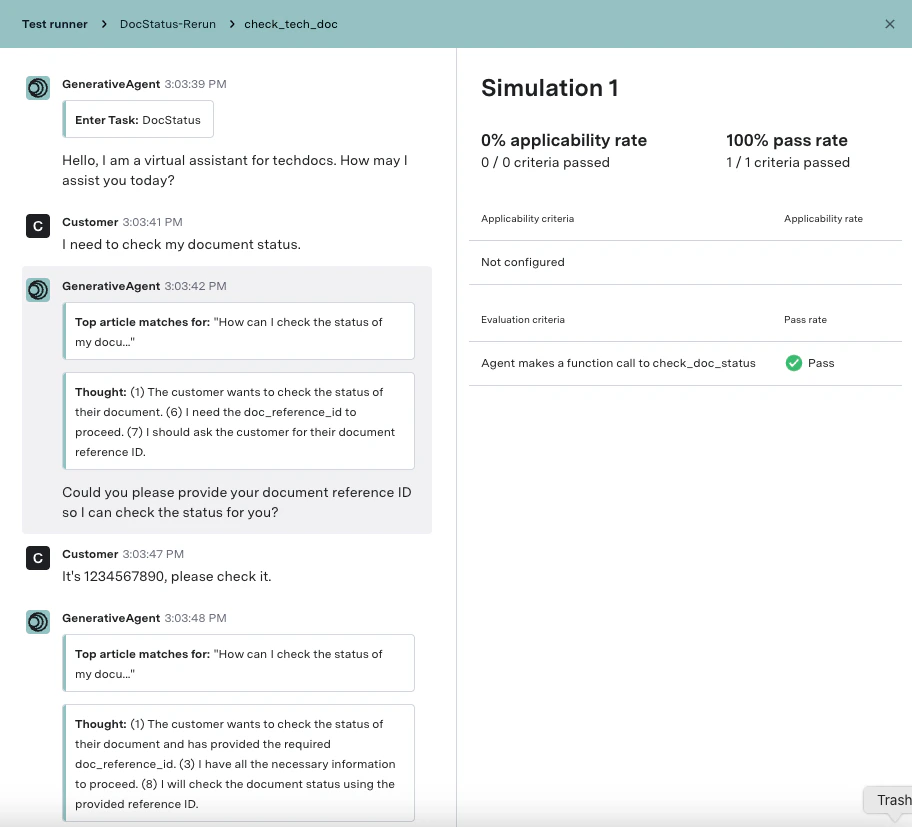 Once the conversation ends:
* Click **Results** to open detailed evaluation outcomes.
* Click **Run again** to re-run evaluations on the conversation in the previewer.
## Evaluation results in simulation runs
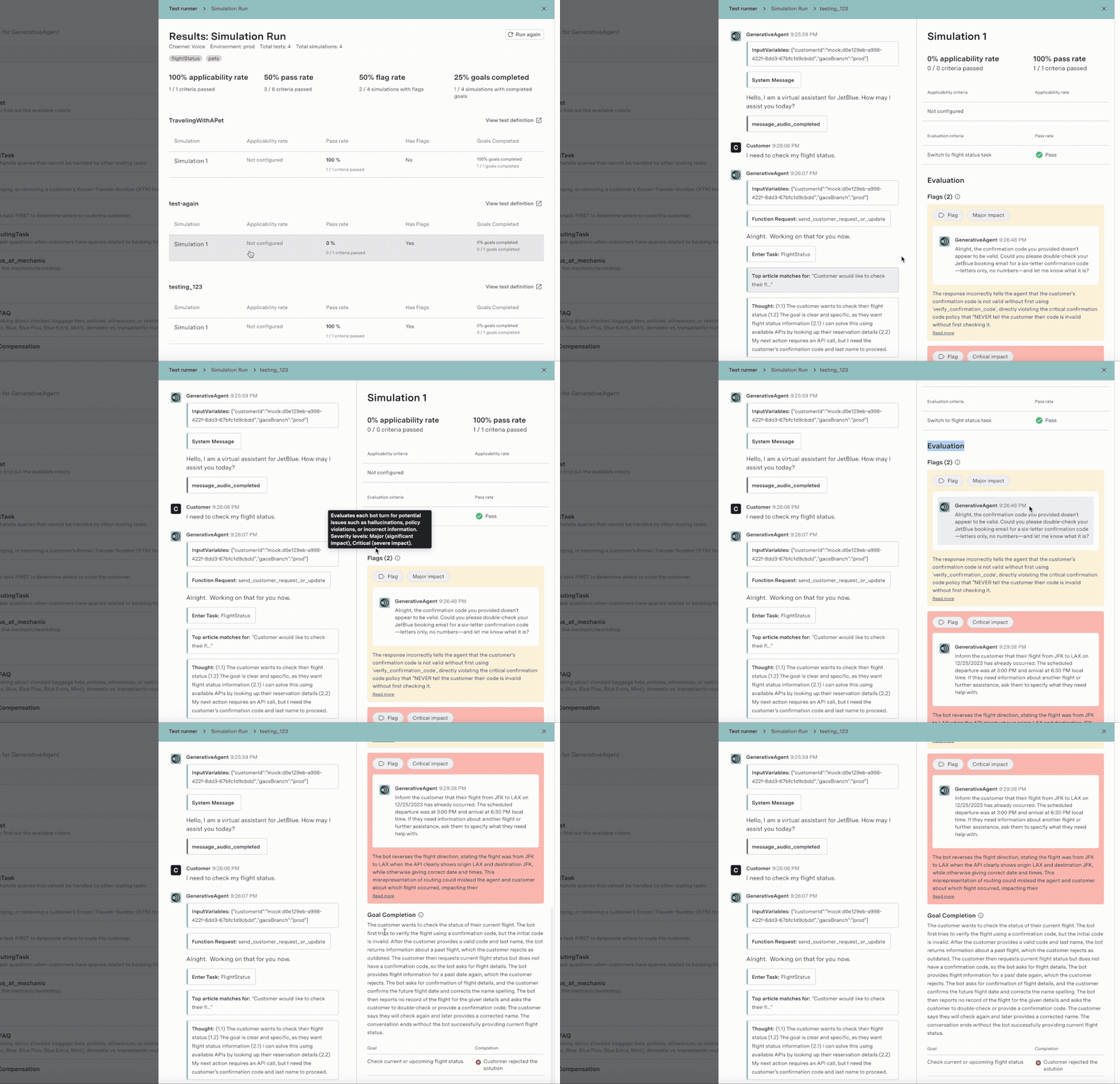
Simulation runs surface the same evaluations used in production, so pre-deployment testing and production monitoring stay aligned. Each simulation run shows:
* **Conversation Monitoring flags**: Mistake flags that highlight problematic utterances, each with a rationale. See [Conversation Monitoring](/generativeagent/observe/evaluators/conversation-monitoring).
* **Goal Completion**: The completion status and rationale for each customer goal. See [Goal Completion](/generativeagent/observe/evaluators/goal-completion).
* **Custom Evals**: Results for any [Evaluation Criteria](/generativeagent/configuring/tasks-and-functions/create-test-scenarios#create-a-test-scenario-manually) configured on the scenario, where configured.
Across a set of runs, builders can view goal completion and mistake rates. For each individual run, the results include detailed mistake flags and the goal completion status and rationale for every goal, in addition to the pass/fail summary.
Once the conversation ends:
* Click **Results** to open detailed evaluation outcomes.
* Click **Run again** to re-run evaluations on the conversation in the previewer.
## Evaluation results in simulation runs
Simulation runs surface the same evaluations used in production, so pre-deployment testing and production monitoring stay aligned. Each simulation run shows:
* **Conversation Monitoring flags**: Mistake flags that highlight problematic utterances, each with a rationale. See [Conversation Monitoring](/generativeagent/observe/evaluators/conversation-monitoring).
* **Goal Completion**: The completion status and rationale for each customer goal. See [Goal Completion](/generativeagent/observe/evaluators/goal-completion).
* **Custom Evals**: Results for any [Evaluation Criteria](/generativeagent/configuring/tasks-and-functions/create-test-scenarios#create-a-test-scenario-manually) configured on the scenario, where configured.
Across a set of runs, builders can view goal completion and mistake rates. For each individual run, the results include detailed mistake flags and the goal completion status and rationale for every goal, in addition to the pass/fail summary.
 ## Next steps
Learn how to generate a Test Scenario from a description, build one from a conversation, or create one manually.
Learn how to use the Previewer to analyze conversation details and evaluation outcomes for your test scenarios.
## Next steps
Learn how to generate a Test Scenario from a description, build one from a conversation, or create one manually.
Learn how to use the Previewer to analyze conversation details and evaluation outcomes for your test scenarios.