> ## Documentation Index
> Fetch the complete documentation index at: https://docs.asapp.com/llms.txt
> Use this file to discover all available pages before exploring further.
# Set Variable Functions
> Save a value from the conversation with a Set Variable Function.
You can store information determined during the conversation for reference in future steps using Set Variable Functions. This is useful for:
* Storing key information (like account numbers, ages, cancellation types) so GenerativeAgent doesn't have to re-prompt the user later.
* Returning or conditioning logic on data that GenerativeAgent has inferred.
* Manipulating or filtering data from APIs (e.g., extracting the single charge the customer disputes).
GenerativeAgent "sets" these variables in conversation, so they can be used immediately or in subsequent steps. You specify how the variable gets set based on the input parameters or existing variables.
To create a set variable function:
1. [Create a function](#step-1-create-a-function).
2. [Define the input parameters](#step-2-define-input-parameters-json).
3. [Specify the variables to set](#step-3-specify-set-variables).
4. [Save the function](#step-4-save-your-function).
5. [Use the function in a task](#step-5-use-the-function-in-the-conversation).
## Step 1: Create a Function
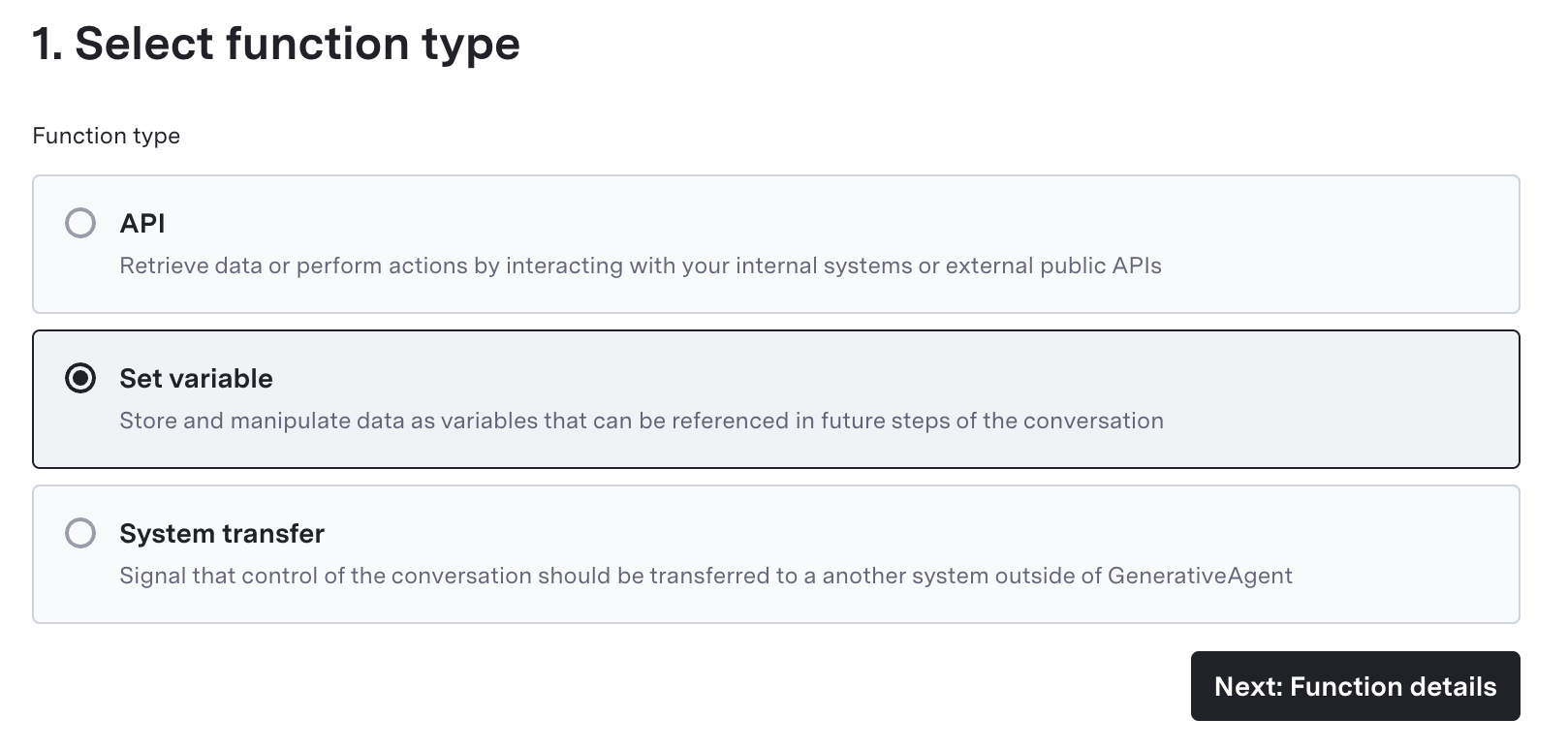
Navigate to the Functions page and click "Create Function."
1. Select "Set variable" and click "Next: Function details"
 2. Specify the Name and Purpose of the Function
* **Function Name**: Provide a concise, unique name, using underscores (e.g., `get_lap_child_policy`).
* **Function Purpose**: Briefly describe what the function does (e.g., "Determines whether a child can fly as a lap child").
* GenerativeAgent uses this description to decide if and when it should invoke the function.
## Step 2: Define Input Parameters (JSON)
The input parameters are the values that GenerativeAgent needs to pass when calling this function.
You can leave the input parameters empty if you won't need new values from the conversation.
As with any function call, GenerativeAgent will gather the necessary information (from user messages or prior context) before calling the function.
Under "Input Parameters," enter a valid JSON schema describing the parameters GenerativeAgent needs to pass when calling this function.
Mark a field as "required" if GenerativeAgent must obtain these values from the conversation.
```json Example Input Schema theme={null}
{
"type": "object",
"required": [
"account_number",
"first_name",
"last_name"
],
"properties": {
"account_number": {
"type": "string",
"description": "Customer's account number"
},
"first_name": {
"type": "string",
"description": "Customer's first name"
},
"last_name": {
"type": "string",
"description": "Customer's last name"
}
}
}
```
## Step 3: Specify "Set Variables"
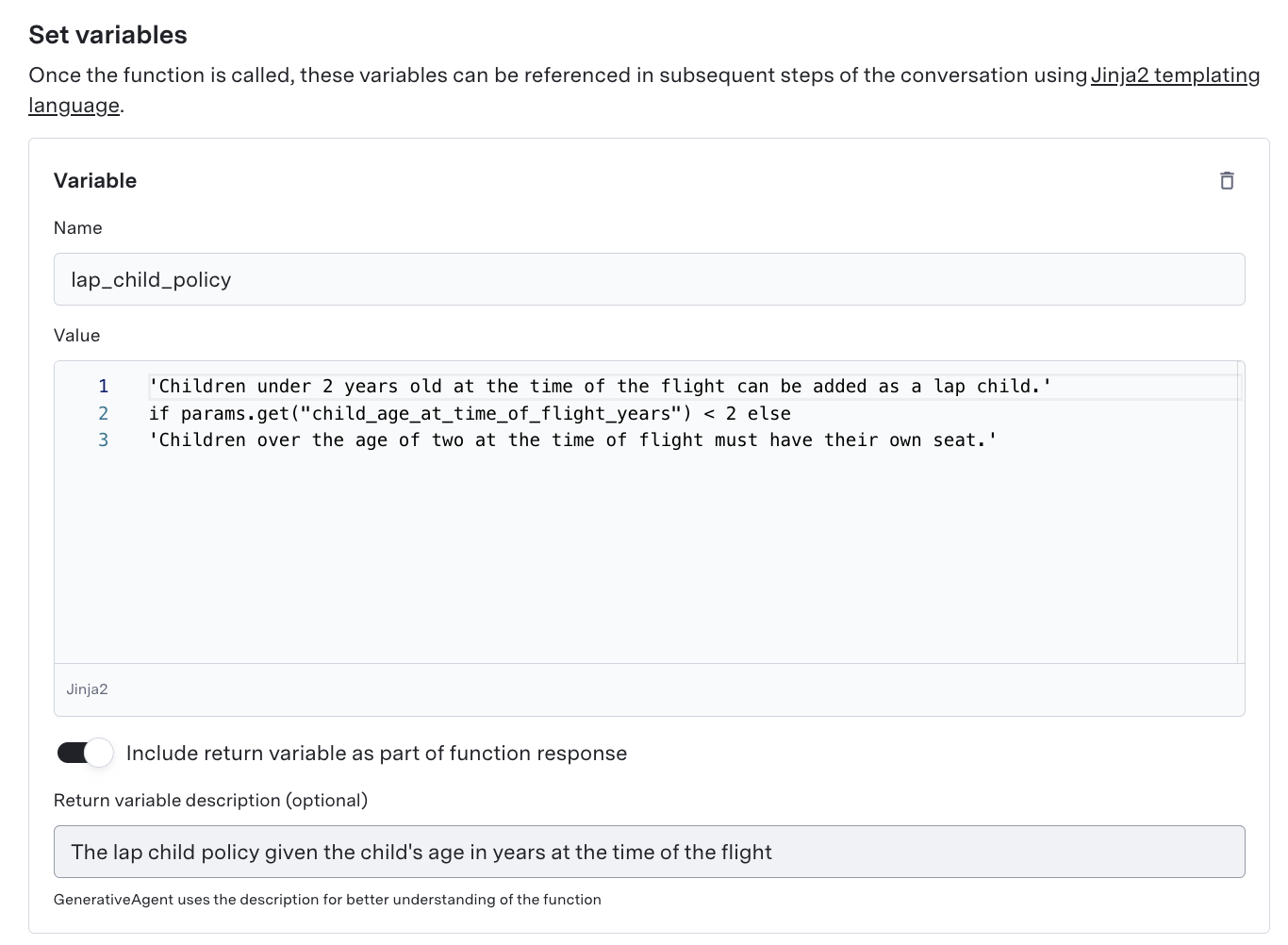
At least one variable must be configured so GenerativeAgent can store the outcome of your function call. For each reference variable:
* Provide a Variable Name (e.g., `lap_child_policy`).
* Optionally, include [Jinja2](#jinja2-templating) transformations to manipulate or combine inputs or existing reference variables.
* Toggle "Include return variable as part of function response" to make the new variable immediately available to GenerativeAgent after the function call.
### Jinja2 Templates
Use [Jinja2](https://jinja.palletsprojects.com/en/stable/) to create or modify the stored value.
For example, the following Jinja2 template sets the variable to **"Children under 2 can fly as a lap child."** if `child_age_at_time_of_flight` is less than 2. Otherwise, it sets the variable to **"Children 2 or older must have their own seat."**
```jinja2 theme={null}
'Children under 2 can fly as a lap child.' if params.child_age_at_time_of_flight < 2 else 'Children 2 or older must have their own seat.''
```
2. Specify the Name and Purpose of the Function
* **Function Name**: Provide a concise, unique name, using underscores (e.g., `get_lap_child_policy`).
* **Function Purpose**: Briefly describe what the function does (e.g., "Determines whether a child can fly as a lap child").
* GenerativeAgent uses this description to decide if and when it should invoke the function.
## Step 2: Define Input Parameters (JSON)
The input parameters are the values that GenerativeAgent needs to pass when calling this function.
You can leave the input parameters empty if you won't need new values from the conversation.
As with any function call, GenerativeAgent will gather the necessary information (from user messages or prior context) before calling the function.
Under "Input Parameters," enter a valid JSON schema describing the parameters GenerativeAgent needs to pass when calling this function.
Mark a field as "required" if GenerativeAgent must obtain these values from the conversation.
```json Example Input Schema theme={null}
{
"type": "object",
"required": [
"account_number",
"first_name",
"last_name"
],
"properties": {
"account_number": {
"type": "string",
"description": "Customer's account number"
},
"first_name": {
"type": "string",
"description": "Customer's first name"
},
"last_name": {
"type": "string",
"description": "Customer's last name"
}
}
}
```
## Step 3: Specify "Set Variables"
At least one variable must be configured so GenerativeAgent can store the outcome of your function call. For each reference variable:
* Provide a Variable Name (e.g., `lap_child_policy`).
* Optionally, include [Jinja2](#jinja2-templating) transformations to manipulate or combine inputs or existing reference variables.
* Toggle "Include return variable as part of function response" to make the new variable immediately available to GenerativeAgent after the function call.
### Jinja2 Templates
Use [Jinja2](https://jinja.palletsprojects.com/en/stable/) to create or modify the stored value.
For example, the following Jinja2 template sets the variable to **"Children under 2 can fly as a lap child."** if `child_age_at_time_of_flight` is less than 2. Otherwise, it sets the variable to **"Children 2 or older must have their own seat."**
```jinja2 theme={null}
'Children under 2 can fly as a lap child.' if params.child_age_at_time_of_flight < 2 else 'Children 2 or older must have their own seat.''
```
 ## Step 4: Save Your Function
With your function defined, you can save it by clicking "Create Function".
After saving, you'll see a detail page showing the JSON schema and the configured reference variables.
## Step 5: Use the Function in the Conversation
Once you have created your set variable function, add it to the task's list of available functions for GenerativeAgent to use it.
GenerativeAgent may call the function proactively, but we recommend you instruct GenerativeAgent to call the function explicitly.
Always make sure to test your functions with Previewer to ensure they work as expected.
Here's how the function works within a task and conversation flow:
1. GenerativeAgent collects the required parameters from the user (or context).
2. (Optional) The system can display a "Message before Sending" to the user, clarifying why GenerativeAgent is saving data.
3. Jinja2 transformations convert or combine inputs, if defined.
4. The system creates reference variables as soon as the function runs successfully—GenerativeAgent can immediately incorporate them into logic or other function calls.
5. If you turned on "Include return variable as part of function response," GenerativeAgent receives the new values right away, shaping subsequent interaction steps.
```jinja2 theme={null}
# Objective
Assist the customer in adding a lap child to their flight reservation by determining eligibility and communicating relevant policies.
# Context
- The customer has provided their confirmation number.
- No lap children currently exist on their reservation.
# Instructions
1. **Eligibility Check:**
- Call the `get_lap_child_policy` function to determine if the child is eligible as a lap child and obtain the policy.
2. **Communicate Eligibility and Policy:**
- {% if vars.get("child_eligible_as_lap_child") == true %}
- Inform the customer: "The child is eligible as a lap child and will be {{ vars.get('childs_age') }} at the time of the flight. Lap child policy: {{ vars.get('lap_child_policy') }}."
- {% elif vars.get("child_eligible_as_lap_child") == false %}
- Inform the customer: "The child is not eligible as a lap child because they will be {{ vars.get('childs_age') }} at the time of the flight. Lap child policy: {{ vars.get('lap_child_policy') }}."
- {% endif %}
3. **Customer Action Based on Eligibility:**
- {% if vars.get("child_eligible_as_lap_child") == true %}
- Ask if the customer would like to add their child as a lap child.
- If yes, call the `add_lap_child()` function.
- {% elif vars.get("child_eligible_as_lap_child") == false %}
- Offer assistance in purchasing a seat for the child.
- Based on customer response:
- Assist in seat purchase if desired.
- If not, ask if further assistance is needed.
- {% endif %}
```
## Best Practices
Here are some recommendations to help you make the best use of the set variables function type:
Label your variables and functions clearly (e.g., "child\_age\_at\_time\_of\_flight") so GenerativeAgent and your team understand their purpose.
By toggling "Include return variable as part of function response," GenerativeAgent can incorporate newly stored data immediately. Even if this is off, the variable is still saved for future reference.
Apply conditionals and expressions to reduce guesswork—for instance, deciding if a child is under 2 for lap-child eligibility.
In a Task's configuration, specify "Conditions" to control when GenerativeAgent should call this function. This helps you keep flows tidy.
Avoid clutter or extraneous parameters. A clear schema helps GenerativeAgent gather exactly what's needed without prompting extra questions.
## Next Steps
Learn more about best practices for task and function configuration.
Use conditional logic to dynamically change instructions based on variables.
Test your functions in a safe environment before deploying to production.
Test your functions and variables in real-time with the Previewer tool.
## Step 4: Save Your Function
With your function defined, you can save it by clicking "Create Function".
After saving, you'll see a detail page showing the JSON schema and the configured reference variables.
## Step 5: Use the Function in the Conversation
Once you have created your set variable function, add it to the task's list of available functions for GenerativeAgent to use it.
GenerativeAgent may call the function proactively, but we recommend you instruct GenerativeAgent to call the function explicitly.
Always make sure to test your functions with Previewer to ensure they work as expected.
Here's how the function works within a task and conversation flow:
1. GenerativeAgent collects the required parameters from the user (or context).
2. (Optional) The system can display a "Message before Sending" to the user, clarifying why GenerativeAgent is saving data.
3. Jinja2 transformations convert or combine inputs, if defined.
4. The system creates reference variables as soon as the function runs successfully—GenerativeAgent can immediately incorporate them into logic or other function calls.
5. If you turned on "Include return variable as part of function response," GenerativeAgent receives the new values right away, shaping subsequent interaction steps.
```jinja2 theme={null}
# Objective
Assist the customer in adding a lap child to their flight reservation by determining eligibility and communicating relevant policies.
# Context
- The customer has provided their confirmation number.
- No lap children currently exist on their reservation.
# Instructions
1. **Eligibility Check:**
- Call the `get_lap_child_policy` function to determine if the child is eligible as a lap child and obtain the policy.
2. **Communicate Eligibility and Policy:**
- {% if vars.get("child_eligible_as_lap_child") == true %}
- Inform the customer: "The child is eligible as a lap child and will be {{ vars.get('childs_age') }} at the time of the flight. Lap child policy: {{ vars.get('lap_child_policy') }}."
- {% elif vars.get("child_eligible_as_lap_child") == false %}
- Inform the customer: "The child is not eligible as a lap child because they will be {{ vars.get('childs_age') }} at the time of the flight. Lap child policy: {{ vars.get('lap_child_policy') }}."
- {% endif %}
3. **Customer Action Based on Eligibility:**
- {% if vars.get("child_eligible_as_lap_child") == true %}
- Ask if the customer would like to add their child as a lap child.
- If yes, call the `add_lap_child()` function.
- {% elif vars.get("child_eligible_as_lap_child") == false %}
- Offer assistance in purchasing a seat for the child.
- Based on customer response:
- Assist in seat purchase if desired.
- If not, ask if further assistance is needed.
- {% endif %}
```
## Best Practices
Here are some recommendations to help you make the best use of the set variables function type:
Label your variables and functions clearly (e.g., "child\_age\_at\_time\_of\_flight") so GenerativeAgent and your team understand their purpose.
By toggling "Include return variable as part of function response," GenerativeAgent can incorporate newly stored data immediately. Even if this is off, the variable is still saved for future reference.
Apply conditionals and expressions to reduce guesswork—for instance, deciding if a child is under 2 for lap-child eligibility.
In a Task's configuration, specify "Conditions" to control when GenerativeAgent should call this function. This helps you keep flows tidy.
Avoid clutter or extraneous parameters. A clear schema helps GenerativeAgent gather exactly what's needed without prompting extra questions.
## Next Steps
Learn more about best practices for task and function configuration.
Use conditional logic to dynamically change instructions based on variables.
Test your functions in a safe environment before deploying to production.
Test your functions and variables in real-time with the Previewer tool.