> ## Documentation Index
> Fetch the complete documentation index at: https://docs.asapp.com/llms.txt
> Use this file to discover all available pages before exploring further.
# System Transfer Functions
> Signal conversation control transfer to external systems with System Transfer Functions.
System transfer functions define the parameters sent during a transfer (e.g., SIP headers, output context on a call transfer). They are referenced by [Handoffs](/generativeagent/configuring/tasks-and-functions/handoff) via the `transfer_function_name` field — Handoffs use them to perform the actual transfer to a human agent queue.
System Transfer Functions signal that control of the conversation should be transferred from GenerativeAgent to an external system. They can also return reference variables (e.g., a determined "intent," or details about a charge) for further processing outside of GenerativeAgent.
By using a System Transfer Function, you can:
* End the conversation gracefully, indicating that GenerativeAgent is finished.
* Hand control back to the calling application or IVR once a goal is met.
* Send relevant conversation data (e.g., identified charges, subscription flags, or determined intent) for follow-up workflows.
To create a system transfer function:
1. [Create a function](#step-1-create-a-new-function)
2. [Define input parameters](#step-2-define-input-parameters-json)
3. [Set variables (optional)](#step-3-optional-set-variables)
4. [Save the function](#step-4-save-your-function)
5. [Use the function in a task](#step-6-using-the-system-transfer-function-in-the-conversation)
6. [Handle the system transfer event](#step-5-handle-the-system-transfer-event)
## Step 1: Create a New Function
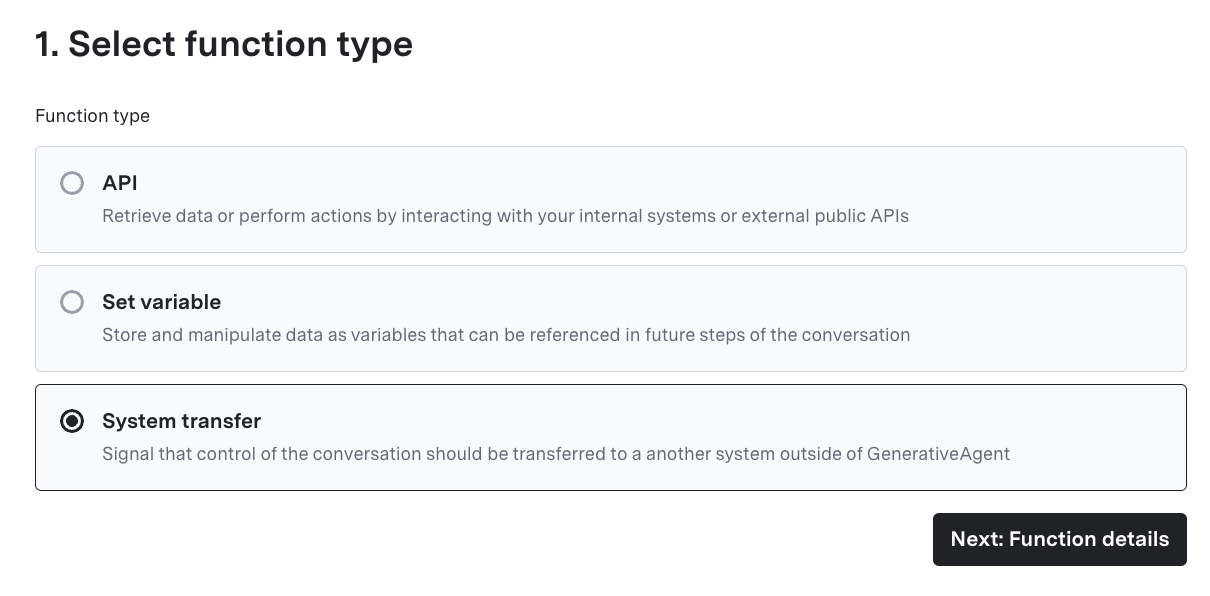
Navigate to the Functions page and click "Create Function."
1. Select "System transfer" and click "Next: Function details"
 2. Specify the Name and Purpose of the Function
* **Function Name**: Provide a concise, unique name, using underscores (e.g., `issue_refund_request`).
* **Function Purpose**: Briefly describe what the function does (e.g., "Takes the collected charge info and indicates a refund request should be processed").
* GenerativeAgent uses this description to determine if/when it should call the function.
## Step 2: Define Input Parameters (JSON)
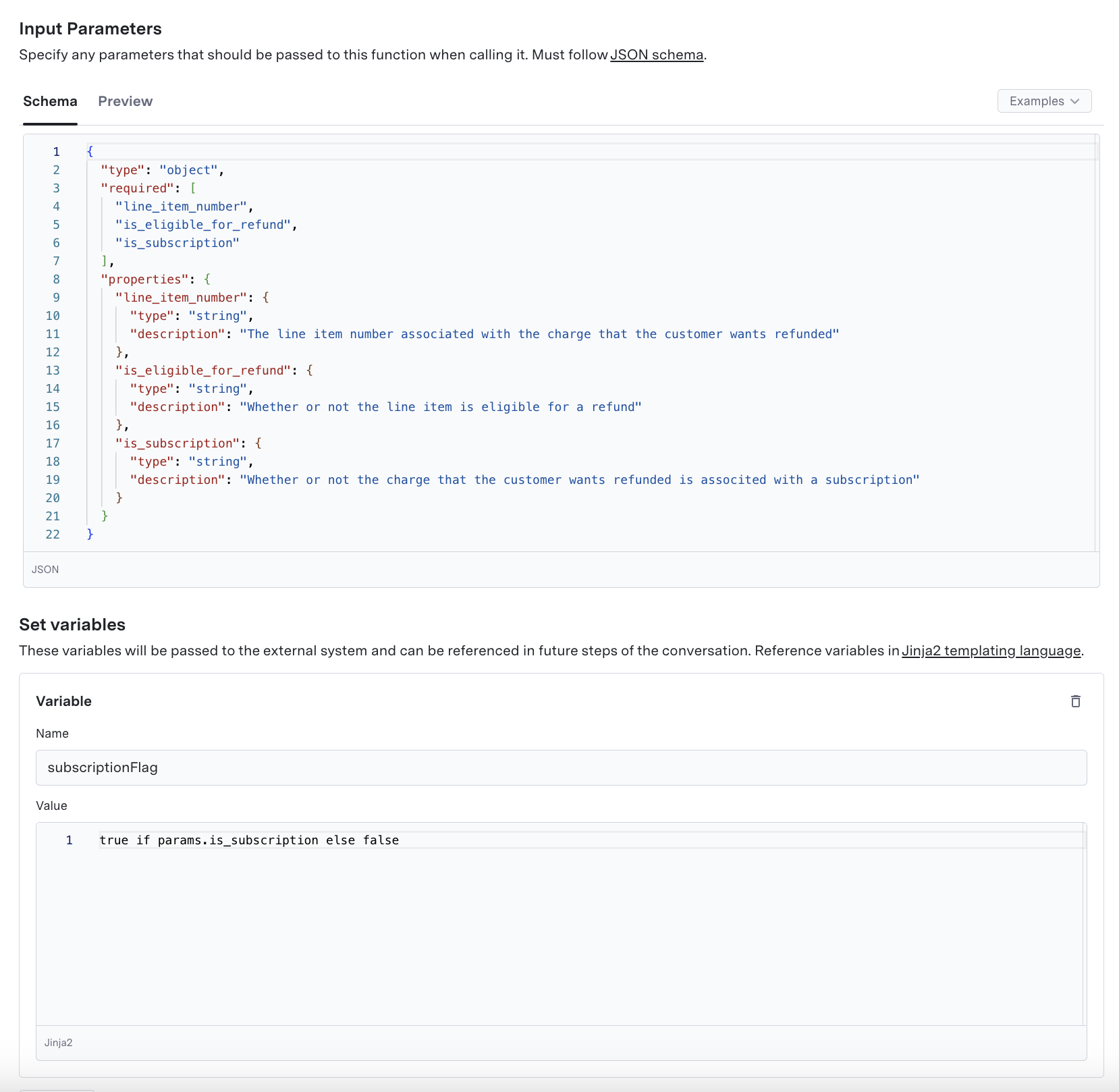
The input parameters are the values that GenerativeAgent needs to pass when calling this function to transfer control to the external system.
Under "Input Parameters," enter a valid JSON schema describing the required parameters. GenerativeAgent gathers the necessary information (from user messages or prior context) before calling the function.
```json Example Input Schema theme={null}
{
"type": "object",
"required": [
"line_item_number",
"is_eligible_for_refund",
"is_subscription"
],
"properties": {
"line_item_number": {
"type": "string",
"description": "The line item number associated with the charge"
},
"is_eligible_for_refund": {
"type": "boolean",
"description": "Whether or not the line item is eligible for a refund"
},
"is_subscription": {
"type": "boolean",
"description": "Whether or not the charge is associated with a subscription"
}
}
}
```
## Step 3: (Optional) Set Variables
Though System Transfer Functions typically return control to an external system, you can still configure one or more reference variables:
* Configure variables to rename or transform parameter values for the external system
* Use [Jinja2](https://jinja.palletsprojects.com/en/stable/) for transformations if needed
* Toggle "Include return variable as part of function response" to make variables immediately available
### Jinja2 Templates
Use Jinja2 to transform values before transfer. For example, to convert a string boolean to a proper boolean:
```jinja2 theme={null}
true if params.get("is_subscription") == "True" else false
```
2. Specify the Name and Purpose of the Function
* **Function Name**: Provide a concise, unique name, using underscores (e.g., `issue_refund_request`).
* **Function Purpose**: Briefly describe what the function does (e.g., "Takes the collected charge info and indicates a refund request should be processed").
* GenerativeAgent uses this description to determine if/when it should call the function.
## Step 2: Define Input Parameters (JSON)
The input parameters are the values that GenerativeAgent needs to pass when calling this function to transfer control to the external system.
Under "Input Parameters," enter a valid JSON schema describing the required parameters. GenerativeAgent gathers the necessary information (from user messages or prior context) before calling the function.
```json Example Input Schema theme={null}
{
"type": "object",
"required": [
"line_item_number",
"is_eligible_for_refund",
"is_subscription"
],
"properties": {
"line_item_number": {
"type": "string",
"description": "The line item number associated with the charge"
},
"is_eligible_for_refund": {
"type": "boolean",
"description": "Whether or not the line item is eligible for a refund"
},
"is_subscription": {
"type": "boolean",
"description": "Whether or not the charge is associated with a subscription"
}
}
}
```
## Step 3: (Optional) Set Variables
Though System Transfer Functions typically return control to an external system, you can still configure one or more reference variables:
* Configure variables to rename or transform parameter values for the external system
* Use [Jinja2](https://jinja.palletsprojects.com/en/stable/) for transformations if needed
* Toggle "Include return variable as part of function response" to make variables immediately available
### Jinja2 Templates
Use Jinja2 to transform values before transfer. For example, to convert a string boolean to a proper boolean:
```jinja2 theme={null}
true if params.get("is_subscription") == "True" else false
```
 ## Step 4: Save Your Function
With your function defined, save it by clicking "Create Function".
After saving, you'll see a detail page showing the JSON schema and any configured reference variables.
## Step 5: Using the System Transfer Function in the Conversation
Once you have created your system transfer function, add it to the task's list of available functions for GenerativeAgent to use it.
GenerativeAgent may call the function proactively, but we recommend you instruct GenerativeAgent to call the function explicitly.
Always make sure to test your functions with Previewer to ensure they work as expected.
Here's how the function works within a task and conversation flow:
1. GenerativeAgent collects the required parameters from the user (or context).
2. (Optional) The system can display a "Message before Sending" to the user, clarifying why GenerativeAgent is transferring control.
3. Jinja2 transformations convert or combine inputs, if defined.
4. GenerativeAgent calls the System Transfer Function, signaling that control returns to the external system.
* All reference variables collected during the conversation are passed along.
* If configured, the function's specific variables also appear in the final response.
```jinja theme={null}
# Objective
Identify the line item for an unrecognized charge, verify refund eligibility, and transfer control to the external system once the user confirms a refund request.
# Context
- We already have a list of recent transactions.
- The user has confirmed which charge is disputed.
# Instructions
1. **Identify the Charge:**
- Gather details: date, amount, and merchant to confirm the correct line item.
- Store "line_item_number" once identified.
2. **Check Refund Eligibility:**
- If the line item meets the refund criteria, set "is_eligible_for_refund" to true.
- If part of a subscription, set "is_subscription" to true for any special handling.
3. **Offer Refund:**
- {% if vars.get("is_eligible_for_refund") == true %}
- Ask the customer: "Shall we proceed with the refund?"
- If yes:
- Call the `issue_refund_request` System Transfer Function.
- {% else %}
- Apologize, indicate no refund is possible. Offer further assistance.
- {% endif %}
```
### Best Practices
Choose function names like "issue\_refund\_request" or "complete\_intent\_transfer." Provide concise descriptions so GenerativeAgent knows when to transfer control.
If you only want the system transfer to occur after specific statuses or variables are set, configure "Conditions" in the Task's function list so GenerativeAgent calls it at the correct time.
Your function schema should cover only the data needed by the external system. Minimizing extra fields ensures smoother handoff.
Handle naming or logic differences between GenerativeAgent and your external system with optional Jinja2 transformations (e.g., rename "is\_subscription" to "subscriptionFlag").
## Step 6: Handle the System Transfer Event
When the function is called in your task, the system transfers the conversation to your system. The system communicates this transfer via the [generative agent events](/generativeagent/integrate/handling-events) that the system sends as part of the conversation handling.
The system passes all currently set reference variables as `referenceVariables`, and the system passes any variables set in the function as `transferVariables`.
```json Example System Transfer Event theme={null}
{
"generativeAgentMessageId": "bba4320f-de53-4874-83b4-6c8704d3620c",
"externalConversationId": "33411121",
"conversationId": "01HMVXRVSA1EGC0CHQTF1X2RN3",
"type": "systemTransfer",
"systemTransfer": {
"referenceVariables": {
"customerName": "John Smith",
"accountNumber": "12345",
"isActive": true
},
"transferVariables": {
"line_item_number": "1234567890",
"is_eligible_for_refund": true,
"is_subscription": false
},
"currentTaskName": "handle_refund_requests"
}
}
```
## Next Steps
Learn more about best practices for task and function configuration.
Learn how to store and manipulate conversation data with Set Variable Functions.
Connect your external systems to enable system transfers.
Test your system transfer functions in real-time with the Previewer tool.
## Step 4: Save Your Function
With your function defined, save it by clicking "Create Function".
After saving, you'll see a detail page showing the JSON schema and any configured reference variables.
## Step 5: Using the System Transfer Function in the Conversation
Once you have created your system transfer function, add it to the task's list of available functions for GenerativeAgent to use it.
GenerativeAgent may call the function proactively, but we recommend you instruct GenerativeAgent to call the function explicitly.
Always make sure to test your functions with Previewer to ensure they work as expected.
Here's how the function works within a task and conversation flow:
1. GenerativeAgent collects the required parameters from the user (or context).
2. (Optional) The system can display a "Message before Sending" to the user, clarifying why GenerativeAgent is transferring control.
3. Jinja2 transformations convert or combine inputs, if defined.
4. GenerativeAgent calls the System Transfer Function, signaling that control returns to the external system.
* All reference variables collected during the conversation are passed along.
* If configured, the function's specific variables also appear in the final response.
```jinja theme={null}
# Objective
Identify the line item for an unrecognized charge, verify refund eligibility, and transfer control to the external system once the user confirms a refund request.
# Context
- We already have a list of recent transactions.
- The user has confirmed which charge is disputed.
# Instructions
1. **Identify the Charge:**
- Gather details: date, amount, and merchant to confirm the correct line item.
- Store "line_item_number" once identified.
2. **Check Refund Eligibility:**
- If the line item meets the refund criteria, set "is_eligible_for_refund" to true.
- If part of a subscription, set "is_subscription" to true for any special handling.
3. **Offer Refund:**
- {% if vars.get("is_eligible_for_refund") == true %}
- Ask the customer: "Shall we proceed with the refund?"
- If yes:
- Call the `issue_refund_request` System Transfer Function.
- {% else %}
- Apologize, indicate no refund is possible. Offer further assistance.
- {% endif %}
```
### Best Practices
Choose function names like "issue\_refund\_request" or "complete\_intent\_transfer." Provide concise descriptions so GenerativeAgent knows when to transfer control.
If you only want the system transfer to occur after specific statuses or variables are set, configure "Conditions" in the Task's function list so GenerativeAgent calls it at the correct time.
Your function schema should cover only the data needed by the external system. Minimizing extra fields ensures smoother handoff.
Handle naming or logic differences between GenerativeAgent and your external system with optional Jinja2 transformations (e.g., rename "is\_subscription" to "subscriptionFlag").
## Step 6: Handle the System Transfer Event
When the function is called in your task, the system transfers the conversation to your system. The system communicates this transfer via the [generative agent events](/generativeagent/integrate/handling-events) that the system sends as part of the conversation handling.
The system passes all currently set reference variables as `referenceVariables`, and the system passes any variables set in the function as `transferVariables`.
```json Example System Transfer Event theme={null}
{
"generativeAgentMessageId": "bba4320f-de53-4874-83b4-6c8704d3620c",
"externalConversationId": "33411121",
"conversationId": "01HMVXRVSA1EGC0CHQTF1X2RN3",
"type": "systemTransfer",
"systemTransfer": {
"referenceVariables": {
"customerName": "John Smith",
"accountNumber": "12345",
"isActive": true
},
"transferVariables": {
"line_item_number": "1234567890",
"is_eligible_for_refund": true,
"is_subscription": false
},
"currentTaskName": "handle_refund_requests"
}
}
```
## Next Steps
Learn more about best practices for task and function configuration.
Learn how to store and manipulate conversation data with Set Variable Functions.
Connect your external systems to enable system transfers.
Test your system transfer functions in real-time with the Previewer tool.