> ## Documentation Index
> Fetch the complete documentation index at: https://docs.asapp.com/llms.txt
> Use this file to discover all available pages before exploring further.
# Getting Started
> Set up GenerativeAgent to answer caller questions from your knowledge base.
This guide walks through setting up GenerativeAgent to answer caller questions from your knowledge base. Routing callers to humans, fetching data at conversation start, and automating workflows are covered in [Build a GenerativeAgent](/generativeagent/build-overview).
## Before you begin
Make sure you have:
* Followed the [Set up your account](/getting-started/setup) guide to get access to the ASAPP AI Console
* A customer intent in mind that you want GenerativeAgent to handle (e.g., a common FAQ like "What is your return policy?" or "How do I reset my password?")
## Step 1: Ingest a Source
A **Source** is a piece of knowledge that you want GenerativeAgent to use in conversations. It can be a FAQ document, a product manual, or any other content relevant to your customers' questions.
To ingest a Source:
1. Navigate to **GenerativeAgent > Knowledge > Sources** in CXP.
2. Click **+ Source** and Select **Import from URL**.
3. Define the Source by filling in the following fields:
* **Name**: A clear name for the Source (e.g., "Return policy document")
* **URL**: The web address where the content is located. GenerativeAgent will crawl this page and extract relevant information to answer customer questions.
* **Automatic Update**: Check if you want GenerativeAgent to automatically check for updates to the content at the specified URL and refresh the information it uses to answer questions.
4. Click **Save** to ingest the Source.
Once ingested, GenerativeAgent will process the content, break it into logical chunks, and make it available for retrieval when customers ask questions related to that content.
## Step 2: Review your Topics
A **Topic** is a KB article. It is the knowledge unit GenerativeAgent draws on to answer questions and determine next steps. Each Topic has a name, sample questions, and content.
1. Navigate to **GenerativeAgent > Knowledge** in the CXP
2. Select a Topic that was automatically created from your ingested Source.
3. Review the Topic. It should have:
* **Title**: A clear name for the intent (e.g., "Return policy")
* **Content**: The answer GenerativeAgent should give when this intent is recognized. Keep it under 500 tokens.
* **Query examples**: 5-10 phrases a caller might use. These drive semantic retrieval accuracy.
* **Optional references**: a Task or Handoff this article can point to. When relevant, GenerativeAgent uses these to automate a workflow or route to a human agent. Full setup is covered in [Build a GenerativeAgent](/generativeagent/build-overview).
**Title**: Return policy
**Content**: Our return policy allows returns within 30 days of purchase with a valid receipt. Items must be in original condition. Refunds are processed to the original payment method within 5-7 business days.
**Query examples**:
* What is your return policy?
* How do I return an item?
* Can I get a refund?
* How long do I have to return something?
* I need to make a return
4. Click **Save** to make updates to the Topic available in the Draft environment.
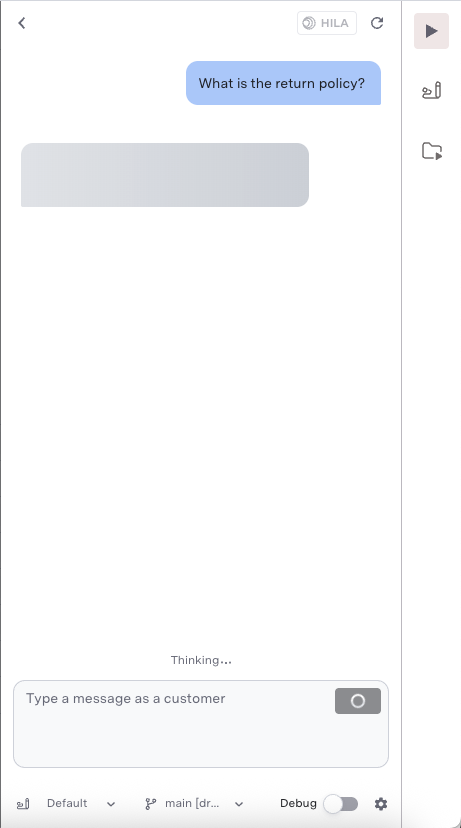
## Step 3: Test in the Previewer
Test your Topic using the [Previewer](/generativeagent/configuring/previewer):
1. Navigate to **CXP > Previewer**
2. Select **Draft** environment from the dropdown and choose the appropriate channel (Chat or Voice)
3. Type a question that matches your Topic (e.g., "What is your return policy?")
4. Observe GenerativeAgent recognizing the intent and responding with your Topic's content
5. Review the message actions taken by GenerativeAgent (e.g., if it answered the query or triggered a Task or Handoff) to verify the Topic was matched correctly
 Try a few variations of the question to verify retrieval. If GenerativeAgent doesn't match the right Topic, add more query examples.
## What's Next
Add Handoffs to route callers to human agents, layer in Tasks for automation, and more.
Route conversations to human agent queues with availability-aware Handoffs.
Try a few variations of the question to verify retrieval. If GenerativeAgent doesn't match the right Topic, add more query examples.
## What's Next
Add Handoffs to route callers to human agents, layer in Tasks for automation, and more.
Route conversations to human agent queues with availability-aware Handoffs.