> ## Documentation Index
> Fetch the complete documentation index at: https://docs.asapp.com/llms.txt
> Use this file to discover all available pages before exploring further.
# HILA in Salesforce
> Set up the Human in the Loop Agent (HILA) integration in your existing Salesforce implementation.
GenerativeAgent enables the human-in-the-loop agent with user-friendly tools in an intuitive interface for an efficient and streamlined workflow. This guide outlines the steps to set up the HILA integration in your existing Salesforce implementation.
## Salesforce Setup
ASAPP's HILA integration requires particular queues, flows, and channels to be set up in Salesforce by an administrator. Follow the steps below to configure your HILA integration.
Create a [new queue](https://help.salesforce.com/s/articleView?id=platform.ls_create_queue.htm\&type=5) with the settings below, add the necessary users or groups, and save.
* **Name:** HILA Queue
* **Object:** Messaging Session
Create an [Omni-Channel flow](https://help.salesforce.com/s/articleView?id=service.omnichannel_create_cases_with_omni_flow.htm\&type=5) for routing. Activate the flow after saving.
* **Object:** Messaging Session
* **Trigger:** A record is created
* **Action:** Assign to the HILA Queue created in Step 1
Navigate to **Setup → Messaging Settings → New Channel**. Activate the channel after saving.
* **Channel Type:** Messaging for In-App and Web
* **Name:** HILAChannel
* **Developer Name:** HILAChannel
* **Routing Settings:** Configure Omni-Channel Routing and select the Queue and Flow from Steps 1 & 2
1. Navigate to **Setup → Embedded Service Deployments → New Deployment**.
2. Under deployment type, select **Messaging for In-App and Web**.
3. When prompted, choose **Custom Client** to integrate with your own web or mobile experience.
* Your Deployment Name and API Name should match and reference HILA.
4. Select the Messaging Channel you created in Step 3 and fill in the required fields. Once completed, click **Publish** to finalize the deployment.
1. Navigate to **Setup → Object Manager → Messaging Session → Lightning Record Pages**.
2. Edit the record page layout, dragging and dropping your custom component from the package.
3. Configure the component with the following settings:
| Setting | Value |
| ------------- | --------------------------------------------------------------------------------------------- |
| HILA URL | `https://app.asapp.com/hila/` (production) or `https://app.sandbox.asapp.com/hila/` (sandbox) |
| Channel Names | Comma-separated list of channel names for which to show the HILA iFrame |
| Height | 600px minimum recommended; adjust based on your Salesforce layout |
Provide ASAPP with the following to complete the HILA setup:
* **Organization ID** — Setup → Company Information → Salesforce.com Organization ID
* **Domain Name** — Setup → Domain (Sites and Domains) → URL (which have Salesforce Sites Domain as Current Domain Configuration Option )
* **API Name** — The API Name defined in Step 4
ASAPP will complete the final setup on our end and notify you when the installation is ready. Once confirmed, initiate a test chat or call in GenerativeAgent while a user assigned to the HILAQueue is available and online.
You must check the **Presence Status Settings** in Salesforce to ensure that Messaging channel is assigned to it. If it isn't assigned, you must add the Messaging channel and assign it to the specific Presence Status.
***
## Using HILA in Salesforce
When customers interacting with GenerativeAgent reach a point that GenerativeAgent cannot solve on its own, GenerativeAgent will reach out to a Human-in-the-Loop Agent to complete the transaction. These escalation points are configurable and specific to your particular workflow.
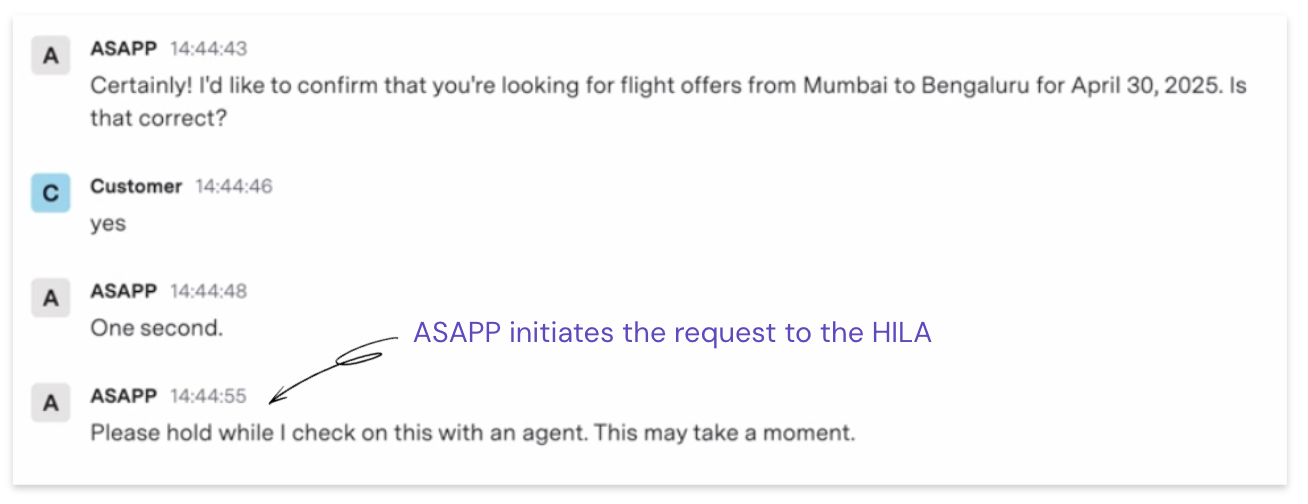 At this point, GenerativeAgent opens a ticket in the HILA Component in Salesforce. Through Salesforce, Human-in-the-Loop Agents can:
* Respond to GenerativeAgent
* Transfer the conversation to a Live Agent
* View the interaction thread history
* Access relevant customer information and summarized conversation context
At this point, GenerativeAgent opens a ticket in the HILA Component in Salesforce. Through Salesforce, Human-in-the-Loop Agents can:
* Respond to GenerativeAgent
* Transfer the conversation to a Live Agent
* View the interaction thread history
* Access relevant customer information and summarized conversation context
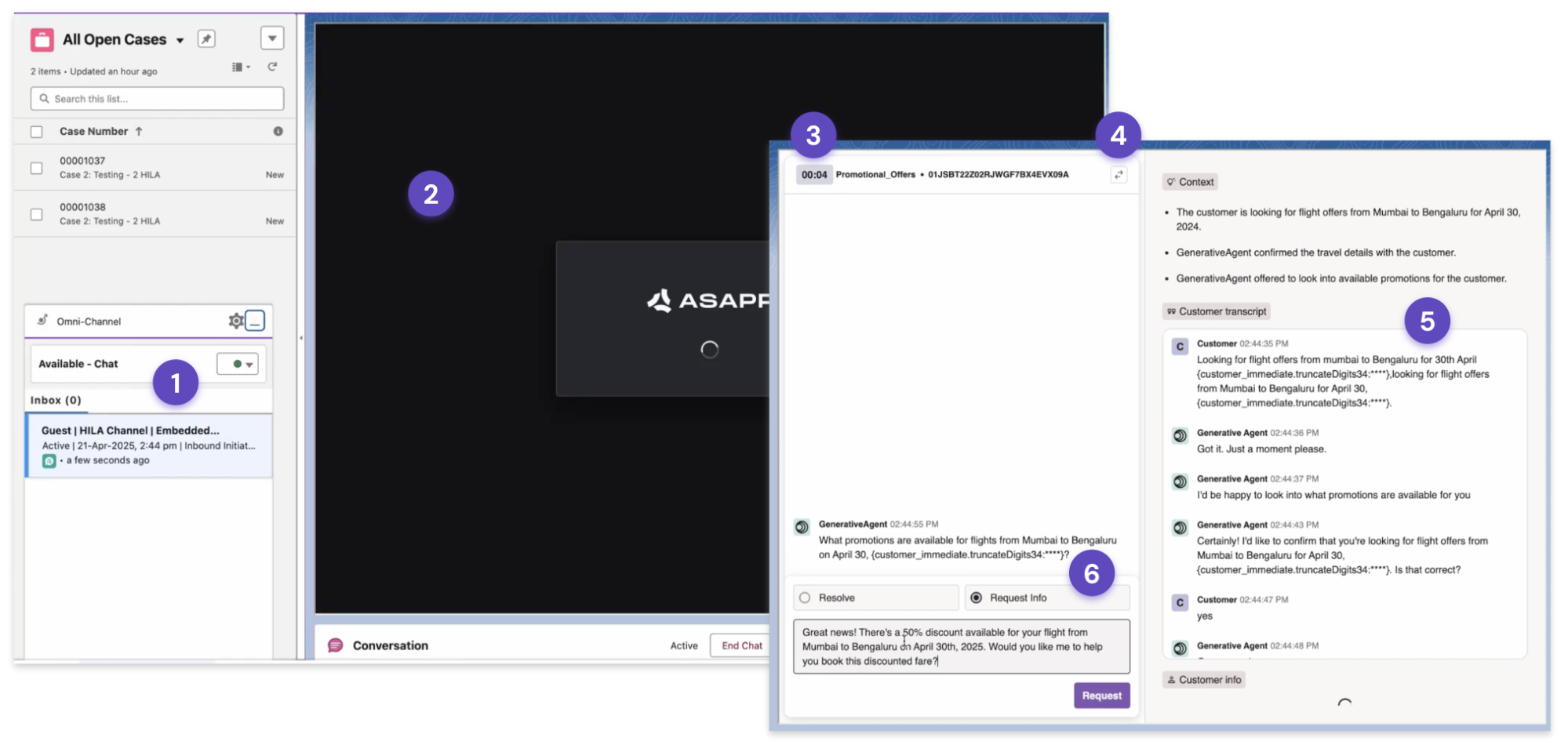 The numbered callouts in the component correspond to the following features:
1. **New request notification**: The new HILA request pops up automatically.
2. **Component Loading**: Agents will briefly see an ASAPP loading screen as the HILA component initializes.
3. **Ticket Assignment Timer**: Tracks the time elapsed since the ticket was assigned to the Human-in-the-Loop Agent.
4. **Transfer**: Allows the Human-in-the-Loop Agent to transfer the conversation from GenerativeAgent to a Live Agent.
5. **Context panel**: Displays the summarized context of the request, the prior transcript, and the customer's details.
6. **Prompt & Response**: Indicates the specific assistance GenerativeAgent needs to unblock the customer. Human-in-the-Loop Agents respond here as they would to the customer directly — GenerativeAgent will use their response to formulate its own.
If the Human-in-the-Loop Agent is doing anything other than completing the transaction, select **Request Info**. **Resolve** will close the HILA chat fully.
The numbered callouts in the component correspond to the following features:
1. **New request notification**: The new HILA request pops up automatically.
2. **Component Loading**: Agents will briefly see an ASAPP loading screen as the HILA component initializes.
3. **Ticket Assignment Timer**: Tracks the time elapsed since the ticket was assigned to the Human-in-the-Loop Agent.
4. **Transfer**: Allows the Human-in-the-Loop Agent to transfer the conversation from GenerativeAgent to a Live Agent.
5. **Context panel**: Displays the summarized context of the request, the prior transcript, and the customer's details.
6. **Prompt & Response**: Indicates the specific assistance GenerativeAgent needs to unblock the customer. Human-in-the-Loop Agents respond here as they would to the customer directly — GenerativeAgent will use their response to formulate its own.
If the Human-in-the-Loop Agent is doing anything other than completing the transaction, select **Request Info**. **Resolve** will close the HILA chat fully.
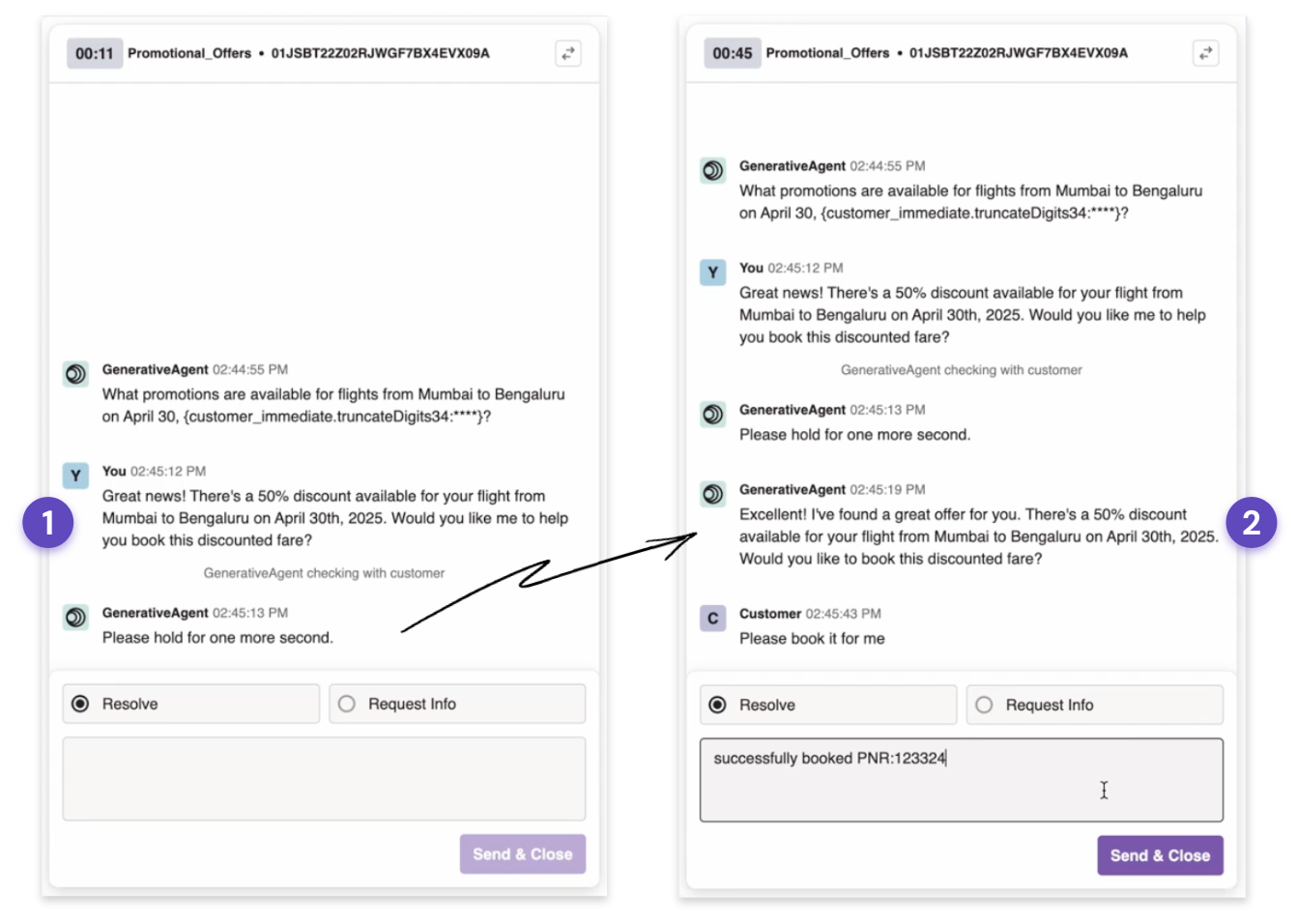 The Human-in-the-Loop Agent's response is only visible to GenerativeAgent **(1)**. GenerativeAgent will use that response to inform its reply to the customer **(2)**.
At the end of the transaction, the Human-in-the-Loop Agent should **Resolve** the interaction. This closes the HILA case and returns the conversation fully to GenerativeAgent.
The Human-in-the-Loop Agent's response is only visible to GenerativeAgent **(1)**. GenerativeAgent will use that response to inform its reply to the customer **(2)**.
At the end of the transaction, the Human-in-the-Loop Agent should **Resolve** the interaction. This closes the HILA case and returns the conversation fully to GenerativeAgent.