> ## Documentation Index
> Fetch the complete documentation index at: https://docs.asapp.com/llms.txt
> Use this file to discover all available pages before exploring further.
# Web SDK
> Integrate ASAPP chat into your website
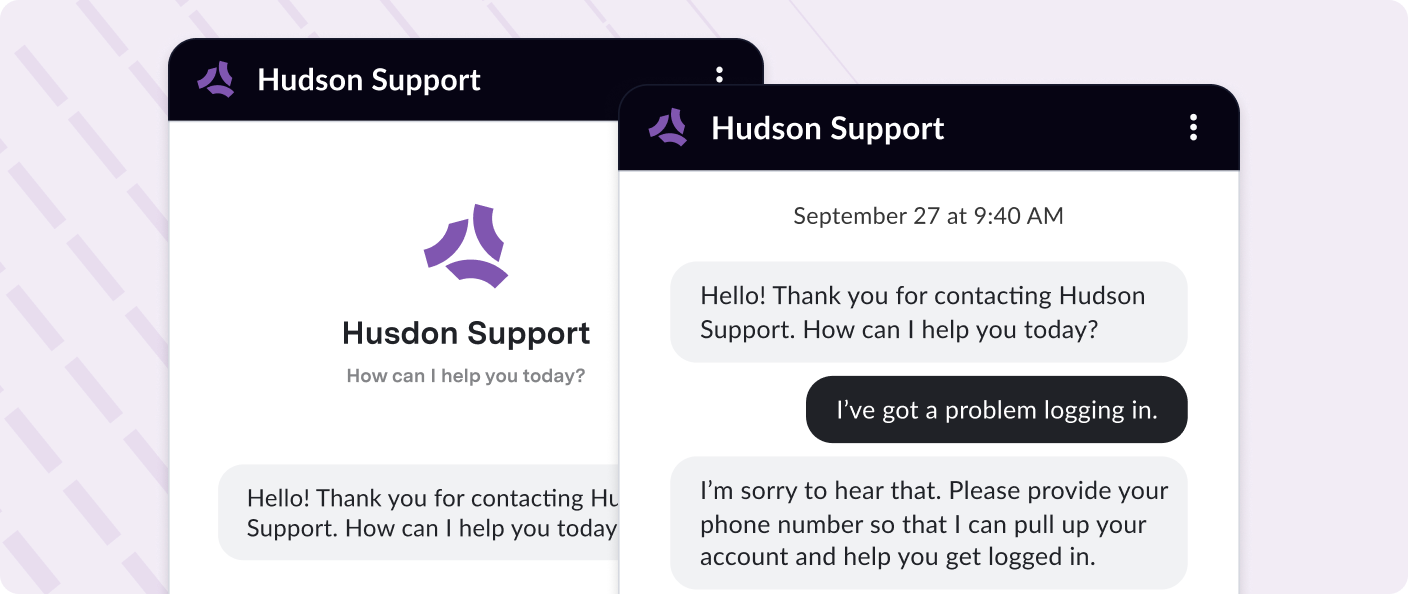
The ASAPP Web SDK embeds a customizable chat interface into your website to quickly connect your users with GenerativeAgent and our Agent Desk.
Beyond the AI conversation, the SDK handles authentication, conversation history across pages, proactive triggers, and the handoff to a human agent. When the conversation transfers to a human agent, the SDK either keeps the customer in the same chat window (when ASAPP is your CCaaS) or hands off to your CCaaS provider's chat SDK.
 ## How it works
1. **Website loads SDK**: Your website loads the ASAPP SDK script, which initializes the chat interface
2. **User talks to GenerativeAgent**: Customers interact with GenerativeAgent through the SDK's chat interface
3. **GenerativeAgent resolves or transfers**: GenerativeAgent either resolves the customer's issue or determines that a human agent is needed
4. **Transfer to a human agent:** How the handoff plays out depends on which agent desk handles the conversation:
1. **Using** **ASAPP's Agent Desk**: The human agent connects directly inside the ASAPP SDK. The customer stays in the same chat window.
2. **External CCaaS**: The SDK fires an transfer event. Your handler unloads the ASAPP SDK and loads your CCaaS provider's chat SDK so the customer continues with the human agent there.
5. **Customer talks to human agent:** The conversation continues with the human agent in whichever chat interface the previous step put them in.
## Before you begin
Before implementing the ASAPP Web SDK, you need:
* [Configure Tasks and Functions](/generativeagent/configuring) for GenerativeAgent
* Configure your CCaaS backend connection in **AI Console** — choose a Webhook or Managed Stream (SSE/WebSocket) inbound event strategy based on your CCaaS platform's capabilities
* Contact your ASAPP account team to enable the web SDK and obtain your `APIHostname` and `AppId`
## Getting started
Paste the ASAPP Chat SDK snippet into your site's HTML. Place it near the top of the `` element for best performance:
```html theme={null}
```
This snippet asynchronously downloads the SDK and creates a global `ASAPP` function for interacting with the [Web JavaScript API](/generativeagent/integrate/web-sdk/web-javascript-api). Add it to all pages where you want the chat widget to appear. The SDK is compatible with most tag managers if you prefer to load it that way.
Call `ASAPP('load')` with your `APIHostname` and `AppId`:
```javascript theme={null}
```
Your ASAPP account team provides both values during onboarding. This call makes a network request to your `APIHostname` and determines whether to display the chat badge based on your business hours, trigger settings, and admin configuration.
Provide the starting task name and input variables so GenerativeAgent knows where to begin and has the context it needs before the conversation starts:
```javascript theme={null}
ASAPP('load', {
APIHostname: 'your-company-api.asapp.com',
AppId: 'your-app-id',
GenAgentTaskName: 'customer_support',
GenAgentInputVariables: {
'current_plan': 'SILVER',
'customer_since': '2024-01-01',
'user_id': '12345'
}
});
```
See [Web App Settings](/generativeagent/integrate/web-sdk/web-app-settings) for the full list of configuration options.
Before going live, customize the interface and configure authentication if needed:
## Handling transfers to a human agent
When GenerativeAgent transfers a conversation to a human agent, what happens next depends on which agent desk you use.
**ASAPP Agent Desk**: The human agent connects directly inside the ASAPP SDK. The customer stays in the same chat window throughout.
**Your own agent desk**: Subscribe to the `external:transfer` event. In the handler, call `ASAPP('unload')` to remove the ASAPP SDK from the page, then load your agent desk's chat SDK so the customer continues the conversation with the human agent in that interface.
See the [Web JavaScript API](/generativeagent/integrate/web-sdk/web-javascript-api#generativeagent-transfer-events) for the full event payload, including the transcript and any data attached by [System Transfer Functions](/generativeagent/configuring/tasks-and-functions/system-transfer).
## Next steps
Full reference for all SDK configuration properties
All SDK methods and event callbacks
Customize the badge, iframe, icons, and styling
Configure CCaaS and other backend connections in AI Console
Prepare your integration for production deployment
## How it works
1. **Website loads SDK**: Your website loads the ASAPP SDK script, which initializes the chat interface
2. **User talks to GenerativeAgent**: Customers interact with GenerativeAgent through the SDK's chat interface
3. **GenerativeAgent resolves or transfers**: GenerativeAgent either resolves the customer's issue or determines that a human agent is needed
4. **Transfer to a human agent:** How the handoff plays out depends on which agent desk handles the conversation:
1. **Using** **ASAPP's Agent Desk**: The human agent connects directly inside the ASAPP SDK. The customer stays in the same chat window.
2. **External CCaaS**: The SDK fires an transfer event. Your handler unloads the ASAPP SDK and loads your CCaaS provider's chat SDK so the customer continues with the human agent there.
5. **Customer talks to human agent:** The conversation continues with the human agent in whichever chat interface the previous step put them in.
## Before you begin
Before implementing the ASAPP Web SDK, you need:
* [Configure Tasks and Functions](/generativeagent/configuring) for GenerativeAgent
* Configure your CCaaS backend connection in **AI Console** — choose a Webhook or Managed Stream (SSE/WebSocket) inbound event strategy based on your CCaaS platform's capabilities
* Contact your ASAPP account team to enable the web SDK and obtain your `APIHostname` and `AppId`
## Getting started
Paste the ASAPP Chat SDK snippet into your site's HTML. Place it near the top of the `` element for best performance:
```html theme={null}
```
This snippet asynchronously downloads the SDK and creates a global `ASAPP` function for interacting with the [Web JavaScript API](/generativeagent/integrate/web-sdk/web-javascript-api). Add it to all pages where you want the chat widget to appear. The SDK is compatible with most tag managers if you prefer to load it that way.
Call `ASAPP('load')` with your `APIHostname` and `AppId`:
```javascript theme={null}
```
Your ASAPP account team provides both values during onboarding. This call makes a network request to your `APIHostname` and determines whether to display the chat badge based on your business hours, trigger settings, and admin configuration.
Provide the starting task name and input variables so GenerativeAgent knows where to begin and has the context it needs before the conversation starts:
```javascript theme={null}
ASAPP('load', {
APIHostname: 'your-company-api.asapp.com',
AppId: 'your-app-id',
GenAgentTaskName: 'customer_support',
GenAgentInputVariables: {
'current_plan': 'SILVER',
'customer_since': '2024-01-01',
'user_id': '12345'
}
});
```
See [Web App Settings](/generativeagent/integrate/web-sdk/web-app-settings) for the full list of configuration options.
Before going live, customize the interface and configure authentication if needed:
## Handling transfers to a human agent
When GenerativeAgent transfers a conversation to a human agent, what happens next depends on which agent desk you use.
**ASAPP Agent Desk**: The human agent connects directly inside the ASAPP SDK. The customer stays in the same chat window throughout.
**Your own agent desk**: Subscribe to the `external:transfer` event. In the handler, call `ASAPP('unload')` to remove the ASAPP SDK from the page, then load your agent desk's chat SDK so the customer continues the conversation with the human agent in that interface.
See the [Web JavaScript API](/generativeagent/integrate/web-sdk/web-javascript-api#generativeagent-transfer-events) for the full event payload, including the transcript and any data attached by [System Transfer Functions](/generativeagent/configuring/tasks-and-functions/system-transfer).
## Next steps
Full reference for all SDK configuration properties
All SDK methods and event callbacks
Customize the badge, iframe, icons, and styling
Configure CCaaS and other backend connections in AI Console
Prepare your integration for production deployment