> ## Documentation Index
> Fetch the complete documentation index at: https://docs.asapp.com/llms.txt
> Use this file to discover all available pages before exploring further.
# Web Features
This section describes various features of the ASAPP Web SDK:
* [Triggers](#triggers "Triggers")
* [Deeplinks](#deeplinks "Deeplinks")
* [GenerativeAgent Features](#generativeagent-features)
## Triggers
A Trigger is an ASAPP feature that allows you to specify which pages display the ASAPP Chat UI. You may choose to show the ASAPP Chat UI on all pages where the ASAPP Chat SDK is [embedded and loaded](/generativeagent/integrate/web-sdk/web-quick-start "Web Quick Start"), or on just a subset of those pages.
You must enable at least one Trigger in order for the ASAPP Chat UI to display anywhere on your site. Until you define at least one Trigger, the ASAPP Chat UI will not display on your site.
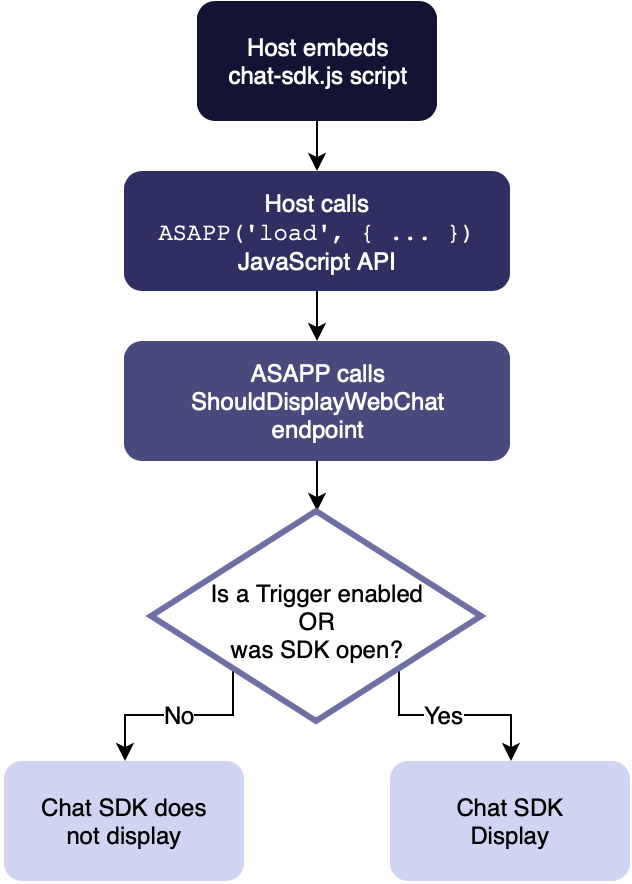 Once you've [embedded](/generativeagent/integrate/web-sdk/web-quick-start#1-embed-the-script "1. Embed the Script") and [loaded](/generativeagent/integrate/web-sdk/web-javascript-api#load "'load'") the Chat SDK on your web pages, ASAPP will determine whether or not to display the Chat UI on the user's current URL.
URLs that are enabled for displaying the UI are configured by a feature known as Triggers.
You will need to be set up as a user of the ASAPP Admin Control Panel in order to make the changes described below.
Once you are granted permissions, you may utilize the Triggers as a means of specifying which pages are eligible to show the ASAPP Chat UI.
### Creating a Trigger
Once you've [embedded](/generativeagent/integrate/web-sdk/web-quick-start#1-embed-the-script "1. Embed the Script") and [loaded](/generativeagent/integrate/web-sdk/web-javascript-api#load "'load'") the Chat SDK on your web pages, ASAPP will determine whether or not to display the Chat UI on the user's current URL.
URLs that are enabled for displaying the UI are configured by a feature known as Triggers.
You will need to be set up as a user of the ASAPP Admin Control Panel in order to make the changes described below.
Once you are granted permissions, you may utilize the Triggers as a means of specifying which pages are eligible to show the ASAPP Chat UI.
### Creating a Trigger
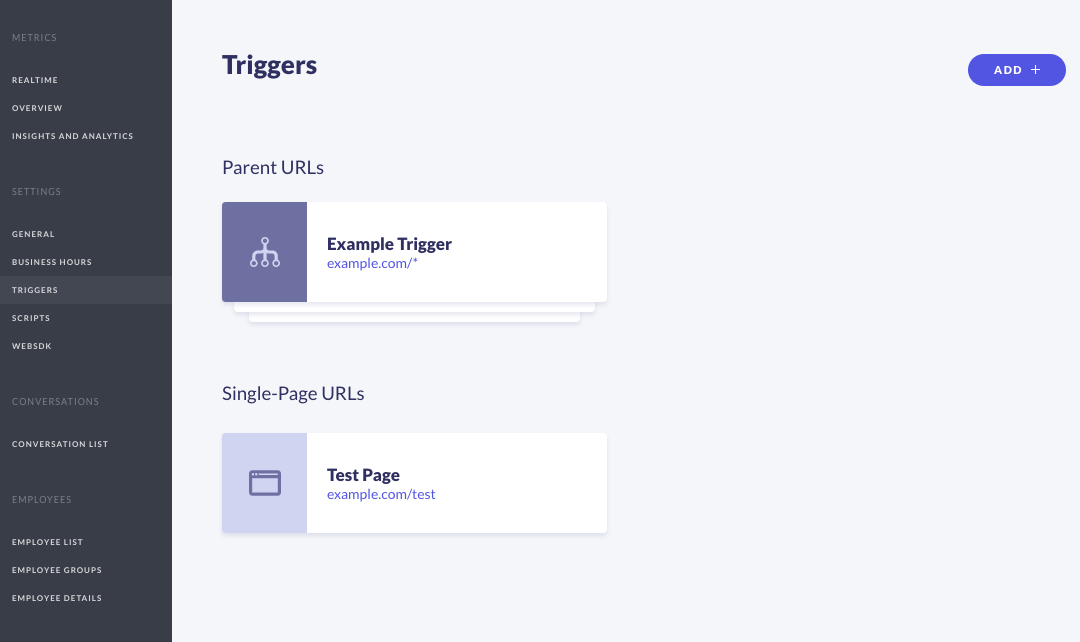 1. Visit the **Admin > Triggers** section of your Admin Desk.
2. Click the **Add +** button from the Triggers settings page.
3. In the **URL Link** field, enter the URL for the page where you would like to display the ASAPP Chat UI. (See the **Types of Triggers** section below for some example values.)
4. Click **Next >**.
5. Give the Trigger a display name. (Display names are used only on the Triggers settings page to help you organize and manage your triggers.)
6. Click **Save**.
7. You should now see the new entry on your Trigger settings page.
8. Visit the newly configured page on your site to double-check that the ASAPP Chat UI is loading or hiding as you expect.
### Types of Triggers
You may finely control the display of the ASAPP Chat UI on your site by adding as many Triggers as you like.
Triggers can be defined in two different ways: as **Wildcard** and as **Single-Page Triggers**.
#### Wildcard Triggers
You can use the wildcard character in the URL Link field of a Trigger to enable the display of the Chat SDK pages that follow a URL pattern.
The asterisk (i.e., `/*` is the wildcard character you use when defining a Trigger. When you use an asterisk in the URL Link of your Trigger definition, that character will match any sequence of one or more characters.
To set a wildcard for your entire domain, enter a **URL Link** value for your domain name, followed by `/*` (e.g., `example.com/*` ). This will enable the display of the ASAPP Chat UI on all pages of your site.
To enable the ASAPP Chat UI to appear on a more limited set of pages, enter a **URL Link** value that includes the appropriate sub-route path, followed by the `/*` wildcard (e.g., `example.com/settings/*`).
This will cause the Chat UI to display on any pages that start with the URL and sub-route `example.com/settings/`, such as `example.com/settings/profile` and `example.com/settings/payment`.
#### Single-Page Triggers
If you want the ASAPP Chat UI to display on only a few specific pages, you can create a separate Trigger for each of those pages, one at a time, by entering the exact URL for the page you wish to enable in the URL Link field of the Trigger definition.
For example, entering `example.com/customer-support/shipping.html` in the URL Link field of your Trigger definition will enable the ASAPP Chat UI to display on that single page.
## Deeplinks
A feature that defines how the SDK opens hyperlinks when a user clicks a link to another document. In the ASAPP Web SDK, we use the browser's `window.location.origin` API to determine whether the link should open in the same window or a new window.
In order for a link to open in the same window as the user's current SDK window, the `window.location.origin` must return a matching protocol and hostname.
For example, if a user is on `https://www.example.com` and clicks a link to `https://www.example.com/page-two`, the SDK changes the current page to the destination page in the same window.
A link opens in a *new* window if there is any difference between the current page and the destination page origin. When a user clicks a link from `https://www.example.com` to `https://subdomain.example.com` , the SDK opens the destination page in a new window due to hostname variation.
A link from `https://example.com` to `http://example.com` also opens a new window due to a mismatched protocol. When a link opens a new window, the user's SDK window remains open.
## GenerativeAgent Features
### Task Configuration
You can direct GenerativeAgent to start a specific task when a conversation begins using the `GenAgentTaskName` setting. Combine this with `GenAgentInputVariables` to pre-populate context before GenerativeAgent sends its first message.
See [Enter a Specific Task](/generativeagent/configuring/tasks-and-functions/enter-specific-task) and [Input Variables](/generativeagent/configuring/tasks-and-functions/input-variables) for details on how tasks and input variables work.
```javascript theme={null}
ASAPP('load', {
APIHostname: 'API_HOSTNAME',
AppId: 'APP_ID',
GenAgentTaskName: 'billing_support',
GenAgentInputVariables: {
'account_type': 'premium',
'user_id': '98765'
}
});
```
### Transfer Lifecycle
When GenerativeAgent transfers a conversation to a human agent, what happens next depends on which agent desk you use.
**ASAPP Agent Desk**: The human agent connects directly inside the ASAPP SDK. The customer stays in the same chat window throughout. No transfer-event handling required.
**Your own agent desk**: Subscribe to the `external:transfer` event. In the handler, call `ASAPP('unload')` and load your agent desk's chat SDK so the customer continues with the human agent in that interface.
See [Web JavaScript API](/generativeagent/integrate/web-sdk/web-javascript-api#generativeagent-transfer-events) for the event payload reference.
1. Visit the **Admin > Triggers** section of your Admin Desk.
2. Click the **Add +** button from the Triggers settings page.
3. In the **URL Link** field, enter the URL for the page where you would like to display the ASAPP Chat UI. (See the **Types of Triggers** section below for some example values.)
4. Click **Next >**.
5. Give the Trigger a display name. (Display names are used only on the Triggers settings page to help you organize and manage your triggers.)
6. Click **Save**.
7. You should now see the new entry on your Trigger settings page.
8. Visit the newly configured page on your site to double-check that the ASAPP Chat UI is loading or hiding as you expect.
### Types of Triggers
You may finely control the display of the ASAPP Chat UI on your site by adding as many Triggers as you like.
Triggers can be defined in two different ways: as **Wildcard** and as **Single-Page Triggers**.
#### Wildcard Triggers
You can use the wildcard character in the URL Link field of a Trigger to enable the display of the Chat SDK pages that follow a URL pattern.
The asterisk (i.e., `/*` is the wildcard character you use when defining a Trigger. When you use an asterisk in the URL Link of your Trigger definition, that character will match any sequence of one or more characters.
To set a wildcard for your entire domain, enter a **URL Link** value for your domain name, followed by `/*` (e.g., `example.com/*` ). This will enable the display of the ASAPP Chat UI on all pages of your site.
To enable the ASAPP Chat UI to appear on a more limited set of pages, enter a **URL Link** value that includes the appropriate sub-route path, followed by the `/*` wildcard (e.g., `example.com/settings/*`).
This will cause the Chat UI to display on any pages that start with the URL and sub-route `example.com/settings/`, such as `example.com/settings/profile` and `example.com/settings/payment`.
#### Single-Page Triggers
If you want the ASAPP Chat UI to display on only a few specific pages, you can create a separate Trigger for each of those pages, one at a time, by entering the exact URL for the page you wish to enable in the URL Link field of the Trigger definition.
For example, entering `example.com/customer-support/shipping.html` in the URL Link field of your Trigger definition will enable the ASAPP Chat UI to display on that single page.
## Deeplinks
A feature that defines how the SDK opens hyperlinks when a user clicks a link to another document. In the ASAPP Web SDK, we use the browser's `window.location.origin` API to determine whether the link should open in the same window or a new window.
In order for a link to open in the same window as the user's current SDK window, the `window.location.origin` must return a matching protocol and hostname.
For example, if a user is on `https://www.example.com` and clicks a link to `https://www.example.com/page-two`, the SDK changes the current page to the destination page in the same window.
A link opens in a *new* window if there is any difference between the current page and the destination page origin. When a user clicks a link from `https://www.example.com` to `https://subdomain.example.com` , the SDK opens the destination page in a new window due to hostname variation.
A link from `https://example.com` to `http://example.com` also opens a new window due to a mismatched protocol. When a link opens a new window, the user's SDK window remains open.
## GenerativeAgent Features
### Task Configuration
You can direct GenerativeAgent to start a specific task when a conversation begins using the `GenAgentTaskName` setting. Combine this with `GenAgentInputVariables` to pre-populate context before GenerativeAgent sends its first message.
See [Enter a Specific Task](/generativeagent/configuring/tasks-and-functions/enter-specific-task) and [Input Variables](/generativeagent/configuring/tasks-and-functions/input-variables) for details on how tasks and input variables work.
```javascript theme={null}
ASAPP('load', {
APIHostname: 'API_HOSTNAME',
AppId: 'APP_ID',
GenAgentTaskName: 'billing_support',
GenAgentInputVariables: {
'account_type': 'premium',
'user_id': '98765'
}
});
```
### Transfer Lifecycle
When GenerativeAgent transfers a conversation to a human agent, what happens next depends on which agent desk you use.
**ASAPP Agent Desk**: The human agent connects directly inside the ASAPP SDK. The customer stays in the same chat window throughout. No transfer-event handling required.
**Your own agent desk**: Subscribe to the `external:transfer` event. In the handler, call `ASAPP('unload')` and load your agent desk's chat SDK so the customer continues with the human agent in that interface.
See [Web JavaScript API](/generativeagent/integrate/web-sdk/web-javascript-api#generativeagent-transfer-events) for the event payload reference.