> ## Documentation Index
> Fetch the complete documentation index at: https://docs.asapp.com/llms.txt
> Use this file to discover all available pages before exploring further.
# Reporting
> Learn how to track and analyze GenerativeAgent's performance.
Monitoring how GenerativeAgent handles customer interactions is critical for ensuring optimal performance and customer satisfaction.
By tracking key metrics around containment and task completion, you can continuously improve GenerativeAgent's effectiveness and identify areas for optimization.
You can access GenerativeAgent reporting data in two ways:
| Reporting Option | Capabilities | Availability |
| :---------------------------- | :-------------------------------------------------------------------------------------------------------------------------------------------------------------------------------------------------------------------------- | :--------------------------------------------- |
| **Out-of-the-box dashboards** | - Get started quickly with pre-built visualizations
- View basic performance metrics like task completion and containment
| ASAPP Messaging only |
| **Data feeds** | - Export raw data for custom analysis
- Combine GenerativeAgent data with your own analytics
- Build custom reports in your BI tools
- Track end-to-end customer journeys across channels
| ASAPP Messaging and Standalone GenerativeAgent |
## Out-of-the-box dashboards
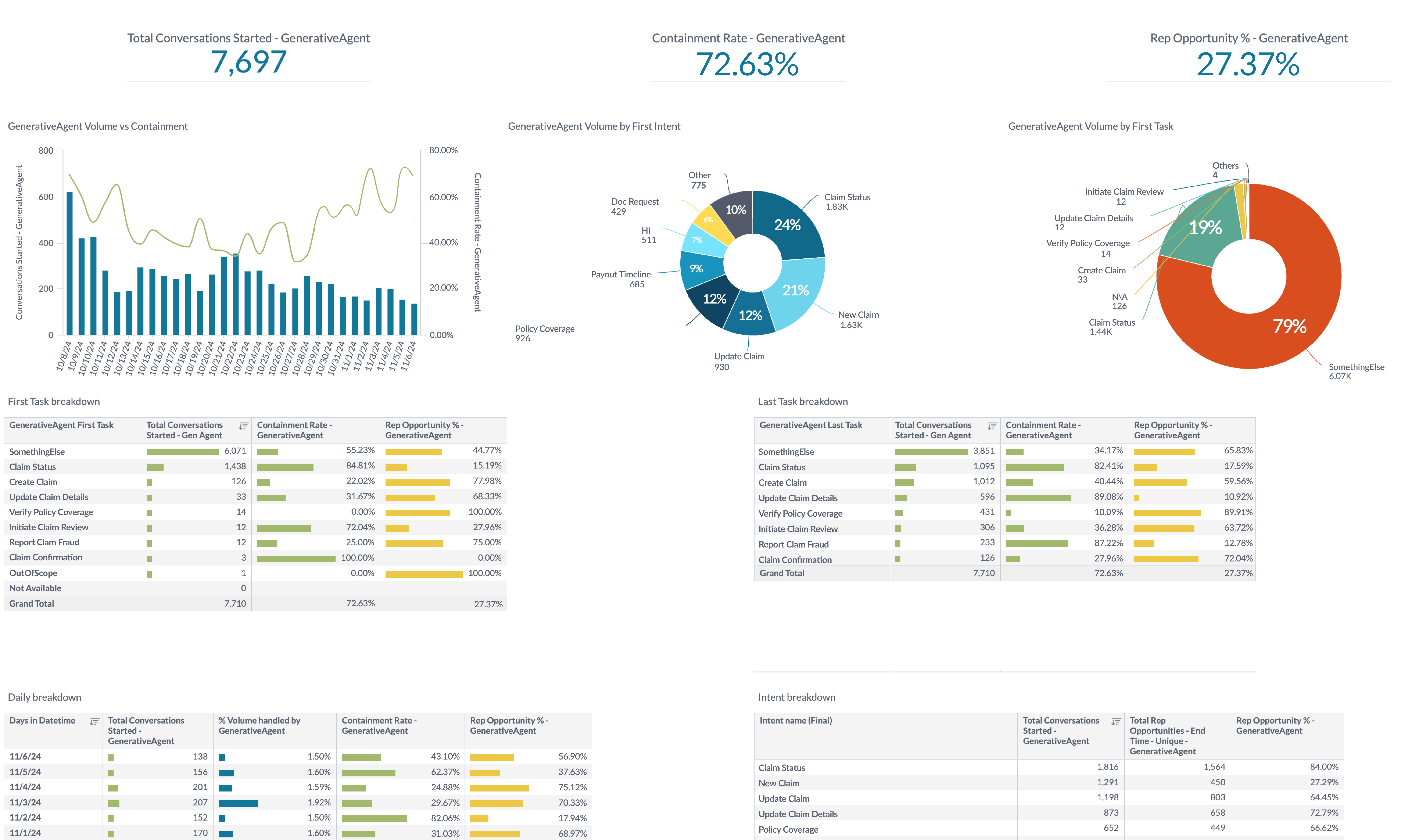
The fastest way to start monitoring GenerativeAgent is through our pre-built dashboards. To access them depends on whether you are using ASAPP Messaging or running GenerativeAgent standalone.
These dashboards show you:
* Volume and containment over time
* Containment by task
* Intent and task breakdowns
We only provide out-of-the-box dashboards for GenerativeAgent running on [ASAPP Messaging](/agent-desk).
Access GenerativeAgent reporting through the [Historical Insights interface](/agent-desk/insights-manager#historical-insights):
1. Navigate to **ASAPP Core Digital Dashboards** -> **Automation & Flow** -> **GenerativeAgent**
2. Select **GenerativeAgent Quality Metrics**
 ## Data feeds
For deeper analysis, or to integrate GenerativeAgent metrics with your existing analytics infrastructure, you can pipe GenerativeAgent's data directly into your system using:
* [File Exporter APIs](/reporting/file-exporter) for standalone GenerativeAgent.
* [Download from S3](/reporting/retrieve-messaging-data) if you are using our [Messaging Platform](/agent-desk).
This approach is recommended when you need to:
* Combine GenerativeAgent metrics with other customer journey data
* Build custom dashboards in your BI tools
* Perform advanced analytics across channels
* Track end-to-end customer interactions
Use File Exporter to export data from a standalone GenerativeAgent. When exporting data via the File Exporter APIs, you need to specify a `feed` of **generativeagent**.
The system generates reports hourly.
Here is an example to get a list of files in the generativeagent feed for a given day:
```bash theme={null}
curl --request POST \
--url https://api.sandbox.asapp.com/fileexporter/v1/static/listfeedfiles \
--header 'Content-Type: application/json' \
--header 'asapp-api-id: ' \
--header 'asapp-api-secret: ' \
--data '{
"feed": "generativeagent",
"version": "1",
"format": "jsonl",
"date": "2024-06-27",
"interval": "hr=23"
}'
```
Refer to the [File Exporter documentation](/reporting/file-exporter) for more details on the listing and retrieving files.
Use S3 to download data exported from the Messaging Platform. When exporting data via S3, you will need to specify the `FEED_NAME` as **generativeagent**.
Refer to the [Download from S3](/reporting/retrieve-messaging-data) guide for more details on the file structure and how to access the data.
## GenerativeAgent data schema
See all available metrics and their definitions in our data reference guide
## Data feeds
For deeper analysis, or to integrate GenerativeAgent metrics with your existing analytics infrastructure, you can pipe GenerativeAgent's data directly into your system using:
* [File Exporter APIs](/reporting/file-exporter) for standalone GenerativeAgent.
* [Download from S3](/reporting/retrieve-messaging-data) if you are using our [Messaging Platform](/agent-desk).
This approach is recommended when you need to:
* Combine GenerativeAgent metrics with other customer journey data
* Build custom dashboards in your BI tools
* Perform advanced analytics across channels
* Track end-to-end customer interactions
Use File Exporter to export data from a standalone GenerativeAgent. When exporting data via the File Exporter APIs, you need to specify a `feed` of **generativeagent**.
The system generates reports hourly.
Here is an example to get a list of files in the generativeagent feed for a given day:
```bash theme={null}
curl --request POST \
--url https://api.sandbox.asapp.com/fileexporter/v1/static/listfeedfiles \
--header 'Content-Type: application/json' \
--header 'asapp-api-id: ' \
--header 'asapp-api-secret: ' \
--data '{
"feed": "generativeagent",
"version": "1",
"format": "jsonl",
"date": "2024-06-27",
"interval": "hr=23"
}'
```
Refer to the [File Exporter documentation](/reporting/file-exporter) for more details on the listing and retrieving files.
Use S3 to download data exported from the Messaging Platform. When exporting data via S3, you will need to specify the `FEED_NAME` as **generativeagent**.
Refer to the [Download from S3](/reporting/retrieve-messaging-data) guide for more details on the file structure and how to access the data.
## GenerativeAgent data schema
See all available metrics and their definitions in our data reference guide