> ## Documentation Index
> Fetch the complete documentation index at: https://docs.asapp.com/llms.txt
> Use this file to discover all available pages before exploring further.
# Audit Logs
> Learn how to view, search, and export audit logs to track changes in AI Console.
All activities in AI Console are saved as events and are viewable in audit logs. These logs provide a detailed record of configuration changes made in AI-Console for AI Services and ASAPP Messaging.
The system saves these records indefinitely, providing administrators with a comprehensive historical view of changes made to ASAPP services, including when they were made and by whom.
Administrators of your ASAPP organization can access audit logs.
Audit logs allow you to:
* See the most recent changes made to every resource.
* Investigate a particular historical change associated with a deployment.
* Review activity for a given user or product over the course of weeks or months.
To access Audit Logs:
1. Navigate to the AI-Console home page
2. Select Admin
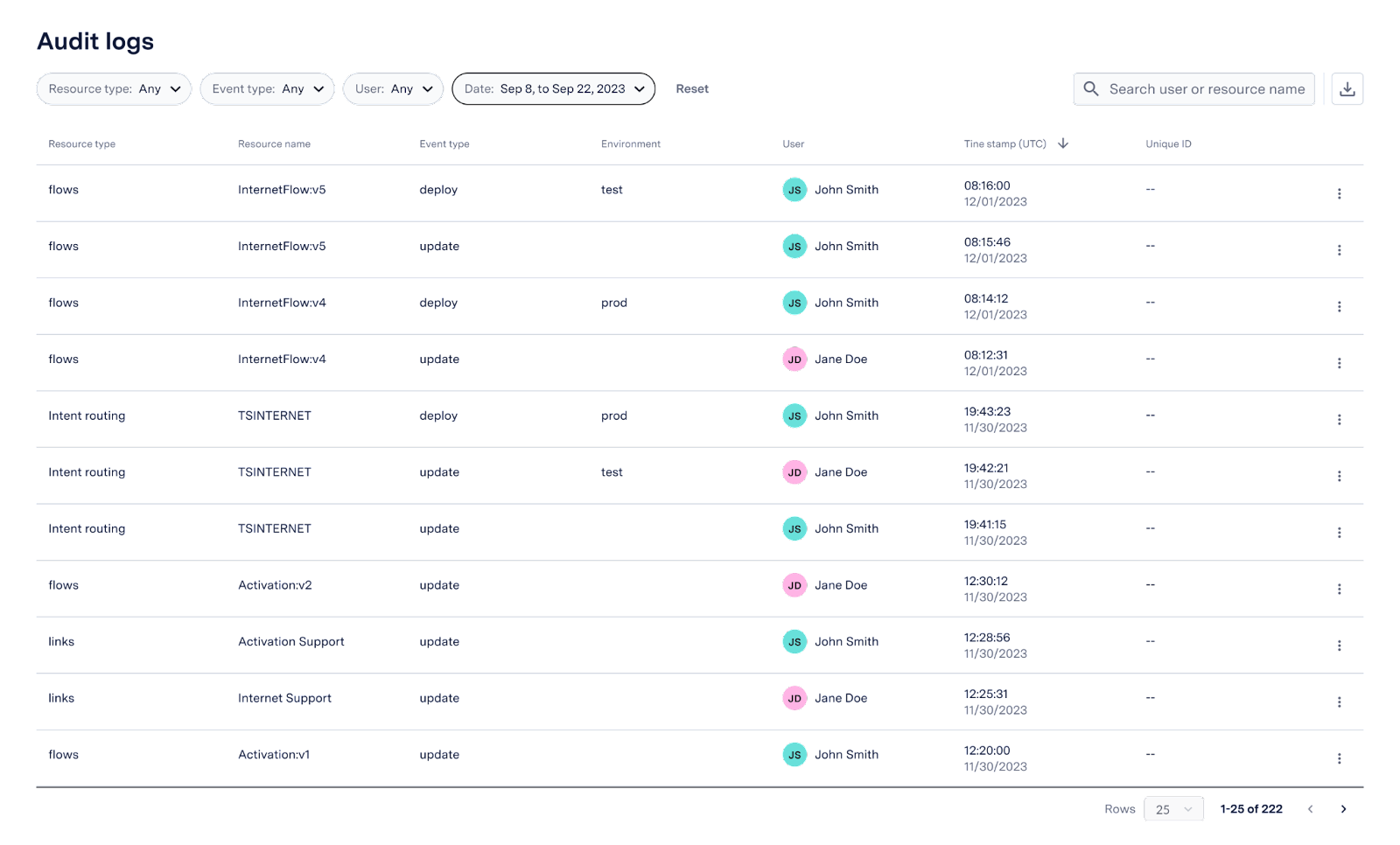 The following list displays the resources being tracked:
* **General**
* Links
* Custom entities
* **Virtual Agent**
* Flows
* Intent routing
* **AI Compose**
* Global responses
## Audit Logs Entries
For each audit log record, the system records the following fields:
| Field | Description |
| :------------ | :-------------------------------------------------------------------------------- |
| Resource type | Type of resource modified. |
| Resource name | Name of the resource modified. |
| Event type | Type of event. Supported fields are create, deploy, undeploy, update, and delete. |
| Environment | Environment where you deployed the resource. Only applicable for deploy events. |
| User | Name of user who caused the event. |
| Timestamp | Time and date the event occurred, in UTC format. |
| Unique ID | (Optional) Unique identifier for the resource. |
## Searching Audit Logs
Administrators can use the search bar to look for a specific resource name, or user.
To search your audit logs, navigate to the search bar on the top-right corner of the screen.
The search functionality searches for exact matches with either the resource name, or the user that made the change.
Additionally, you can filter the results of the audit logs by using the filter dropdown menus.
You can filter by the following fields:
* Resource type
* Event type
* User
* Date
You can additionally click on the "timestamp" column to re-order the results by ascending or descending dates:
The following list displays the resources being tracked:
* **General**
* Links
* Custom entities
* **Virtual Agent**
* Flows
* Intent routing
* **AI Compose**
* Global responses
## Audit Logs Entries
For each audit log record, the system records the following fields:
| Field | Description |
| :------------ | :-------------------------------------------------------------------------------- |
| Resource type | Type of resource modified. |
| Resource name | Name of the resource modified. |
| Event type | Type of event. Supported fields are create, deploy, undeploy, update, and delete. |
| Environment | Environment where you deployed the resource. Only applicable for deploy events. |
| User | Name of user who caused the event. |
| Timestamp | Time and date the event occurred, in UTC format. |
| Unique ID | (Optional) Unique identifier for the resource. |
## Searching Audit Logs
Administrators can use the search bar to look for a specific resource name, or user.
To search your audit logs, navigate to the search bar on the top-right corner of the screen.
The search functionality searches for exact matches with either the resource name, or the user that made the change.
Additionally, you can filter the results of the audit logs by using the filter dropdown menus.
You can filter by the following fields:
* Resource type
* Event type
* User
* Date
You can additionally click on the "timestamp" column to re-order the results by ascending or descending dates:
 ## Exporting Audit Logs
Administrators can download the audit logs as a CSV file to store and review later. If you export the audit logs as a .csv file after filtering them using the search bar or filters, the downloaded file will also be filtered.
To download the audit logs as a .csv file:
1. Navigate to the Audit Logs section in AI Console.
2. Click on the download button, next to the search bar.
The system will record data in audit logs from the time the feature is enabled. The system will not display historical activity retroactively.
## Exporting Audit Logs
Administrators can download the audit logs as a CSV file to store and review later. If you export the audit logs as a .csv file after filtering them using the search bar or filters, the downloaded file will also be filtered.
To download the audit logs as a .csv file:
1. Navigate to the Audit Logs section in AI Console.
2. Click on the download button, next to the search bar.
The system will record data in audit logs from the time the feature is enabled. The system will not display historical activity retroactively.