

- ASAPP acts as the Service Provider (SP) while the customer serves as the Identity Provider (IDP).
- The customer’s authentication system performs user authentication using their existing customer credentials.
- ASAPP supports Service Provider Initiated SSO. Customers provide the SSO URL to agents and admins.
- The URL points to the customer’s SSO service, which will authenticate the users via their authentication system.
- Once ASAPP authenticates the user, the customer’s SSO service sends a SAML assertion with user information to ASAPP’s SSO service.
- ASAPP uses the information inside the SAML assertion to identify the user and redirect them to the appropriate application.
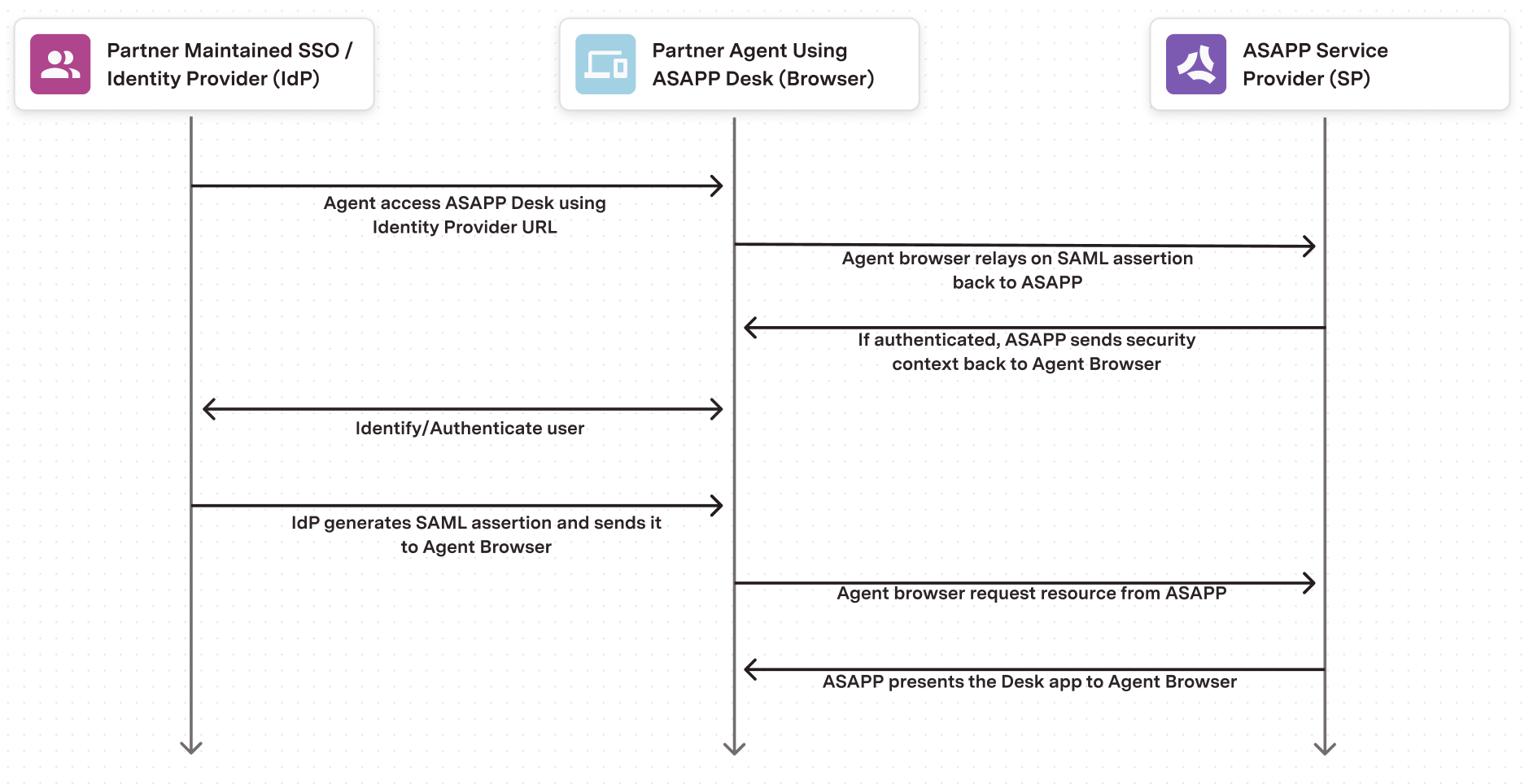
Configuring Single Sign-On via SAML
Environments
ASAPP supports SSO in non-production and production environments. We strongly recommend that customers configure SSO in both environments.Exchange of SAML metadata
Both ASAPP and the customer generate their respective SAML metadata and exchange the metadata files. Each environment requires different metadata, so teams must generate metadata once per environment. Sample metadata file content:SAML Profile Configuration
Next, ASAPP and the customer configure their respective SSO services with each other’s SAML profile. Teams can achieve this by importing the SAML metadata into the SSO service (if it supports a metadata import feature).SAML Attributes Configuration
SAML Attributes are key-value fields within the SAML message (also called SAML assertion) that the Identity Provider (IDP) sends to the Service Provider (SP). ASAPP requires the following fields to be included with the SAML assertion
The following fields are not required but desired to further automate the agent Desk configuration:
In addition, any custom fields can be configured in the SAML assertion. See the section below for more details.
Sending User Data via SAML
ASAPP uses SAML attribute fields to keep user data current in our system. This also allows us to register new users automatically when they log into the ASAPP application for the first time. In addition to the required fields that ASAPP needs to identify the user, customers can send additional fields in the SAML assertion that can be used for other purposes such as Reporting. An example can be the Agent Location. These fields are specific per customers. The name and possible values of these fields need to be agreed upon and configured prior to the SAML implementation.SSO Testing
SSO testing between the customer and ASAPP must be a coordinated effort due to the nature of the IDP-initiated SSO flow. The customer must provide several user accounts to be used for testing. Generally, the test scenarios are as follows:- An agent logs in for the first time. ASAPP observes that a new user record is created and the agent lands on the correct ASAPP application for their role (Desk for a rep, Admin for supervisor/manager).
- The same agent logs out and logs back in. The agent observes that the correct application still opens.
- Repeat the same test for another user account, ideally with different roles.