App Overview
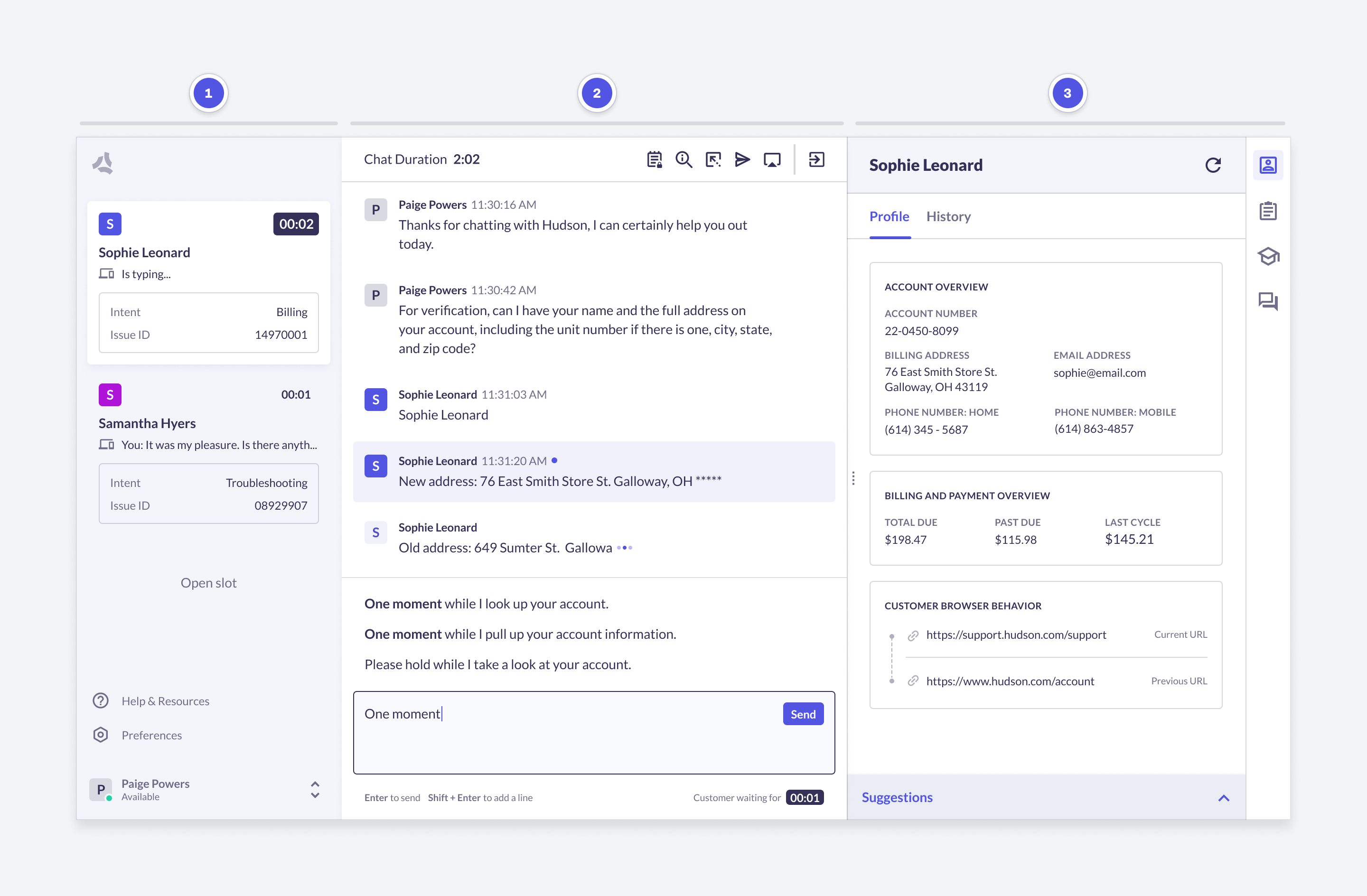
Main Navigation
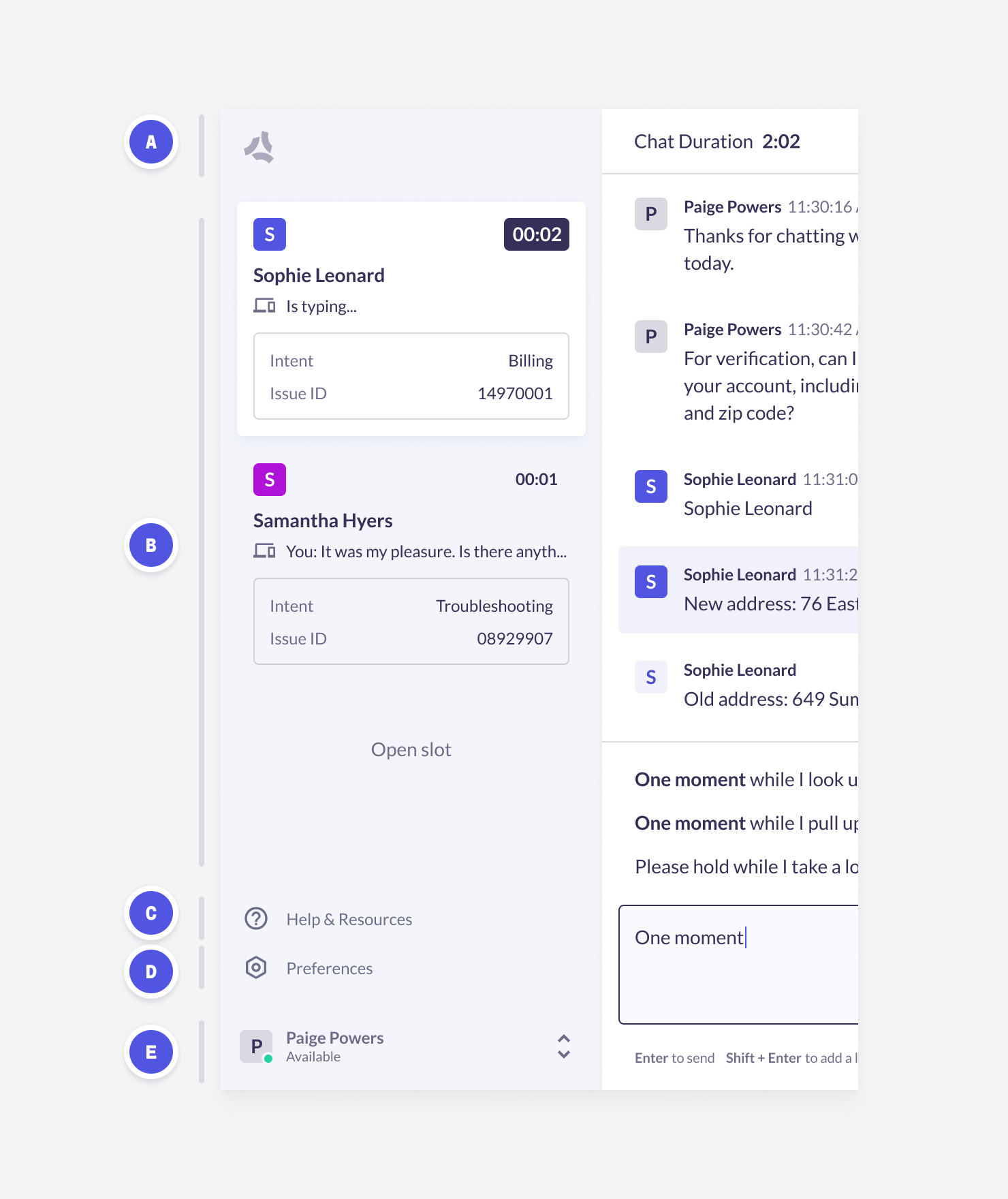
A. Agent Stats
B. Navigation
C. Help & Resources
D. Preferences
E. Status Switcher & Log Out
2. Conversation Navigation
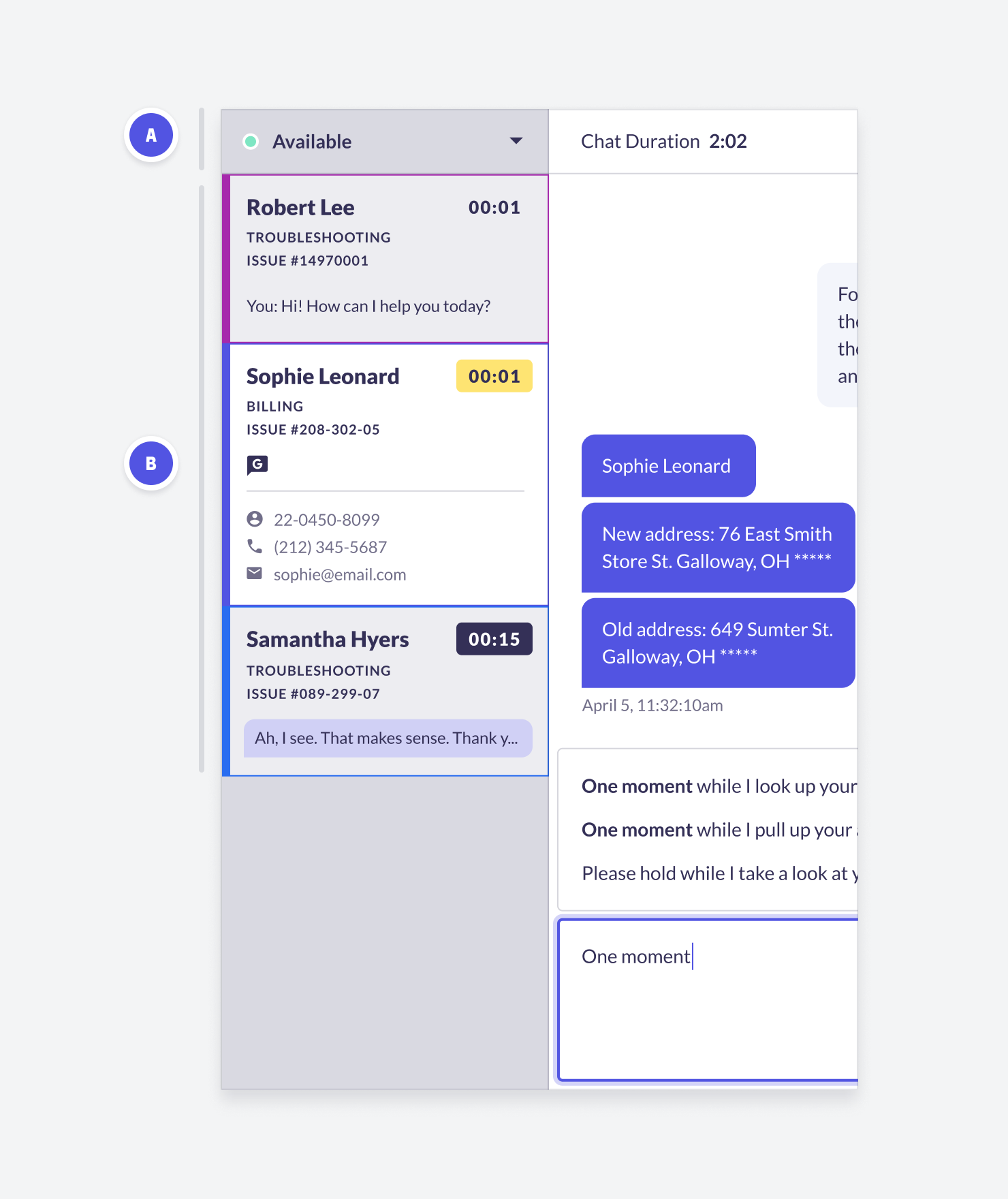
A. Status
B. Navigation
3. Conversation
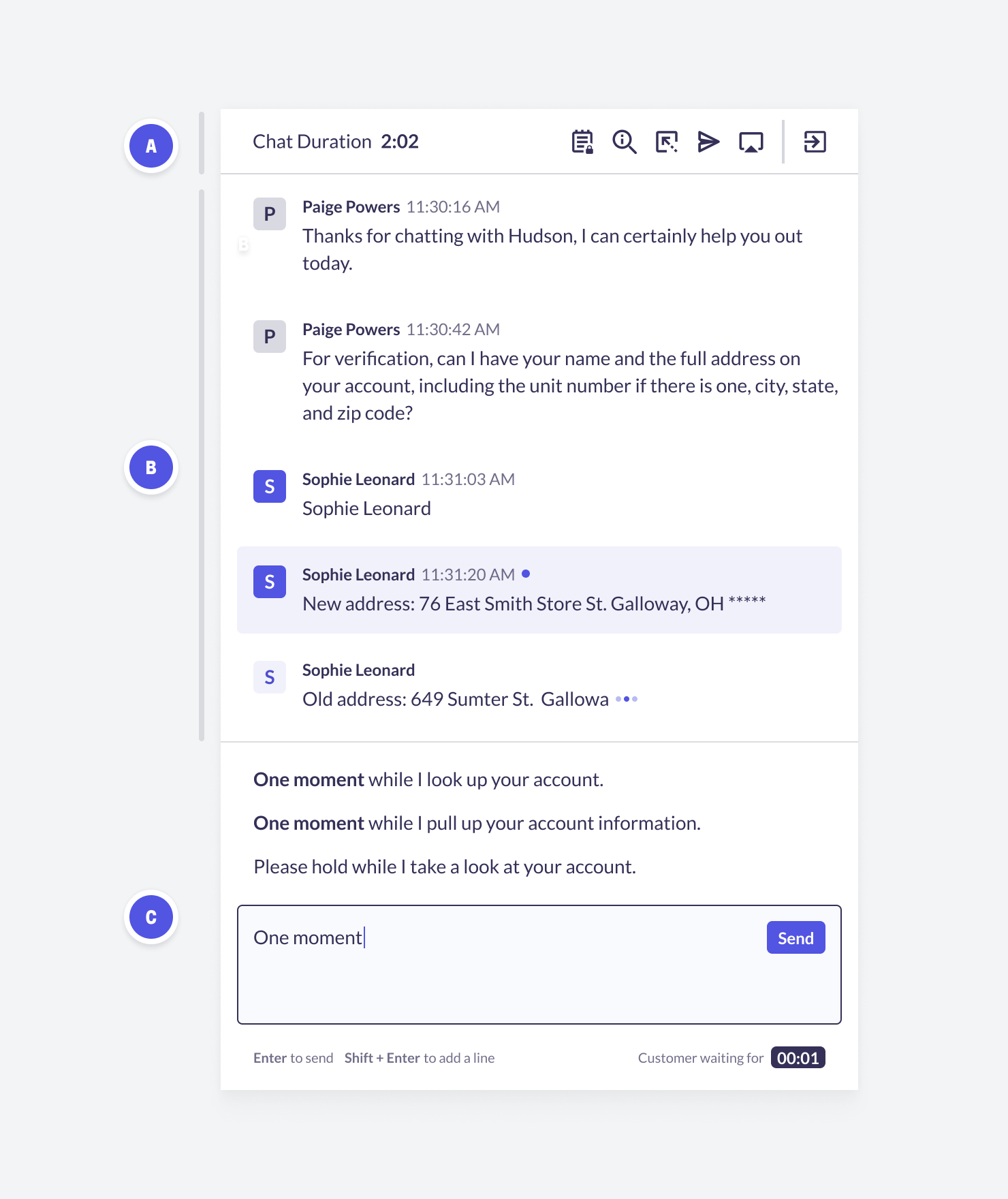
A. Conversation Header
B. Conversation
C. Composer
4. Agent Solutions
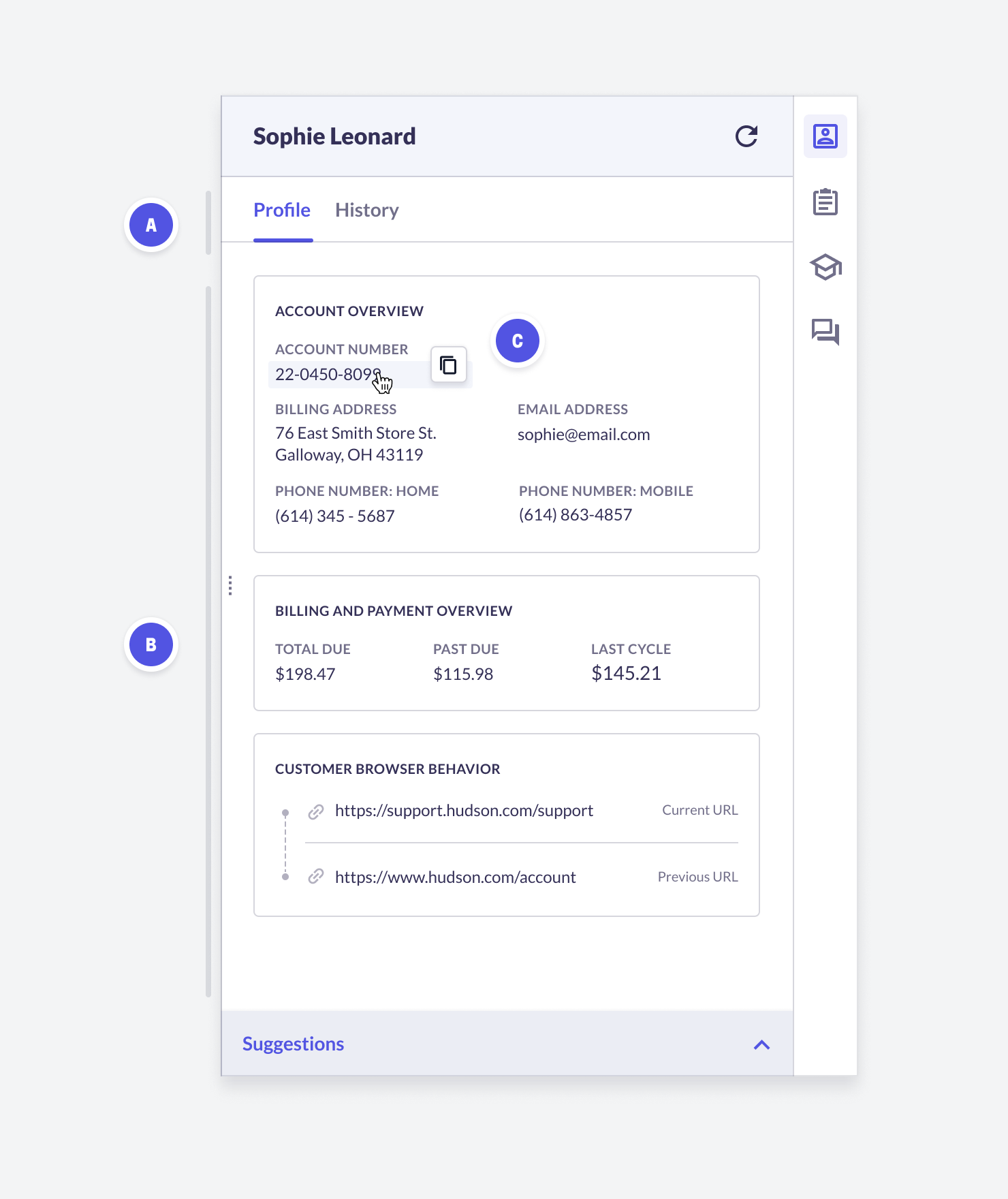
Customer Information
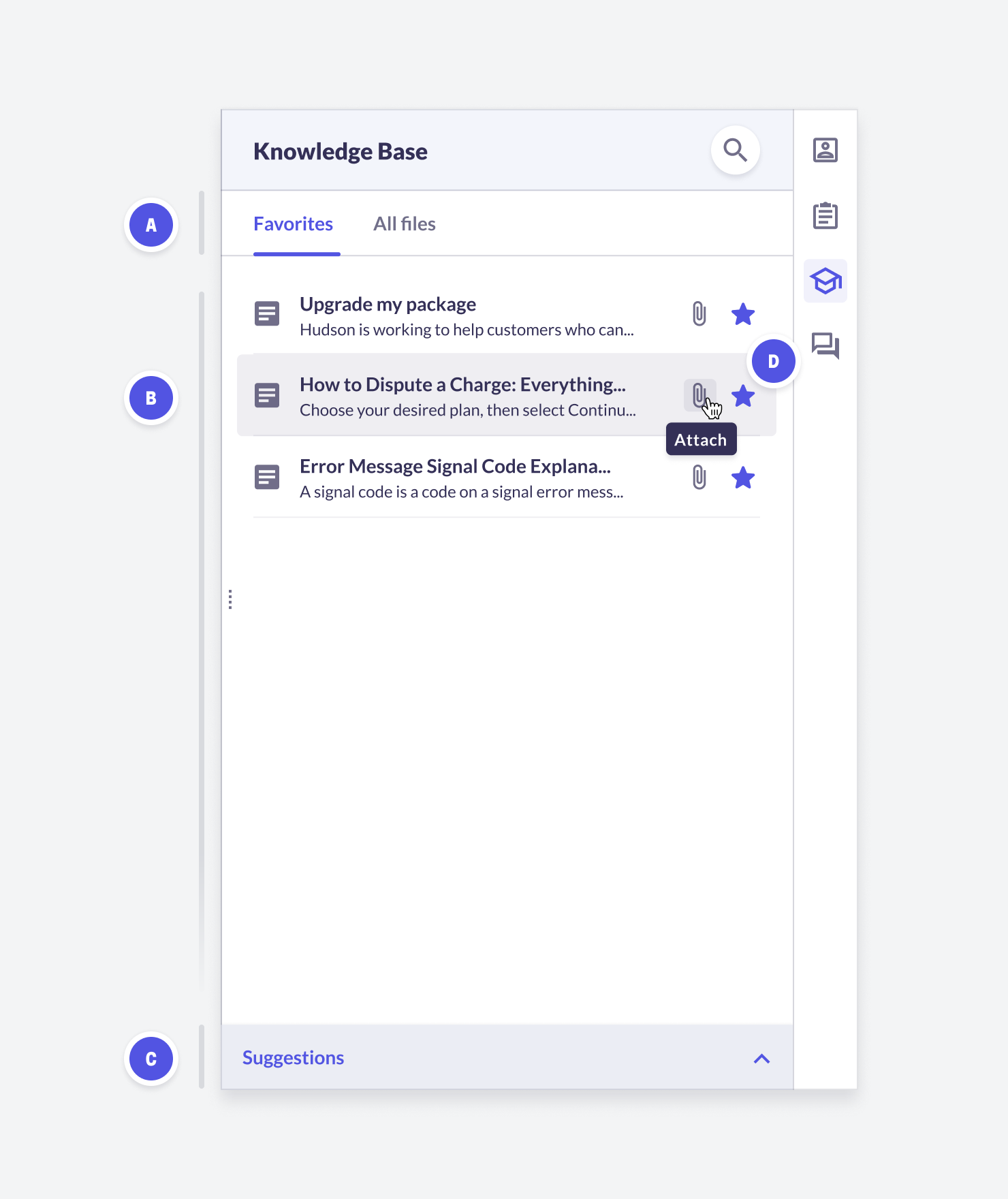
Knowledge Base
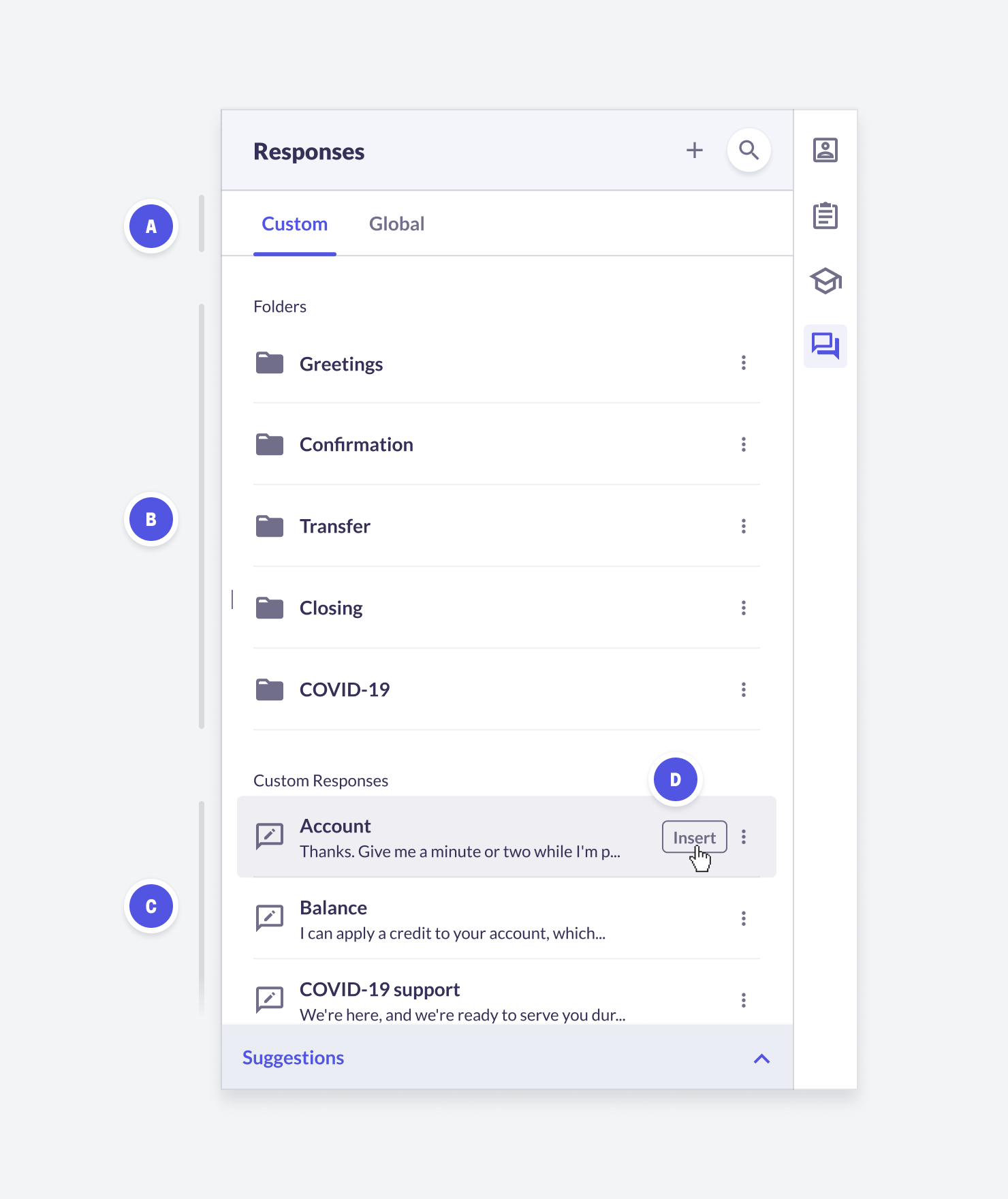
Responses
Feature | Feature Overview | Configurability |
Custom Responses (A) | Agents can create, edit, search, and view custom responses in Agent Desk. Agent Desk uses these custom responses in Auto Suggest. Click + to create new custom responses. To edit, hover over a response and select Edit. Click the Search icon to search custom responses. If an agent sends something that isn’t in their custom library or the global whitelist, ASAPP recommends it back to them from a growing list of their favorites. | Core |
Global Responses (A) | Agents can search, view, and click-to-insert responses from the global whitelist. Click the Search icon to search the global responses. | Core |
Navigate Folders (B) | In both the custom and global response libraries, agents can navigate into and out of folders. | Core |
Uncategorized Custom Responses (C) | Single custom responses that you add but do not categorize into a specific folder display here. | Core |
Click-to-Insert (D) | In both the custom and global response libraries, agents can hover over a response and click Insert to insert the full text of the selected response into the typing field. | Core |
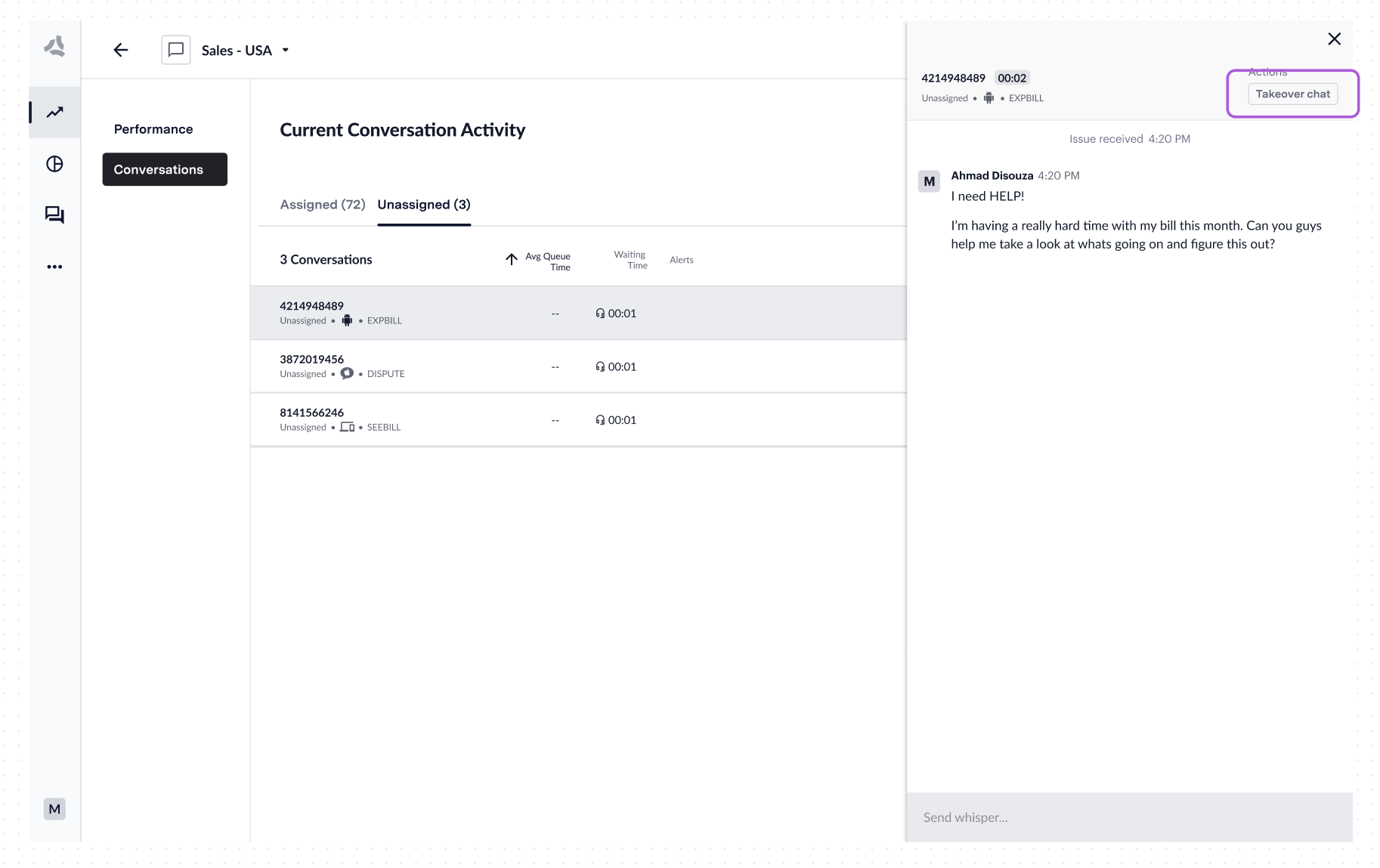
Chat Takeover | Managers can takeover an agent’s chat. | Core |
Receive attachments | End customers can send pdf attachments to agents in order to provide more information about their case. | Core |
Chat Takeover
Administrators (managers or supervisors) can take over chats from agents or unassigned chats in the queue. This feature is useful for:- Closing resolved chats that need disposition
- Handling complex or convoluted conversations
- Managing queue traffic during high-volume periods
- Navigate to the conversation in Live Insights
- Open the transcript area
- Click the Takeover button in the upper left-hand corner
- Confirm the takeover action
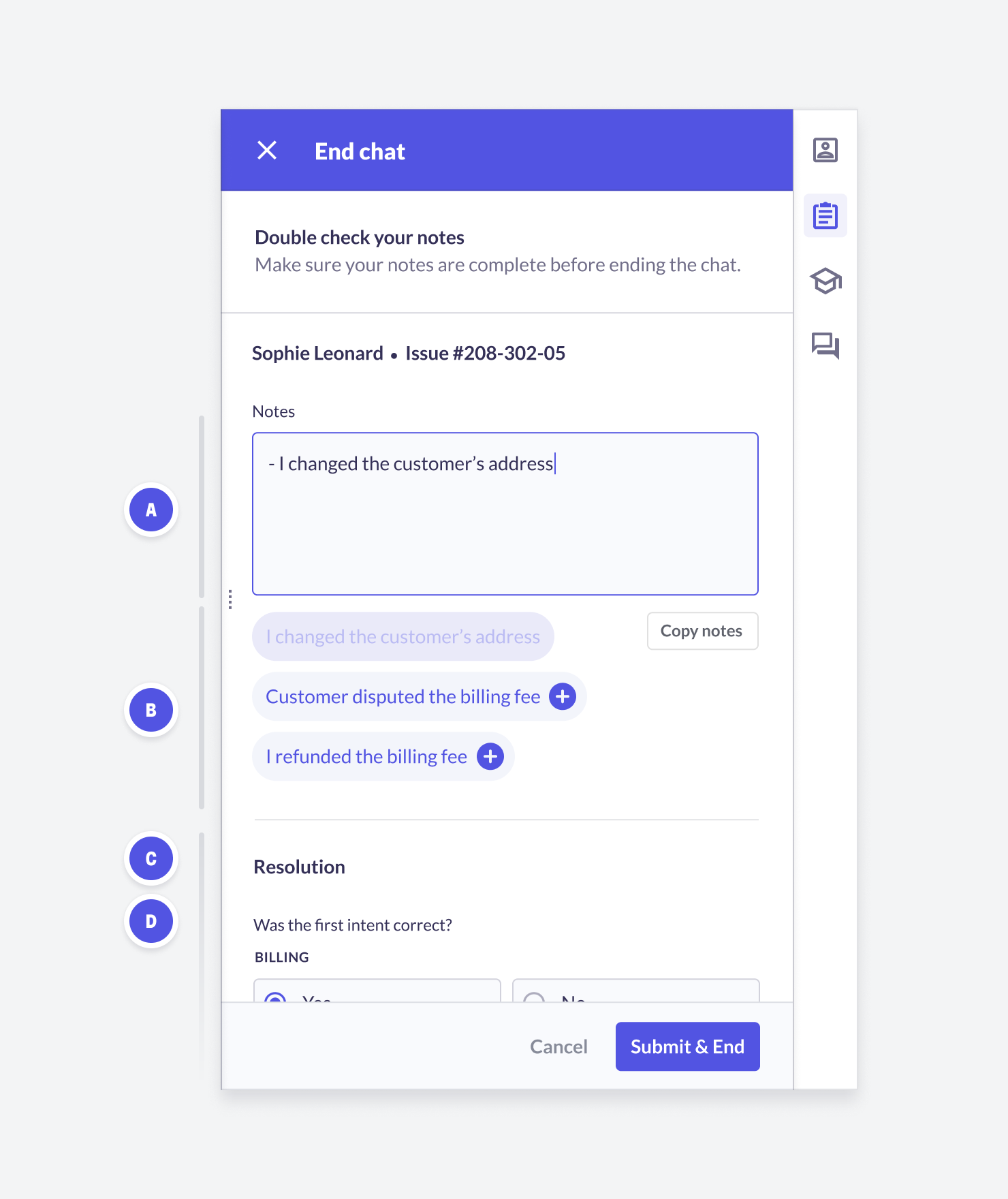
Wrap-Up
Receiving Attachments
Agents can ask for and receive PDF and image attachments from end customers. This feature is particularly useful for scenarios like fraud cases where agents need proof of transactions. When a customer sends an attachment, the agent will receive a notification in the chat.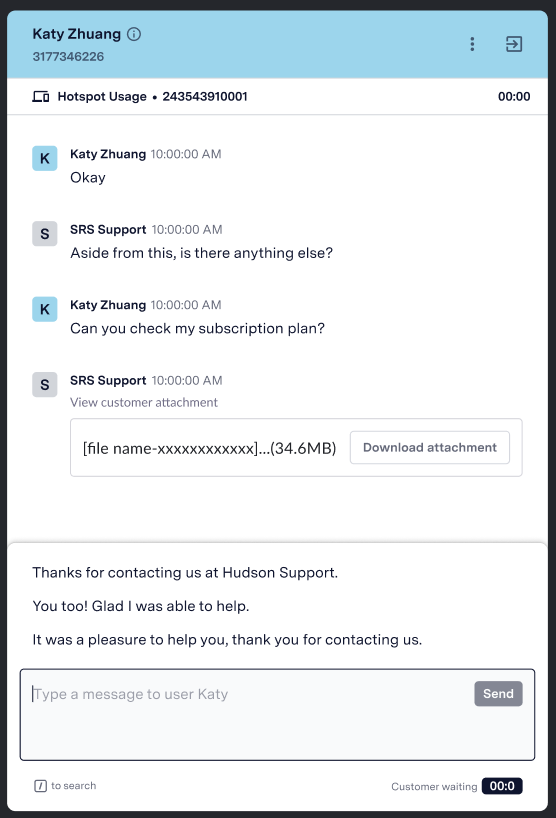
Supported File Types
Supported File Types
- JPEG
- JPG
- PNG
File Size Limits
File Size Limits
Current Support
Current Support
Undelivered Messages
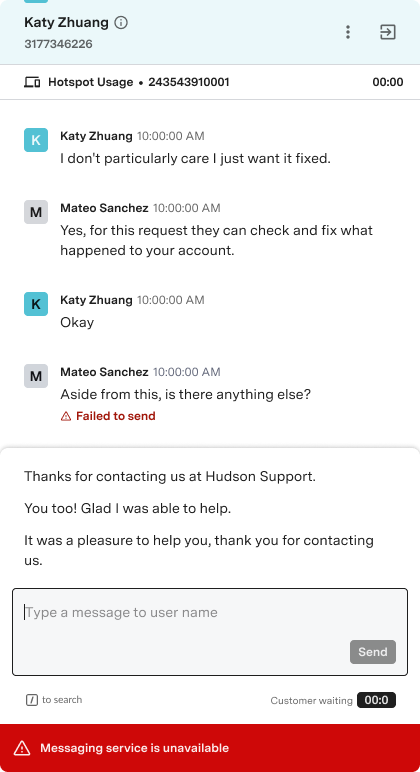
If the live agent fails to send a message to the customer, the agent will see an undelivered message indicator near the transcript. Message delivery issues impact customer experience, agent efficiency, and operational clarity. With this feature:- Agents gain clarity into whether a customer actually received the message they sent, reducing unnecessary repetition.
- Admins and supervisors gain visibility into reliability issues that previously went undetected, enabling quicker diagnosis and resolution.
- Quality Assurance and Compliance teams benefit from transcripts that accurately reflect what the customer saw.
- CSMs and Delivery teams gain insights to help customers troubleshoot delivery issues and validate expected outcomes.
- When a message fails to deliver to a customer, the transcript displays a “Failed to send” indicator directly below the undelivered message.
- The indicator shows that message delivery failed and displays an additional banner stating “Messaging service is unavailable”.
- Agents immediately see this status when viewing the transcript during customer interactions.
- Admins and supervisors see the same delivery failure status in conversation history and can use this information for quality assurance and review.
- The feature automatically applies to all customers without requiring any action from end users.