

- Define specific scenarios where human intervention is required.
- Ensure that complex or sensitive issues are handled appropriately.
- Improve customer satisfaction by providing a human touch when needed.
- Create a function
- Define input parameters
- Configure “Message before sending” (optional)
- Set variables (Optional)
- Save the function
- Use the function in a task
- Handle the HILA ticket in a conversation
Step 1: Create a New Function
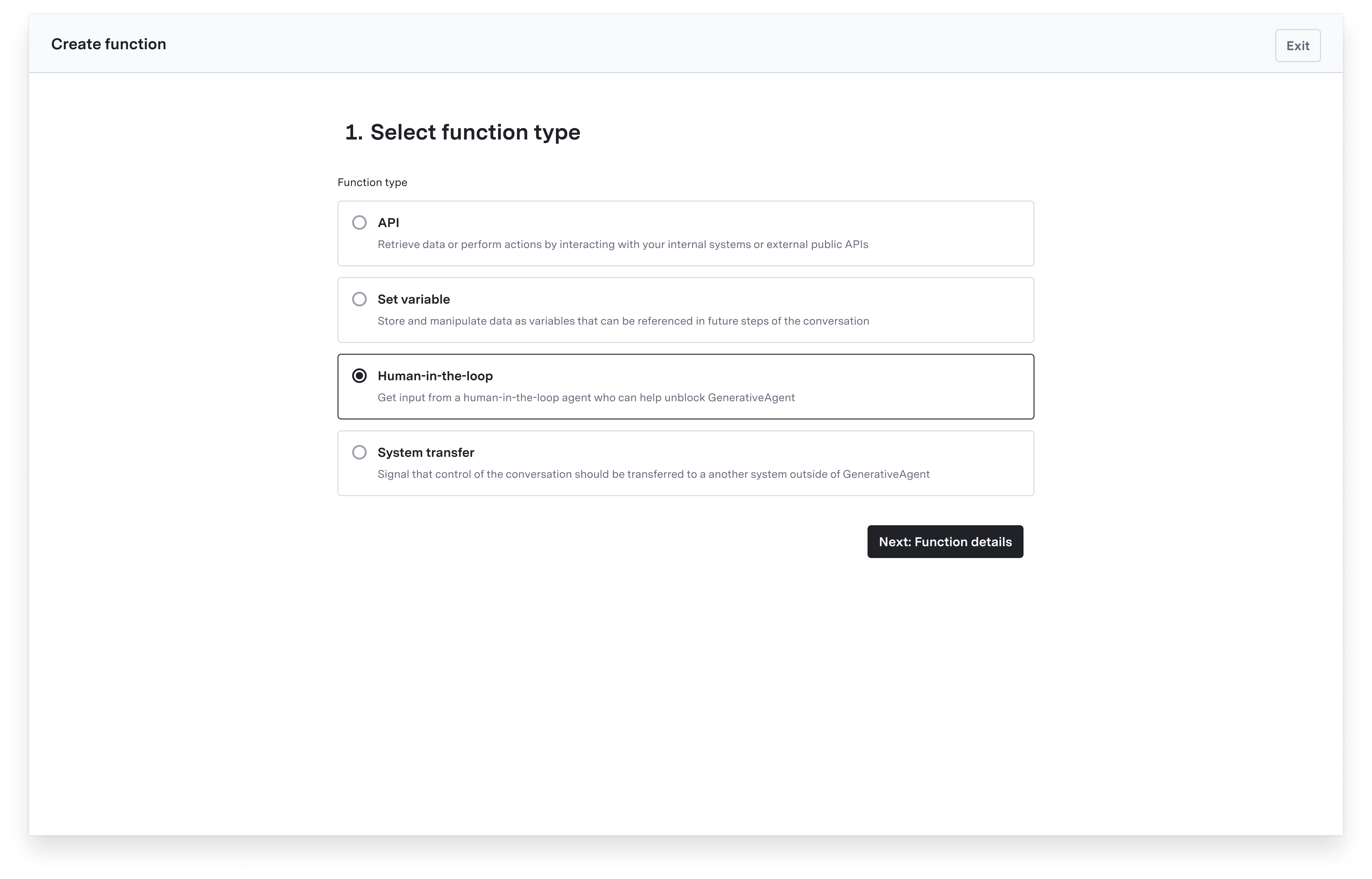
Navigate to the Functions page and click “Create Function.”- Select “Human-in-the-loop agent” and click “Next: Function details”
- Specify the Name and Purpose of the Function
- Function Name: Provide a concise, unique name, using underscores (e.g.,
get_refund_approval). - Function Purpose: Briefly describe what the function does (e.g., “Sends a message to the human agent to get approval for a refund request”).
- Generative Agent uses this description to determine if/when it should call the function.
- Function Name: Provide a concise, unique name, using underscores (e.g.,
Step 2: Define Input Parameters (JSON)
The input parameters are the values that GenerativeAgent needs to pass when calling this function to create a HILA ticket for the human agent. Under “Input Parameters,” enter a valid JSON schema describing the required parameters. GenerativeAgent gathers the necessary information (from user messages or prior context) before calling the function.Example Input Schema
Step 3: Message before sending
You can also configure a message that will be sent to the human agent when the HILA function is called. This message can provide context about the issue and any relevant information that the human agent may need to assist the customer effectively. This is optional, but it can help ensure that the human agent has all the necessary information to provide a timely and accurate response to the customer.
Step 4: Set Variables
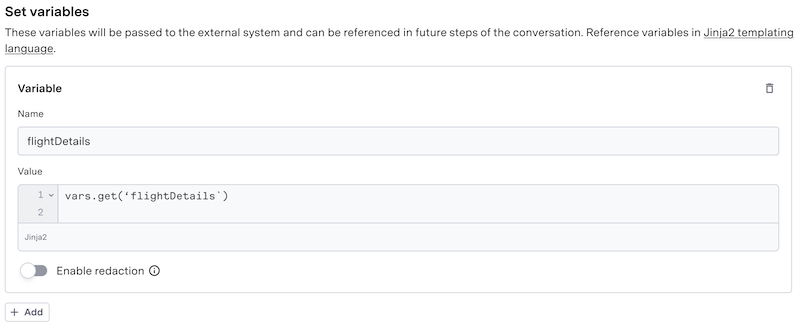
You can optionally configure one or more reference variables:- Configure variables to rename or transform parameter values
- Use Jinja2 for transformations if needed
- Toggle “Include return variable as part of function response” to make variables immediately available
Step 5: Save Your Function
With your function defined, save it by clicking “Create Function”. After saving, you’ll see a detail page showing the JSON schema and any configured reference variables.Step 6: Using the HILA function in a task
To use the HILA function, add it to the list of available functions in a task. When GenerativeAgent determines that human intervention is needed based on the task configuration and conversation context, it will call the HILA function to create a ticket for the human agent. Here’s how the HILA function works within a task and conversation flow:- GenerativeAgent analyzes the user’s request and determines if it needs human intervention.
- (Optional) The system sends a “Message before Sending” to the human agent
- GenerativeAgent calls the HILA function with the appropriate parameters to create a ticket for the human agent.
Example scenario using a HILA function
Example scenario using a HILA function
Step 7: Handle the HILA ticket in a conversation
When the Human agent responds to the HILA ticket, GenerativeAgent will receive the response and continue the conversation with the customer based on the human agent’s input. The human agent’s response can include instructions, approvals, or any other relevant information needed to assist the customer effectively. The response will be stored in the response parameter of the HILA function:question: The original question or instruction sent to the human agent.agentResponse: The response provided by the human agent after reviewing the ticket.
Next Steps
Task Best Practices
Learn more about best practices for task and function configuration.
Set Variable Functions
Learn how to store and manipulate conversation data with Set Variable Functions.
Human in the Loop Agent
Learn how to set up a Human-in-the-Loop system to seamlessly involve human agents in conversations when needed.
Previewer
Test your HILA functions in real-time with the Previewer tool.