

Before you begin
Make sure you have:- Followed the Set up your account guide to get access to the ASAPP AI Console
- A customer intent in mind that you want GenerativeAgent to handle (e.g., a common FAQ like “What is your return policy?” or “How do I reset my password?”)
Step 1: Ingest a Source
A Source is a piece of knowledge that you want GenerativeAgent to use in conversations. It can be a FAQ document, a product manual, or any other content relevant to your customers’ questions. To ingest a Source:- Navigate to GenerativeAgent > Knowledge > Sources in CXP.
- Click + Source and Select Import from URL.
- Define the Source by filling in the following fields:
- Name: A clear name for the Source (e.g., “Return policy document”)
- URL: The web address where the content is located. GenerativeAgent will crawl this page and extract relevant information to answer customer questions.
- Automatic Update: Check if you want GenerativeAgent to automatically check for updates to the content at the specified URL and refresh the information it uses to answer questions.
- Click Save to ingest the Source.
Step 2: Review your Topics
A Topic is a KB article. It is the knowledge unit GenerativeAgent draws on to answer questions and determine next steps. Each Topic has a name, sample questions, and content.- Navigate to GenerativeAgent > Knowledge in the CXP
- Select a Topic that was automatically created from your ingested Source.
-
Review the Topic. It should have:
- Title: A clear name for the intent (e.g., “Return policy”)
- Content: The answer GenerativeAgent should give when this intent is recognized. Keep it under 500 tokens.
- Query examples: 5-10 phrases a caller might use. These drive semantic retrieval accuracy.
- Optional references: a Task or Handoff this article can point to. When relevant, GenerativeAgent uses these to automate a workflow or route to a human agent. Full setup is covered in Build a GenerativeAgent.
Example: Return policy topic
Title: Return policyContent: Our return policy allows returns within 30 days of purchase with a valid receipt. Items must be in original condition. Refunds are processed to the original payment method within 5-7 business days.Query examples:- What is your return policy?
- How do I return an item?
- Can I get a refund?
- How long do I have to return something?
- I need to make a return
- Click Save to make updates to the Topic available in the Draft environment.
Step 3: Test in the Previewer
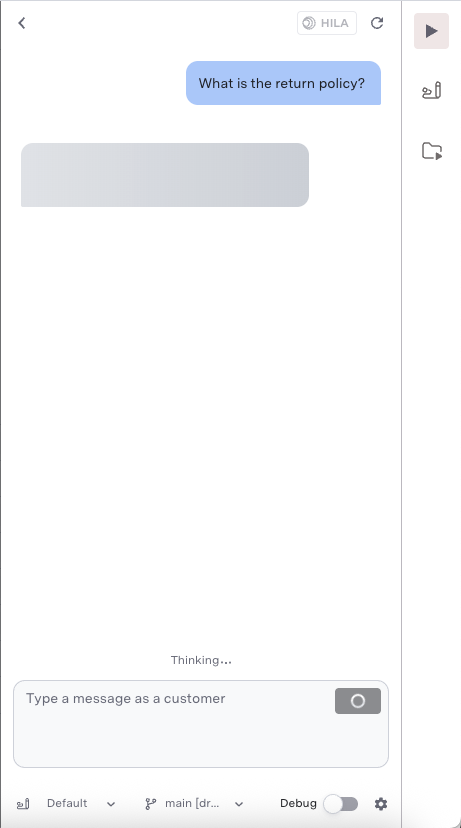
Test your Topic using the Previewer:- Navigate to CXP > Previewer
- Select Draft environment from the dropdown and choose the appropriate channel (Chat or Voice)
- Type a question that matches your Topic (e.g., “What is your return policy?”)
- Observe GenerativeAgent recognizing the intent and responding with your Topic’s content
- Review the message actions taken by GenerativeAgent (e.g., if it answered the query or triggered a Task or Handoff) to verify the Topic was matched correctly
What’s Next
Build a GenerativeAgent
Add Handoffs to route callers to human agents, layer in Tasks for automation, and more.
Handoff Configuration
Route conversations to human agent queues with availability-aware Handoffs.