

- Create custom
structured data fieldsto expand the types of data you can extract. - Create
segmentsto customize which sets of structured data the system extracts for a defined type of conversation.
Before you Begin
Before you start integrating to Custom Structured Data Fields and Segments, you need to:- Get your API Key Id and Secret
- Ensure your API key has been configured to access AI Summary Configuration APIs. Reach out to your ASAPP team if you are unsure.
Custom Structured Data Fields
Each structured data you extract is defined by astructured-data-field. ASAPP sets up an initial set of structured data fields for you, but you can also query and create custom structured data fields yourself.
To create a custom structured data field, you need to create a new structured-data-field object with the following fields:
id: Your unique identifier for the structured data field. Must begin withq_ore_.name: The name of the structured data field.categoryId: The category of the structured data field. Must be either OUTCOME or CUSTOM.type: The type of the structured data field. Must be either QUESTION or ENTITY.question: The question that the system will answer using the context of the conversation.active: Whether the structured data field is active.
200 status code and the newly created structured-data-field object in the response body.
The system will not extract an inactive structured data field from conversations.
Segments
Segments configure which sets of structured data fields the system extracts for a defined type of conversation. Segments are defined by two parts:- A query that matches against the conversation metadata and intent.
- A list of structured data field ids that the segment includes.
- Checks the conversation against the queries of all segments
- For each matching query:
- Extracts the structured data fields that the segment defines
- If multiple segments match:
- Combines and extracts all structured data fields from all matching segments
By default, there is a GLOBAL segment that represents the initially configured structured data fields with a query that matches TRUE on any conversation.
Create a new segment
You can create a new segment either by using API or the Segments UI. The process is similar for both, but the API allows for an easier way to create and manage segments.- Segments UI
- Using API
To create a new segment through the UI: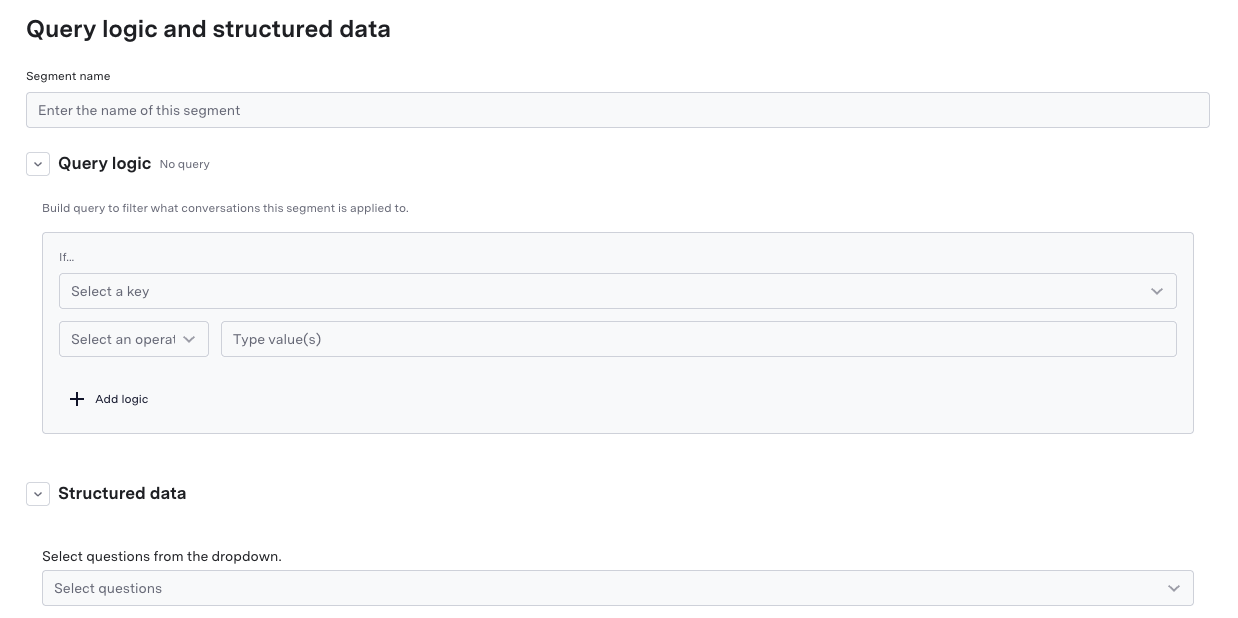
- Go to the AI Summary page in the AI console and click on the “Segments” tab.
- Click on the “Create Segment” button.
- Fill in the segment details:
- Segment name: Your name for the segment.
- Query Logic: The query logic that defines which conversations are included in the segment.
- Structured Data: Select the structured data fields that you want to include in the segment.
- Click “Save” to create the segment.
Query
The segment’s query defines rules for when the system should apply a segment to a conversation. We currently only support a query type ofraw that uses a SQL-like syntax with a focused set of operators for clear and precise matching.
The query language supports these key elements:
Logical Operators
AND,OR,NOT- Combine conditions- Parentheses
()for grouping and precedence
- Equality:
field = 'value' - List membership:
field IN ['value1', 'value2']
Available Fields
The data you can query against is the conversation metadata that you upload as part of metadata ingestion. Specifically, you can query against the following fields: Conversation Metadata
Conversation Intent
Query Examples
Here are some examples of how queries can be constructed for different types of conversations. Note that the field values used in these examples are arbitrary and for illustration purposes only. You will need to construct queries using your actual metadata fields and values based on your business needs.Match conversations for mobile products AND the iOS platform
Match conversations for mobile products AND the iOS platform
Match conversations for up-sell and cross-sell opportunities
Match conversations for up-sell and cross-sell opportunities
Match high-priority complaints
Match high-priority complaints
Match billing conversations for wireless and broadband services
Match billing conversations for wireless and broadband services