

- Websocket Connection: Establish a persistent connection between your voice system and the GenerativeAgent server.
- API Streaming: All audio streaming, call signaling, and returned transcripts use a WebSocket API, preceded by an authentication mechanism using a REST API
- Real-time Data Exchange: Messages are exchanged in real time, ensuring quick responses and efficient handling of user queries.
- Bi-directional Communication: Websockets facilitate bi-directional communication, making the interaction smooth and responsive.
Implementation Steps
- Step 1: Authenticate with ASAPP
- Step 2: Open a Connection
- Step 3: Start an Audio Stream
- Step 4: Send the Audio Stream
- Step 5: Receive the Free-Text Transcriptions from AI Transcribe
- Step 6: Stop the Audio Stream
How it works
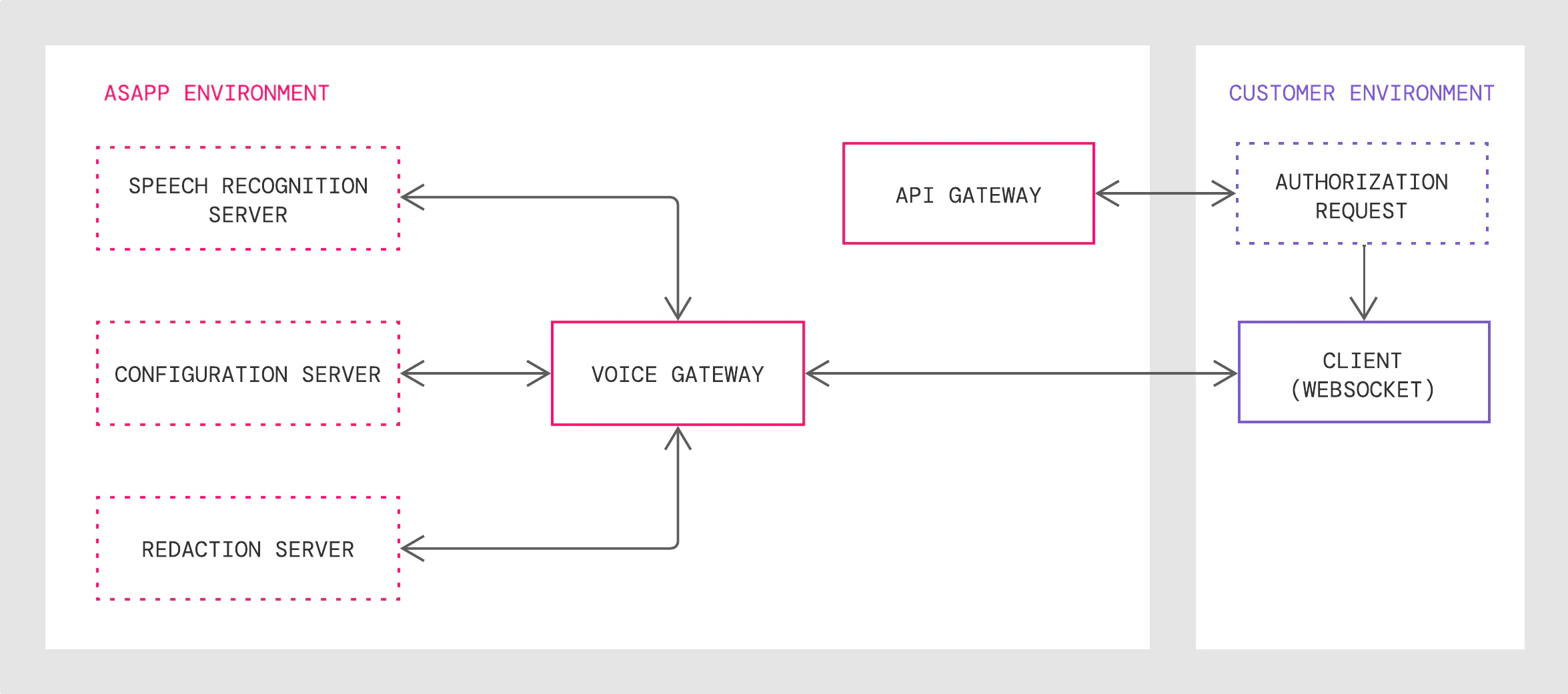
- The API Gateway authenticates customer requests and returns a WebSocket URL, which points to the Voice Gateway with secure protocol.
- The Voice Gateway validates the client connection request, translates public WebSocket API calls to internal protocols and sends live audio streams to the Speech Recognition Server
- The Redaction Server redacts the transcribed texts with given customizable redaction rules if you request redaction.
- AI Transcribe receives the texts, analyzes them, and sends back a reply
Integration Steps
Here’s a high level overview of how to work with AI Transcribe:- Authenticate with ASAPP to gain access to the AI Transcribe API.
- Establish a WebSocket connection with the ASAPP Voice Gateway.
- Send a
startStreammessage with appropriate feature parameters specified. - Once the request is accepted by the ASAPP Voice Gateway, stream audio as binary data.
- The ASAPP voice server will return transcripts in multiple messages.
- Once the audio streaming is completed, send a
finishStreamto indicate to the Voice server that there is no more audio to send for this stream request. - Upon completion of all audio processing, the server sends a
finalResponsewhich contains a summary of the stream request.
Requirements
Audio Stream Format In order to be transcribed properly, audio sent to ASAPP AI Transcribe must be in mono or single-channel for each speaker. You send audio as binary format through the WebSocket; you should provide the audio encoding (sample rate and encoding format) in thestartStream message.
For real-time live streaming, ASAPP recommends that you stream audio chunk-by-chunk in a real-time streaming format, by sending every 20ms or 100ms of audio as one binary message and sending the next chunk after a 20ms or 100ms interval.
If the chunk is too small, it will require more audio binary messages and more downstream message handling; if the chunk is too big, it increases buffering pressure and slows down the server responsiveness.
Exceptionally large chunks may result in WebSocket transport errors such as timeouts.
When supplying recorded audio to ASAPP for AI Transcribe model training prior to implementation, send uncompressed
.WAV media files with speaker-separated channels.Recordings for training and real-time streams should have both the same sample rate (8000 samples/sec) and audio encoding (16-bit PCM).See the Customization section of the AI Transcribe Product Guide for more on data requirements for transcription model training.Step 1 : Authenticate with ASAPP and Obtain an Access URL
All requests to ASAPP sandbox and production APIs must use
HTTPS protocol. Traffic using HTTP will not be redirected to HTTPS.asapp-api-idandasapp-api-secretare required header parameters, both of which ASAPP will provide to you.- We recommend that you send a unique conversation ID in the request body as
externalId. ASAPP refers to this identifier from the client’s system in real-time streaming use cases to redact utterances using context from other utterances in the same conversation (e.g., reference to a credit card in an utterance from 20s earlier). It is the client’s responsibility to ensureexternalIdis unique.
POST /autotranscribe/v1/streaming-url
Headers (required)
Step 2: Open a Connection
Before sending any message, create a WebSocket connection with the access URL obtained from previous step:wss://<internal-voice-gateway-ingress>?token=<short_lived_access_token>
The system will establish a WebSocket connection if it validates the short_lived_access_token. Otherwise, the system will reject the requested connection.
Step 3: Start an Audio Stream
AI Transcribe uses the following message sequence for streaming audio, sending transcripts, and ending streaming:WebSocket protocol request messages in the sequence must be formatted as text (UTF-8 encoded string data); only the audio stream should be formatted in binary. All response messages will also be formatted as text.
Send startStream message
Once you establish the connection, send astartStream message with information about the speaker including their role (customer, agent) and their unique identifier (externalId) from your system before sending any audio packets.
startStream message to adjust default transcription settings.
For example, the default language transcription setting is en-US if not denoted in the startStream message. To set the language to Spanish, the language field should be set with value es-US. Once set, AI Transcribe will expect a Spanish conversation in the audio stream and return transcribed message text in Spanish.
Receive startResponse message
For anystartStream message, the server will respond with a startResponse if the request is granted:
streamID is a unique identifier that the ASAPP server assigns to the connection.
The status code and description may contain additional useful information.
If there is an application status code error with the request, the ASAPP server sends a finalResponse message with an error description, and the server then closes the connection.
Step 4: Send the audio stream
You can start to stream audio as soon as you send thestartStream message without the need to wait for the startResponse. However, the system could reject a request either due to an invalid startStream or internal server errors. If that is the case, the server notifies with a finalResponse message, and the server will drop any streamed audio packets.
Audio must be sent as binary data of WebSocket protocol:
ws.send(<binary_blob>)
The server does not acknowledge receiving individual audio packets. The summary in the finalResponse message can be used to verify if any audio packet was not received by the server.
If audio can be transcribed, the server sends back transcript messages asynchronously.
For real-time live streaming, we recommend that audio streams are sent chunk-by-chunk, sending every 20ms or 100ms of audio as one binary message. Exceptionally large chunks may result in WebSocket transport errors such as timeouts.
Receive transcript messages
The server sends back thetranscript message, which contains one complete utterance.
Example of a transcript message:
Step 5: Receive Transcriptions from AI Transcribe
Now you must callGET /messages to receive all the transcript messages for a completed call.
Conversation transcripts are available for seven days after they are completed.
Step 6: Stop the Streaming Audio Message
Send finishStream message
When you complete the audio stream, send afinishStream message. The service will drop any audio message sent after finishStream.
finishStream will be dropped, the service will send a finalResponse with error code 4056 (Wrong message order) and the connection will close.
Receive finalResponse message
The server sends afinalResponse at the end of the streaming session and closes the connection, after which it will stop processing incoming messages for the stream. It is safe to close the WebSocket connection when you receive the finalResponse message.
The server will end a given stream session if any of following are true:
- Server receives
finishStreamand has processed all audio received - Server detects connection idle timeout (at 60 seconds)
- Server internal errors occur (unable to recover)
- Request message is invalid (note: if the access token is invalid, the WebSocket will close with a WebSocket error code)
- A critical requested feature is not supported, for example, redaction
- Service maintenance
- Streaming duration over limit (default is 3 hours)
finalResponse message.
The finalResponsemessage has a summary of the stream along with the status code, which you can use to verify if there are any missing audio packets or transcript messages:
Fields & Parameters
StartStream Request Fields
Transcript Message Response Fields
If the
detailedToken in startStream request is set to true, additional fields are provided within the utterance array for each token:
Custom Vocabulary
The ASAPP speech server can boost specific word accuracy if you provide a target list of vocabulary words before recognition starts, using anupdateVocabulary message.
You can send the updateVocabulary service multiple times during a session. Vocabulary is additive, which means the system appends the new vocabulary words to the previous ones. If you send vocabulary in between sent audio packets, it will take effect only after the end of the current utterance being processed.
All updateVocabulary changes are valid only for the current WebSocket session.
The following fields are part of a updateVocabulary message:
Example request and response:
Request
Application Status Codes
Retrieving Transcript Data
In addition to real-time transcription messages via WebSocket, AI Transcribe also can output transcripts through two other mechanisms:- After-call: GET endpoint responds to your requests for a designated call with the full set of utterances from that completed conversation
- Batch: File Exporter service responds to your request for a designated time interval with a link to a data feed file that includes all utterances from that interval’s conversations
After-Call via GET Request
GET /conversation/v1/conversation/messages
Use this endpoint to retrieve all the transcript messages for a completed call.
When to Call
Once the conversation is complete. Conversation transcripts are available for seven days after they are completed.
For conversations that include transfers, the endpoint will provide transcript messages for all call legs that correspond to the call’s identifier.
Batch via File Exporter
AI Transcribe makes full transcripts for batches of calls available using the File Exporter service’sutterances data feed.
You can use the File Exporter service as a batch mechanism for exporting data to your data warehouse, either on a scheduled basis (e.g., nightly, weekly) or for ad hoc analyses. Data that populates feeds for the File Exporter service updates once daily at 2:00AM UTC.
Visit Retrieving Data for AI Services for a guide on how to interact with the File Exporter service.