

- Legal disclaimers
- Specific instructions
- Product names or technical terms that should not be altered
- Any content that requires verbatim repetition
- Create a function
- Specify the name and purpose
- Define input parameters (optional)
- Configure the message to recite
- Use the function in a task
Step 1: Create a New Function
Navigate to the Functions page and click “Create Function.” Select “Recite Message” and click “Next: Function details”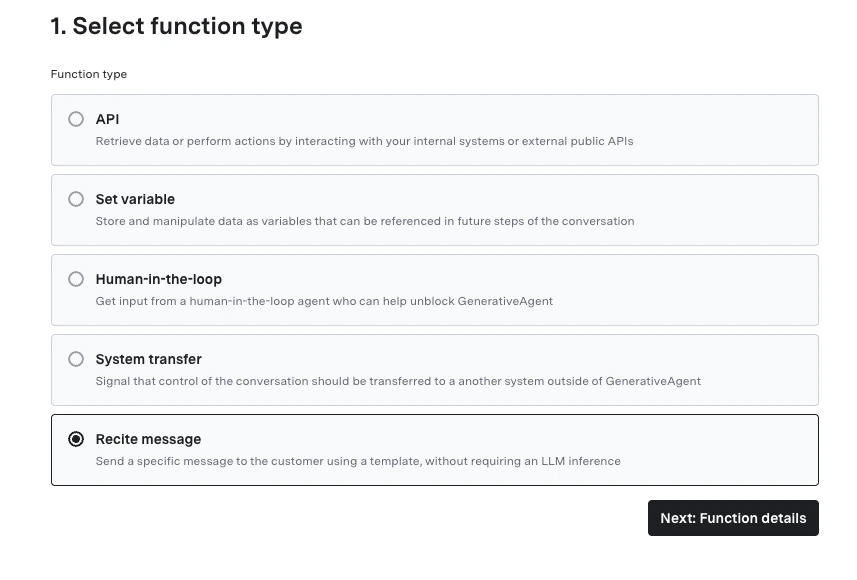
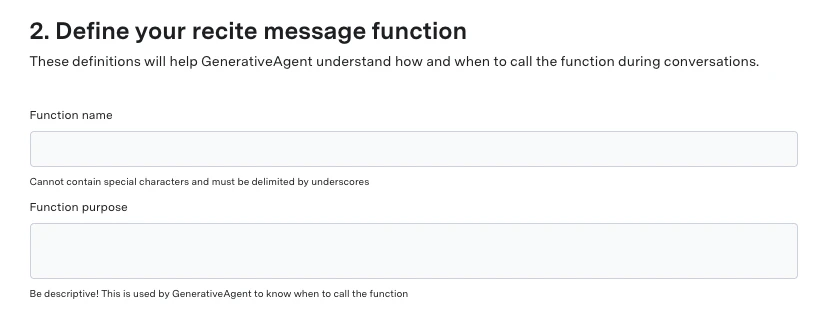
Step 2: Specify the Name and Purpose of the Function
- Function Name: Provide a concise, unique name, using underscores (e.g.,
recite_privacy_policy). - Function Purpose: Briefly describe what the function does (e.g., “Recites the privacy policy statement verbatim when called”).
- GenerativeAgent uses this description to determine if/when it should call the function.
Step 3: Configure Optional Input Parameters
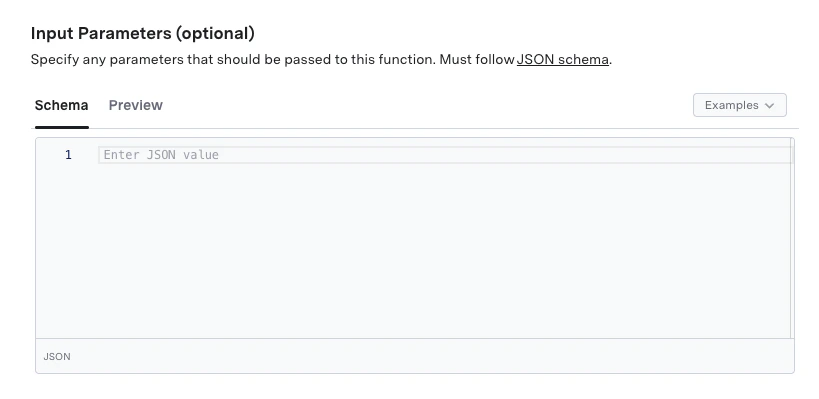
If you want to pass any parameters to the function for dynamic content insertion, you can define them in the Input Parameters section. For example, you could define anadditional_disclaimer parameter to include extra information in the recited message.
Step 4: Configure the Message to Recite
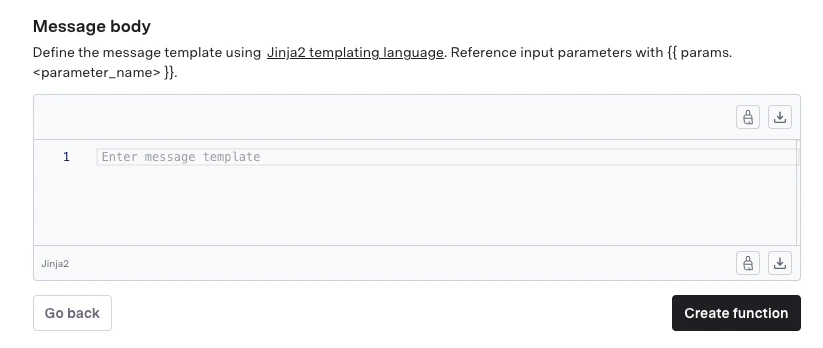
In the Message Body configuration, you have to provide the message template in jinja2 format that you want GenerativeAgent to recite verbatim. For example, if you want GenerativeAgent to recite a cancellation confirmation message with specific details, you could set the message body as follows:{{ params.<parameter_name> }}.
For example, if you defined an additional_disclaimer parameter, you could include it in the message body like this:
Step 5: Use the Function in a Task
After creating your Recite Message function, you must add the function to the task’s list of available functions for GenerativeAgent to use it. GenerativeAgent will call the function when it determines that the specific phrase or information needs to be recited verbatim during a conversation. Here’s how the function works within a task and conversation flow:- GenerativeAgent analyzes the user’s request and determines if it needs to recite a specific message verbatim.
- If the function requires input parameters, GenerativeAgent gathers the necessary information.
- GenerativeAgent calls the Recite Message function with the appropriate parameters (if any).
- The function returns the exact message as configured, which GenerativeAgent then delivers to the customer without any modifications or paraphrasing.
Next Steps
API Functions
Learn how to create functions that connect to your APIs for data retrieval and actions.
System Transfer Functions
Learn how to create functions that transfer control to other systems or human agents.
HILA Functions
Learn how to create functions that use ASAPP’s HILA technology for advanced reasoning and logic.
Set Variable Functions
Learn how to create functions that set conversation variables for context and conditional logic.